







Question: i need help with Question 5 Enter formulas based on the following using the defined names i created in Step 3 to calculate the Rental
i need help with Question 5 Enter formulas based on the following using the defined names i created in Step 3 to calculate the Rental Bill:
please look at the 3 photos i attached to my question i will need step by step explanation plus answer thanks.
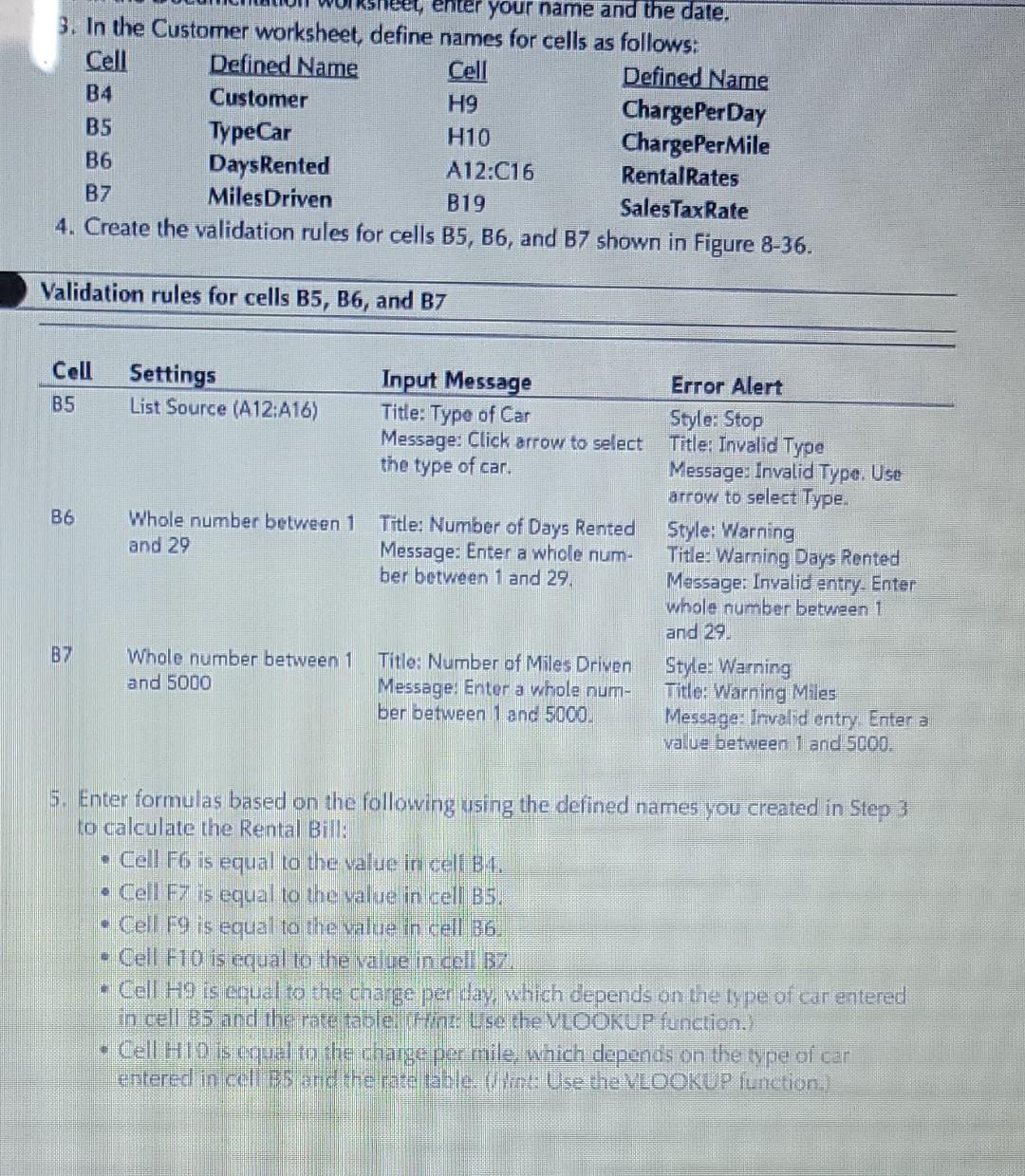
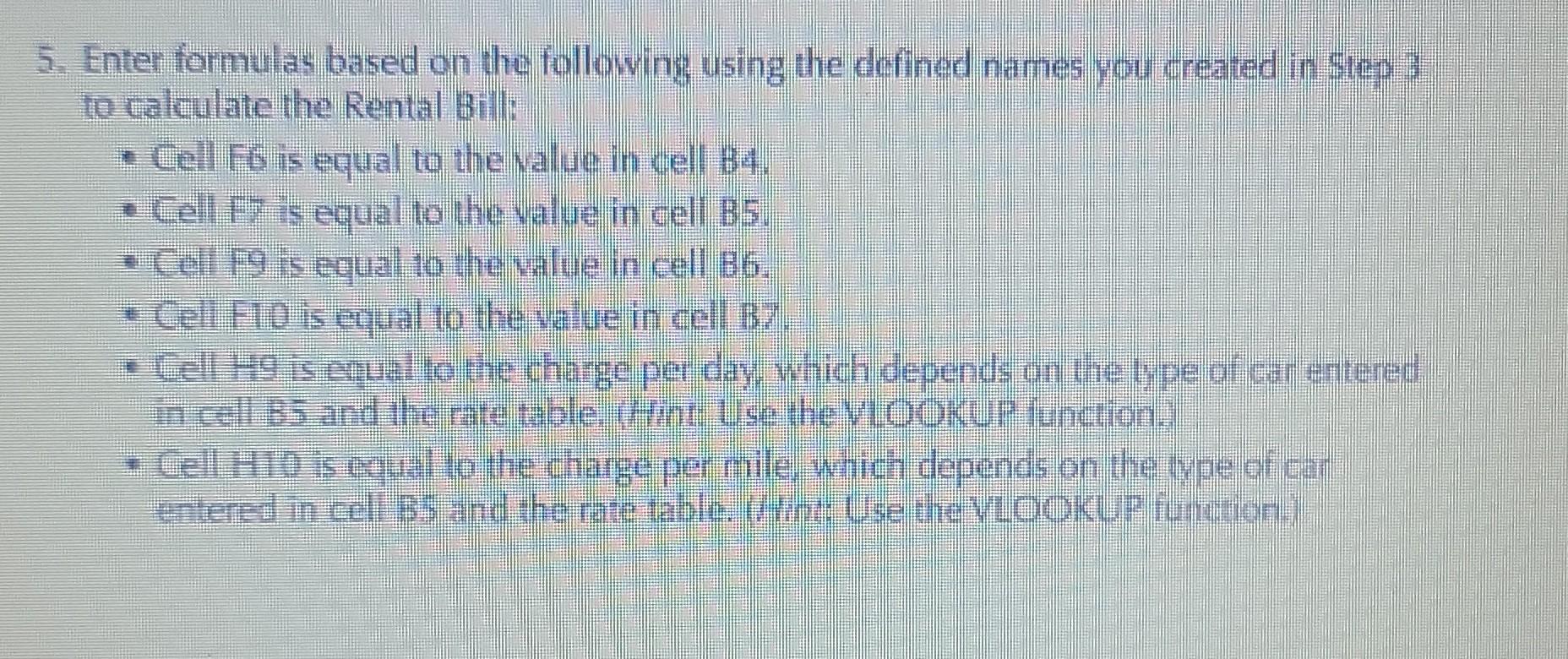
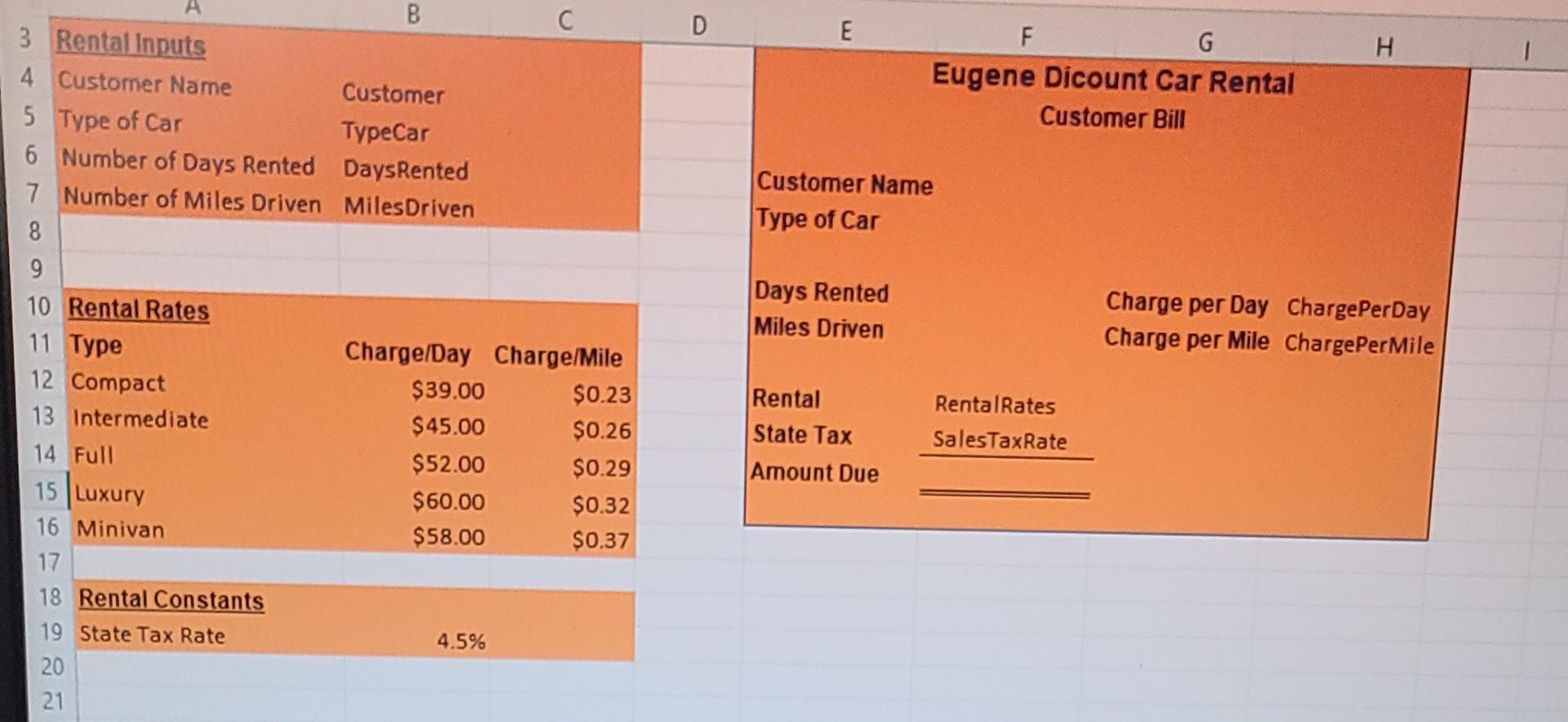
ter your name and the date. 3. In the Customer worksheet define names for cells as follows: Cell Defined Name Cell Defined Name B4 Customer H9 ChargePer Day B5 TypeCar H10 ChargePer Mile B6 DaysRented A12:C16 Rental Rates B7 Miles Driven B19 Sales TaxRate 4. Create the validation rules for cells B5, B6, and B7 shown in Figure 8-36. Validation rules for cells B5, B6, and B7 Cell B5 Settings List Source (A12:416) B6 Whole number between 1 and 29 Input Message Error Alert Title: Type of Car Style: Stop Message: Click arrow to select Title: Invalid Type the type of car. Message: Invalid Type. Use arrow to select Type: Title: Number of Days Rented Style: Warning Message: Enter a whole num- Title: Warning Days Rented ber between 1 and 29, Message: Invalid entry. Enter whole number between 1 and 29. Title: Number of Miles Driven Style: Warning Message: Enter a whole num- Title: Warning Miles ber between 1 and 5000. Message: Invalid entry. Enter a value between 1 and 5000. B7 Whole number between 1 and 5000 5. Enter formulas based on the following using the defined names you created in Step 3 to calculate the Rental Bill Cell F6 is equal to the value in cell Ba. Cell F7 is equal to the value in cell 05. Cell F9 is equal to the value in cell 36! Cell F10 is equal to the value in cell 37. - Cell H9 is equal to the charge per day, which depends on the type of car entered in cell 05 and the rate table. (Hint use the VLOOKUP function.) - Cell HID is equal to the charge per mile, which depends on the type of car entered in cells and the rate table. Wint: Use the VLOOKUP function., 5. Enter formulas based on the following using the defined names you created in Step 3 to calculate the Rental Bill: Cell F6 is equal to the value in cell B4. Cell F7 is equal to the value in cell B5. Cell F9 is equal to the value in cell B6. Cell FiD is equal to the value in cell B7. Cell H9 is equal to the charge per day, which depends on the type of car entered in Cell B5 and the rate table (tanto use the VLOOKUP function. Cell Hio is equal to the charge per mile, which depends on the type of car entered in all 3S and the rate iable. Hint: Use the V1oQKUP Formation D E H F G Eugene Dicount Car Rental Customer Bill Customer Name Type of Car Days Rented Miles Driven B 3 Rental Inputs 4 Customer Name Customer 5 Type of Car TypeCar 6 Number of Days Rented DaysRented 7 Number of Miles Driven Miles Driven 8 9 10 Rental Rates 11 Type Charge/Day Charge/Mile 12 Compact $39.00 $0.23 13 Intermediate $45.00 $0.26 14 Full $52.00 $0.29 15 Luxury $60.00 $0.32 16 Minivan $58.00 $0.37 17 18 Rental Constants 19 State Tax Rate 4.5% 20 21 Charge per Day ChargePerDay Charge per Mile ChargePer Mile Rental State Tax Amount Due RentalRates Sales Tax Rate ter your name and the date. 3. In the Customer worksheet define names for cells as follows: Cell Defined Name Cell Defined Name B4 Customer H9 ChargePer Day B5 TypeCar H10 ChargePer Mile B6 DaysRented A12:C16 Rental Rates B7 Miles Driven B19 Sales TaxRate 4. Create the validation rules for cells B5, B6, and B7 shown in Figure 8-36. Validation rules for cells B5, B6, and B7 Cell B5 Settings List Source (A12:416) B6 Whole number between 1 and 29 Input Message Error Alert Title: Type of Car Style: Stop Message: Click arrow to select Title: Invalid Type the type of car. Message: Invalid Type. Use arrow to select Type: Title: Number of Days Rented Style: Warning Message: Enter a whole num- Title: Warning Days Rented ber between 1 and 29, Message: Invalid entry. Enter whole number between 1 and 29. Title: Number of Miles Driven Style: Warning Message: Enter a whole num- Title: Warning Miles ber between 1 and 5000. Message: Invalid entry. Enter a value between 1 and 5000. B7 Whole number between 1 and 5000 5. Enter formulas based on the following using the defined names you created in Step 3 to calculate the Rental Bill Cell F6 is equal to the value in cell Ba. Cell F7 is equal to the value in cell 05. Cell F9 is equal to the value in cell 36! Cell F10 is equal to the value in cell 37. - Cell H9 is equal to the charge per day, which depends on the type of car entered in cell 05 and the rate table. (Hint use the VLOOKUP function.) - Cell HID is equal to the charge per mile, which depends on the type of car entered in cells and the rate table. Wint: Use the VLOOKUP function., 5. Enter formulas based on the following using the defined names you created in Step 3 to calculate the Rental Bill: Cell F6 is equal to the value in cell B4. Cell F7 is equal to the value in cell B5. Cell F9 is equal to the value in cell B6. Cell FiD is equal to the value in cell B7. Cell H9 is equal to the charge per day, which depends on the type of car entered in Cell B5 and the rate table (tanto use the VLOOKUP function. Cell Hio is equal to the charge per mile, which depends on the type of car entered in all 3S and the rate iable. Hint: Use the V1oQKUP Formation D E H F G Eugene Dicount Car Rental Customer Bill Customer Name Type of Car Days Rented Miles Driven B 3 Rental Inputs 4 Customer Name Customer 5 Type of Car TypeCar 6 Number of Days Rented DaysRented 7 Number of Miles Driven Miles Driven 8 9 10 Rental Rates 11 Type Charge/Day Charge/Mile 12 Compact $39.00 $0.23 13 Intermediate $45.00 $0.26 14 Full $52.00 $0.29 15 Luxury $60.00 $0.32 16 Minivan $58.00 $0.37 17 18 Rental Constants 19 State Tax Rate 4.5% 20 21 Charge per Day ChargePerDay Charge per Mile ChargePer Mile Rental State Tax Amount Due RentalRates Sales Tax Rate
Step by Step Solution
There are 3 Steps involved in it

Get step-by-step solutions from verified subject matter experts
 Study Help