







Question: I NEED HELP WITH SHELL SCRIPTING. BELOW IS THE ASSIGNMENT. For this assignment, you will use bash to create a simple photo inventory system. Your
I NEED HELP WITH SHELL SCRIPTING. BELOW IS THE ASSIGNMENT.
For this assignment, you will use bash to create a simple photo inventory system. Your system will store basic information about photos and allow the user to create, read, update, and delete these photo items.
The assignment requires only the utilities used so far in the lecture notes. Further, you may not use sed, awk, find, grep, Python, Perl, and any programming language, scripting language, or other tools not otherwise permitted.
Photo information will be stored in text files (ending with the extension .photo).
- Files will be stored in a directory named data, located within the same directory as your shell script.
- Each file will be named starting with the letter p, a unique photo number, an integer (henceforth referred to as photo_num), followed by the extension .photo.
- Every photo file consists of exactly four lines, in the following format:
- photo_file where the actual image is located. Could be an absolute reference starting with '/', or a relative reference starting with '../'.
- photo_date year month day separated by exactly one space. Each will be a number, such as 2021 1 15.
- photo_location where the photo was taken. Just a string for us, likely to contain spaces. Could be something like New York City.
- photo_names zero or more names of people in the photo.
4. The sample file of p15.photo:
/home/zyu589/picts/2004-australia-001.jpg
2004 12 4
Paris, France
Stacie Hana
5. Upon running your script, the user should be presented with the following menu:
Enter one of the following actions or press CTRL-D to exit.
C - create a new photo item
R - read an existing photo item
U - update an existing photo item
D - delete an existing photo item
Q - quit
- The user then enters a corresponding one-character selection (either upper or lowercase entries should be permissible), leading to one of the following actions:
- C or c: Create a new photo file
- From the terminal, prompt for the following fields, one at a time, each on its own line:
- Photo number: such as 23 (must be in the range 1 to 99999). If it already exists, print the error "p
.photo already exists" and ask again. - Photo file location: such as /home/abc123/temp/pic1.jpg. If it does not exist, print an error message and ask again.
- Photo year: such as 2021 (must in the range 1950 to 2050)
- Photo month: such as 1 (must be from 1 to 12)
- Photo day: such as 30 (must be from 1 to 31)
- Photo location: such as Sydney, Australia (required)
- Photo names: such as Nicole Kidman, Hugh Jackman (optional)
- Photo number: such as 23 (must be in the range 1 to 99999). If it already exists, print the error "p
- Validate that the photo number is unique before asking for the photo file. If not, print the error "p
.photo already exists" and return to the main prompt , where is the photo number above. - If the year, month or day is out of range, print an error message like "Month 25 is not in the range 1 to 12" and repeat asking for it, until it is range.
- Create the data directory if it does not exist (* see below).
- Using the values entered by the user, create a new file in the data subdirectory.
- Update data/queries.log by adding a CREATED line.
- From the terminal, prompt for the following fields, one at a time, each on its own line:
- R or r: Read and display an existing photo entry
- Prompt the user for a photo number
- Validate that the photo file exists. If not, print the error "p
.photo does not exist" and return to the main prompt , where is the photo number above. - Print the photo's information in the following format:
- C or c: Create a new photo file
Photo: photo_num
File: photo_file
Date: photo_month / photo_day / photo_year
Location: photo_location
Names: photo names (possibly blank)
- U or u: Update an existing photo entry
- Prompt for the photo number.
- Validate that the photo file exists. If not, print the error "p
.photo does not exist" and return to the main prompt , where is the photo number above. - Prompt for the following values (similar to create)
- Photo year: such as 2021 (must in the range 1950 to 2050)
- Photo month: such as 1 (must be from 1 to 12)
- Photo day: such as 30 (must be from 1 to 31)
- Photo location: such as Sydney, Australia
- Photo names: such as Nicole Kidman, Hugh Jackman
- Using the values entered by the user, search for the specified item in the data subdirectory using the given photo number.
- Do not allow the photo file location to be changed.
- Update each of the corresponding fields based on the users input. If the user input is blank for a particular field (except for the item number), keep the existing value and display the value being used.
- Update data/queries.log by adding an UPDATED line. Show the new values even if the user left it blank.
- D or d: Delete an existing items inventory record
- Prompt the user for a photo number.
- Validate that the photo file exists. If not, print the error "p
.photo does not exist" and return to the main prompt , where is the photo number above. - Update data/queries.log by adding a DELETED line.
- Q or q: Quit the program
- If any other character is entered at the main menu, print the following error message and continue with the script: "ERROR: invalid option: X", where X is the invalid entry.
2. After an action is completed, display the menu again. This should go on indefinitely until they press Q or q or CTRL-D or the end of a file is reached
3. * IMPORTANT. Note that we will run your script in a sandbox environment that will NOT have a directory named data in it already. Even though you probably created this directory manually, your script must make sure it exists before creating an entry
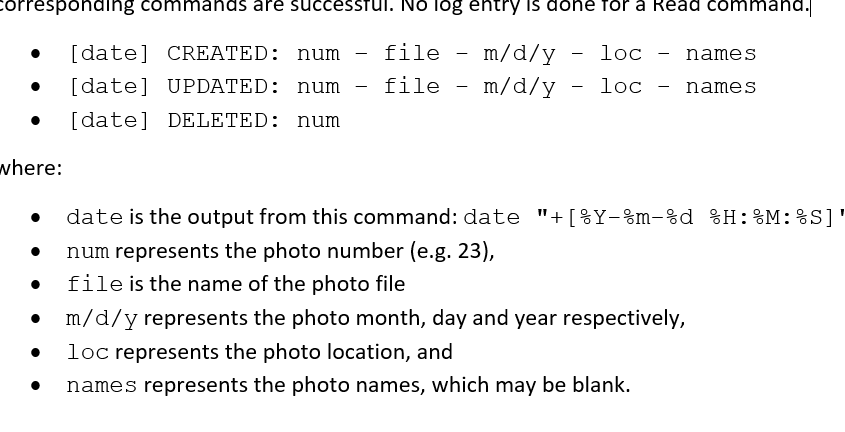
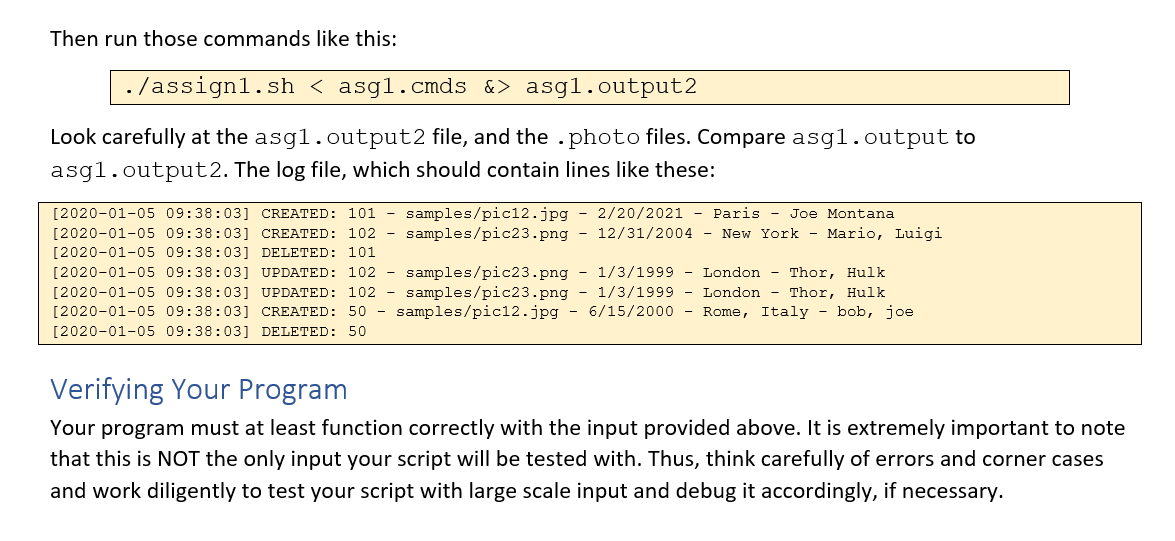
4. The following lines should be appended to the log file data/queries.log when the corresponding commands are successful. No log entry is done for a Read command:
Turn your assignment in via Blackboard. Your zip file, named a1-abc123.zip must contain the following seven files:
- assign1.sh - the main file which is to be initially invoked
- create.bash - logic for the Create option
- read.bash - logic for the Read option
- update.bash - logic for the Update option
- delete.bash - logic for the Delete option
- asg1.output - output from running asg1.cmds
- data/queries.log - log entries from running asg1.cmds
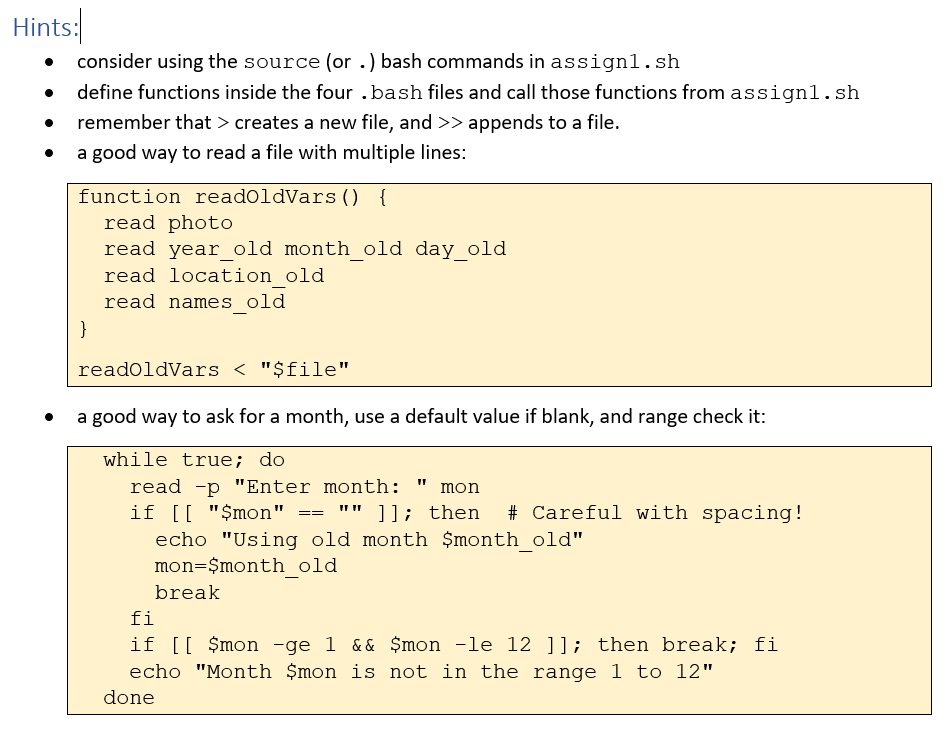
asg1.cmds file:
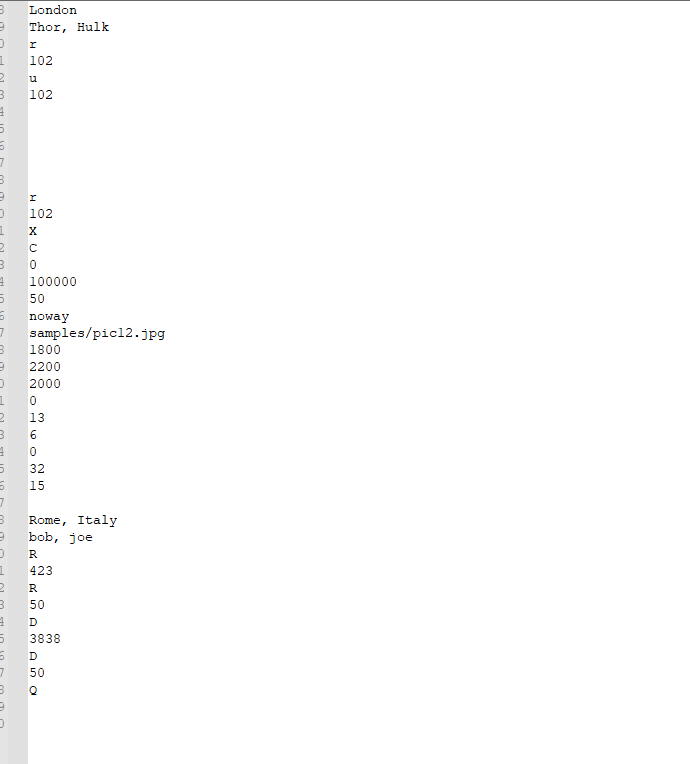
asgh.output sample:
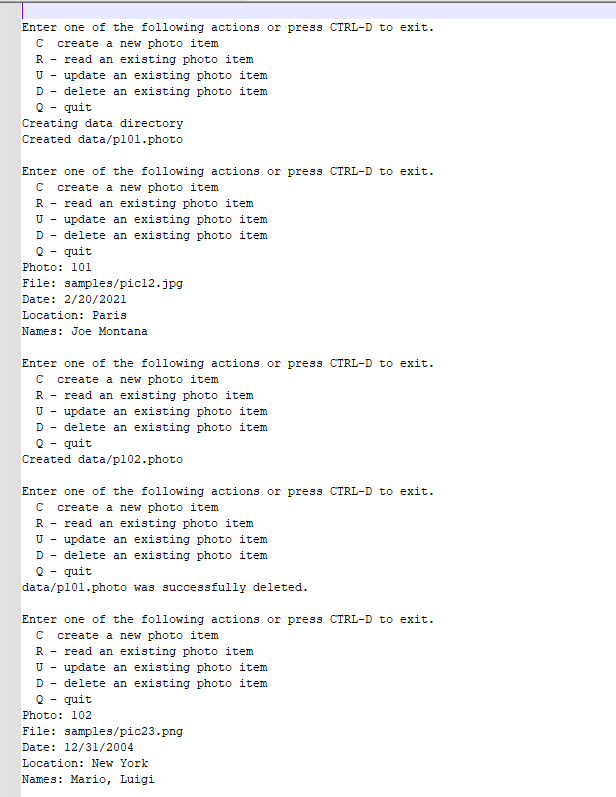
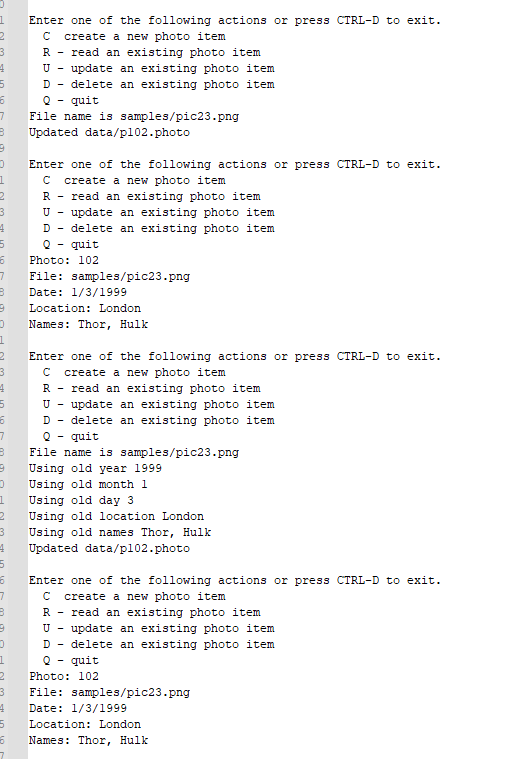
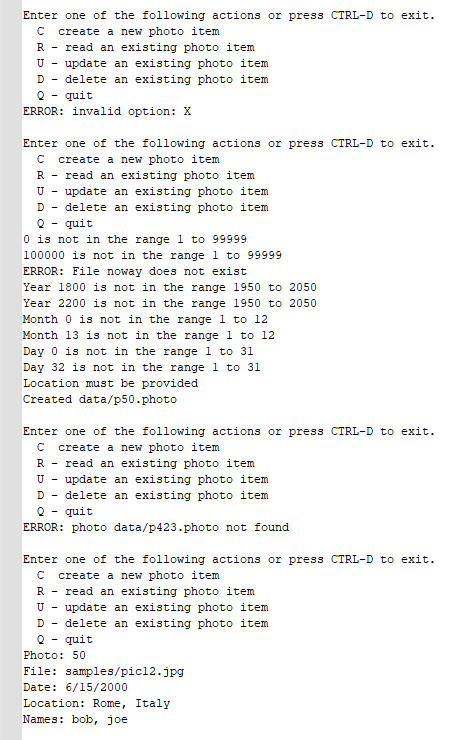
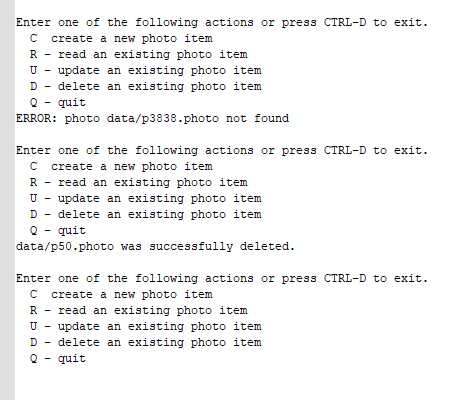
corresponding commands are successful. No log entry is done for a Read command. . loc names [date] CREATED: num [date] UPDATED: num [date] DELETED: num file - m/d/y file - m/d/y . loc names where: . . date is the output from this command: date "+[%Y-%m-%d %H:%M:%S] num represents the photo number (e.g. 23), file is the name of the photo file m/d/y represents the photo month, day and year respectively, loc represents the photo location, and names represents the photo names, which may be blank. Then run those commands like this: ./assignl.sh asgl.output2 Look carefully at the asgl.output2 file, and the . photo files. Compare asgl.output to asgl.output 2. The log file, which should contain lines like these: [2020-01-05 09:38:03] CREATED: 101 - samples/pic12.jpg - 2/20/2021 - Paris - Joe Montana [2020-01-05 09:38:03] CREATED: 102 - samples/pic23.png - 12/31/2004 - New York - Mario, Luigi [2020-01-05 09:38:03] DELETED: 101 [2020-01-05 09:38:03] UPDATED: 102 samples/pic23.png 1/3/1999 - London Thor, Hulk [2020-01-05 09:38:03] UPDATED: 102 - samples/pic23.png - 1/3/1999 - London - Thor, Hulk [2020-01-05 09:38:03] CREATED: 50 - samples/pic12.jpg - 6/15/2000 - Rome, Italy bob, joe [2020-01-05 09:38:03] DELETED: 50 Verifying Your Program Your program must at least function correctly with the input provided above. It is extremely important to note that this is NOT the only input your script will be tested with. Thus, think carefully of errors and corner cases and work diligently to test your script with large scale input and debug it accordingly, if necessary. . Hints: consider using the source (or .) bash commands in assignl.sh define functions inside the four ,bash files and call those functions from assignl.sh remember that > creates a new file, and >> appends to a file. a good way to read a file with multiple lines: function readoldvars () { read photo read year old month old day_old read location old read names_old } readoldvars asgl.output2 Look carefully at the asgl.output2 file, and the . photo files. Compare asgl.output to asgl.output 2. The log file, which should contain lines like these: [2020-01-05 09:38:03] CREATED: 101 - samples/pic12.jpg - 2/20/2021 - Paris - Joe Montana [2020-01-05 09:38:03] CREATED: 102 - samples/pic23.png - 12/31/2004 - New York - Mario, Luigi [2020-01-05 09:38:03] DELETED: 101 [2020-01-05 09:38:03] UPDATED: 102 samples/pic23.png 1/3/1999 - London Thor, Hulk [2020-01-05 09:38:03] UPDATED: 102 - samples/pic23.png - 1/3/1999 - London - Thor, Hulk [2020-01-05 09:38:03] CREATED: 50 - samples/pic12.jpg - 6/15/2000 - Rome, Italy bob, joe [2020-01-05 09:38:03] DELETED: 50 Verifying Your Program Your program must at least function correctly with the input provided above. It is extremely important to note that this is NOT the only input your script will be tested with. Thus, think carefully of errors and corner cases and work diligently to test your script with large scale input and debug it accordingly, if necessary. . Hints: consider using the source (or .) bash commands in assignl.sh define functions inside the four ,bash files and call those functions from assignl.sh remember that > creates a new file, and >> appends to a file. a good way to read a file with multiple lines: function readoldvars () { read photo read year old month old day_old read location old read names_old } readoldvars
Step by Step Solution
There are 3 Steps involved in it

Get step-by-step solutions from verified subject matter experts
 Study Help