







Question: i need help with this lab its MATLAB. easy Lab Instructions Part 1: Create a function in a MATLAB script (.m file) that incorporates a
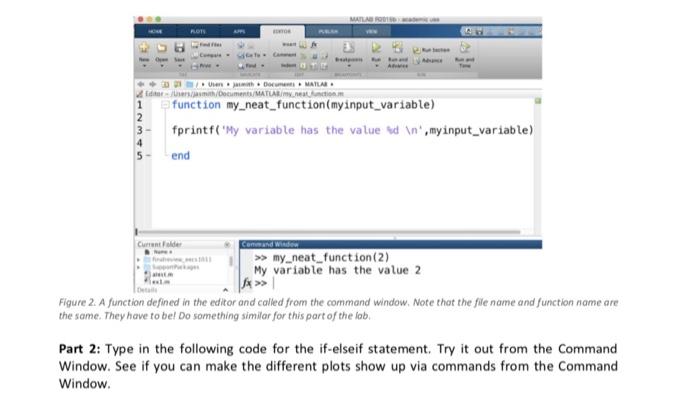
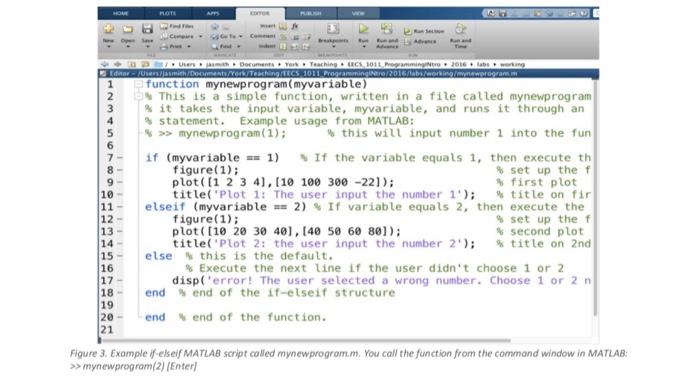

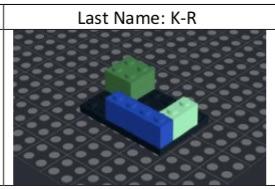
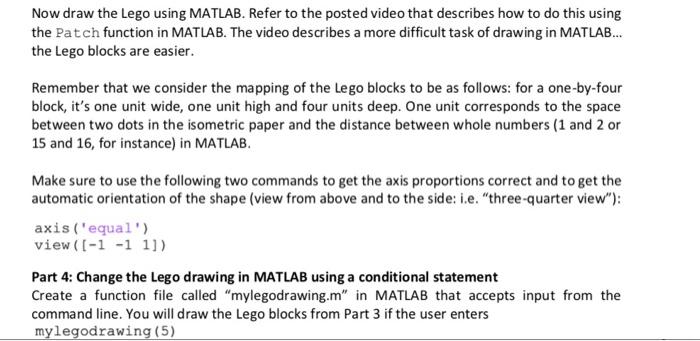
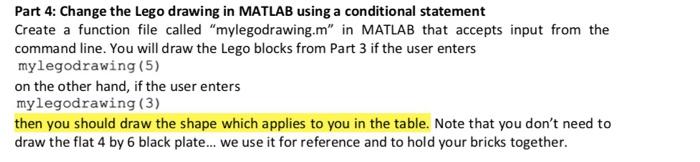
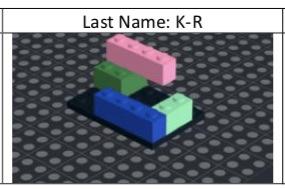
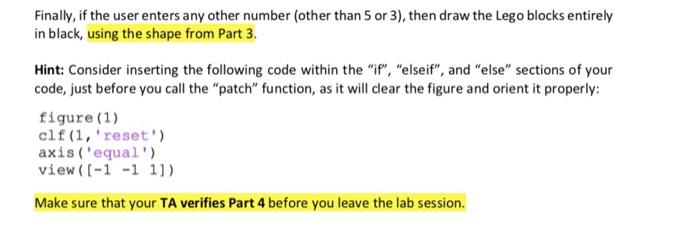
Lab Instructions Part 1: Create a function in a MATLAB script (.m file) that incorporates a user input (from the Command Window) and creates plots based on what the user input. Look at the following as an example of a file that has the same name as the function that is written in the MATLAB editor. Notice how it has an input variable (in parentheses) and that I can call the function from the command window, with a value for that input variable. MATLAR 11 Dinamo MAILAR Midt/Document MATLARI function my_neat_function(myinput_variable) 2 3- fprintf("My variable has the value ed in, myinput_variable) 4 5 end Current Command Wide >> my neat function(2) My variable has the value 2 Ax>> Figure 2. A function defined in the editor and called from the command window. Note that the fle name and furiction name are the same. They have to be! Do something similar for this part of the lab. De Part 2: Type in the following code for the if-elseif statement. Try it out from the Command Window. See if you can make the different plots show up via commands from the Command Window. ROTI ARTS Der Documents Teaching ECS, 2011. Programming 2016 die Uhers/smith/Documents/Vors/Tothing TEGS 1011 Programming 2016 ab/oriname 1 function mynewprogram(myvariable) 2 This is a simple function, written in a file called mynewprogram 3 it takes the input variable, myvariable, and runs it through an 4 % statement. Example usage from MATLAB: 5 >> mynewprogram(1); this will input number 1 into the fun 7- if (myvariable == 1) If the variable equals 1, then execute th figure(1); set up the plot([1 2 3 4), 110 100 300 -221); first plot title('Plot 1: The user input the number 1"); title on fir 11 elseif (myvariable == 2) If variable equals 2, then execute the 12 figure(1); % set up the f 13 plot([10 20 30 401, 40 50 60 80]); second plot 14 title('Plot 2: the user input the number 2'); # title on 2nd 15 else this is the default. 16 Execute the next line if the user didn't choose 1 or 2 17 disp('error! The user selected a wrong number. Choose 1 or 2n 18 end end of the 17-elseif structure 19 20 end end of the function. 21 Figure 3. Example if-elseif MATLAB script called mynewprogram.m. You call the function from the command window in MATLAB: >> mynewprogram(2) Enter Part 3: Draw the Lego blocks in MATLAB Look at the below table that shows you a particular configuration of the Lego that you should draw. The configurations are specific to your name. Sketch the Lego by hand using isometric dot paper. Leave enough space for a second sketch from Part 4, beside the first one. Include the pictures of the Lego setup and your drawing in your report. Last Name: K-R Now draw the Lego using MATLAB. Refer to the posted video that describes how to do this using the Patch function in MATLAB. The video describes a more difficult task of drawing in MATLAB... the Lego blocks are easier. Remember that we consider the mapping of the Lego blocks to be as follows: for a one-by-four block, it's one unit wide, one unit high and four units deep. One unit corresponds to the space between two dots in the isometric paper and the distance between whole numbers (1 and 2 or 15 and 16, for instance) in MATLAB. Make sure to use the following two commands to get the axis proportions correct and to get the automatic orientation of the shape (view from above and to the side: i.e. "three-quarter view"); axis ('equal') view (I-1 -1 1]) Part 4: Change the Lego drawing in MATLAB using a conditional statement Create a function file called "mylegodrawing.m" in MATLAB that accepts input from the command line. You will draw the Lego blocks from Part 3 if the user enters mylegodrawing (5) Part 4: Change the Lego drawing in MATLAB using a conditional statement Create a function file called "mylegodrawing.m" in MATLAB that accepts input from the command line. You will draw the Lego blocks from Part 3 if the user enters mylegodrawing (5) on the other hand, if the user enters mylegodrawing (3) then you should draw the shape which applies to you in the table. Note that you don't need to draw the flat 4 by 6 black plate... we use it for reference and to hold your bricks together. Last Name: K-R Finally, if the user enters any other number (other than 5 or 3), then draw the Lego blocks entirely in black, using the shape from Part 3. Hint: Consider inserting the following code within the "f", "elseif", and "else" sections of your code, just before you call the "patch" function, as it will clear the figure and orient it properly: figure (1) clf (1, 'reset') axis ('equal') view (I-1 -1 1]) Make sure that your TA verifies Part 4 before you leave the lab session. Lab Instructions Part 1: Create a function in a MATLAB script (.m file) that incorporates a user input (from the Command Window) and creates plots based on what the user input. Look at the following as an example of a file that has the same name as the function that is written in the MATLAB editor. Notice how it has an input variable (in parentheses) and that I can call the function from the command window, with a value for that input variable. MATLAR 11 Dinamo MAILAR Midt/Document MATLARI function my_neat_function(myinput_variable) 2 3- fprintf("My variable has the value ed in, myinput_variable) 4 5 end Current Command Wide >> my neat function(2) My variable has the value 2 Ax>> Figure 2. A function defined in the editor and called from the command window. Note that the fle name and furiction name are the same. They have to be! Do something similar for this part of the lab. De Part 2: Type in the following code for the if-elseif statement. Try it out from the Command Window. See if you can make the different plots show up via commands from the Command Window. ROTI ARTS Der Documents Teaching ECS, 2011. Programming 2016 die Uhers/smith/Documents/Vors/Tothing TEGS 1011 Programming 2016 ab/oriname 1 function mynewprogram(myvariable) 2 This is a simple function, written in a file called mynewprogram 3 it takes the input variable, myvariable, and runs it through an 4 % statement. Example usage from MATLAB: 5 >> mynewprogram(1); this will input number 1 into the fun 7- if (myvariable == 1) If the variable equals 1, then execute th figure(1); set up the plot([1 2 3 4), 110 100 300 -221); first plot title('Plot 1: The user input the number 1"); title on fir 11 elseif (myvariable == 2) If variable equals 2, then execute the 12 figure(1); % set up the f 13 plot([10 20 30 401, 40 50 60 80]); second plot 14 title('Plot 2: the user input the number 2'); # title on 2nd 15 else this is the default. 16 Execute the next line if the user didn't choose 1 or 2 17 disp('error! The user selected a wrong number. Choose 1 or 2n 18 end end of the 17-elseif structure 19 20 end end of the function. 21 Figure 3. Example if-elseif MATLAB script called mynewprogram.m. You call the function from the command window in MATLAB: >> mynewprogram(2) Enter Part 3: Draw the Lego blocks in MATLAB Look at the below table that shows you a particular configuration of the Lego that you should draw. The configurations are specific to your name. Sketch the Lego by hand using isometric dot paper. Leave enough space for a second sketch from Part 4, beside the first one. Include the pictures of the Lego setup and your drawing in your report. Last Name: K-R Now draw the Lego using MATLAB. Refer to the posted video that describes how to do this using the Patch function in MATLAB. The video describes a more difficult task of drawing in MATLAB... the Lego blocks are easier. Remember that we consider the mapping of the Lego blocks to be as follows: for a one-by-four block, it's one unit wide, one unit high and four units deep. One unit corresponds to the space between two dots in the isometric paper and the distance between whole numbers (1 and 2 or 15 and 16, for instance) in MATLAB. Make sure to use the following two commands to get the axis proportions correct and to get the automatic orientation of the shape (view from above and to the side: i.e. "three-quarter view"); axis ('equal') view (I-1 -1 1]) Part 4: Change the Lego drawing in MATLAB using a conditional statement Create a function file called "mylegodrawing.m" in MATLAB that accepts input from the command line. You will draw the Lego blocks from Part 3 if the user enters mylegodrawing (5) Part 4: Change the Lego drawing in MATLAB using a conditional statement Create a function file called "mylegodrawing.m" in MATLAB that accepts input from the command line. You will draw the Lego blocks from Part 3 if the user enters mylegodrawing (5) on the other hand, if the user enters mylegodrawing (3) then you should draw the shape which applies to you in the table. Note that you don't need to draw the flat 4 by 6 black plate... we use it for reference and to hold your bricks together. Last Name: K-R Finally, if the user enters any other number (other than 5 or 3), then draw the Lego blocks entirely in black, using the shape from Part 3. Hint: Consider inserting the following code within the "f", "elseif", and "else" sections of your code, just before you call the "patch" function, as it will clear the figure and orient it properly: figure (1) clf (1, 'reset') axis ('equal') view (I-1 -1 1]) Make sure that your TA verifies Part 4 before you leave the lab session
Step by Step Solution
There are 3 Steps involved in it

Get step-by-step solutions from verified subject matter experts
 Study Help