







Question: I need it asap Please do it as it is being asked This lab focuses on setup of the RPi that you will use throughout
I need it asap
Please do it as it is being asked
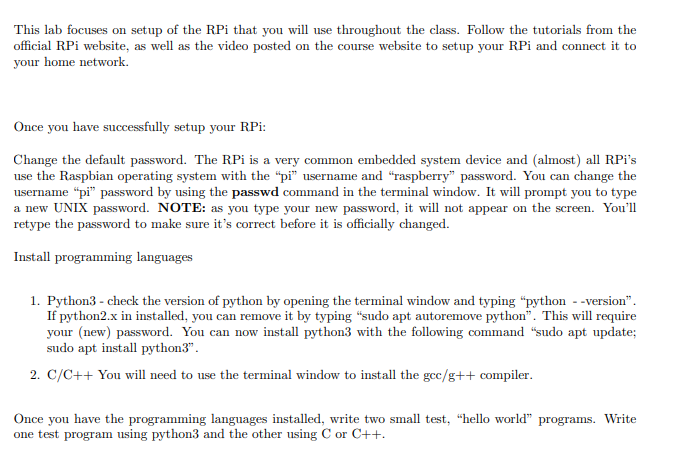
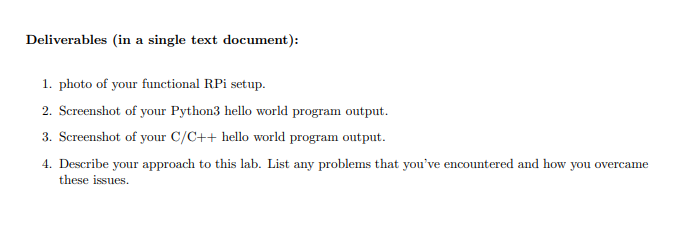
This lab focuses on setup of the RPi that you will use throughout the class. Follow the tutorials from the official RPi website, as well as the video posted on the course website to setup your RPi and connect it to your home network. Once you have successfully setup your RPi: Change the default password. The RPi is a very common embedded system device and (almost) all RPi's use the Raspbian operating system with the pi username and "raspberry" password. You can change the username "pi" password by using the passwd command in the terminal window. It will prompt you to type a new UNIX password. NOTE: as you type your new password, it will not appear on the screen. You'll retype the password to make sure it's correct before it is officially changed. Install programming languages 1. Python3 - check the version of python by opening the terminal window and typing "python --version". If python2.x in installed, you can remove it by typing "sudo apt autoremove python". This will require your (new) password. You can now install python3 with the following command "sudo apt update; sudo apt install python3". 2. C/C++ You will need to use the terminal window to install the gcc/g++ compiler. Once you have the programming languages installed, write two small test, "hello world programs. Write one test program using python3 and the other using Cor C++. Deliverables (in a single text document): 1. photo of your functional RPi setup. 2. Screenshot of your Python3 hello world program output. 3. Screenshot of your C/C++ hello world program output. 4. Describe your approach to this lab. List any problems that you've encountered and how you overcame these issues. This lab focuses on setup of the RPi that you will use throughout the class. Follow the tutorials from the official RPi website, as well as the video posted on the course website to setup your RPi and connect it to your home network. Once you have successfully setup your RPi: Change the default password. The RPi is a very common embedded system device and (almost) all RPi's use the Raspbian operating system with the pi username and "raspberry" password. You can change the username "pi" password by using the passwd command in the terminal window. It will prompt you to type a new UNIX password. NOTE: as you type your new password, it will not appear on the screen. You'll retype the password to make sure it's correct before it is officially changed. Install programming languages 1. Python3 - check the version of python by opening the terminal window and typing "python --version". If python2.x in installed, you can remove it by typing "sudo apt autoremove python". This will require your (new) password. You can now install python3 with the following command "sudo apt update; sudo apt install python3". 2. C/C++ You will need to use the terminal window to install the gcc/g++ compiler. Once you have the programming languages installed, write two small test, "hello world programs. Write one test program using python3 and the other using Cor C++. Deliverables (in a single text document): 1. photo of your functional RPi setup. 2. Screenshot of your Python3 hello world program output. 3. Screenshot of your C/C++ hello world program output. 4. Describe your approach to this lab. List any problems that you've encountered and how you overcame these issues
Step by Step Solution
There are 3 Steps involved in it

Get step-by-step solutions from verified subject matter experts
 Study Help