







Question: I need this MATLAB assignment solved from 7 to 25. Until part 7 I have the code down here. If you can use the same
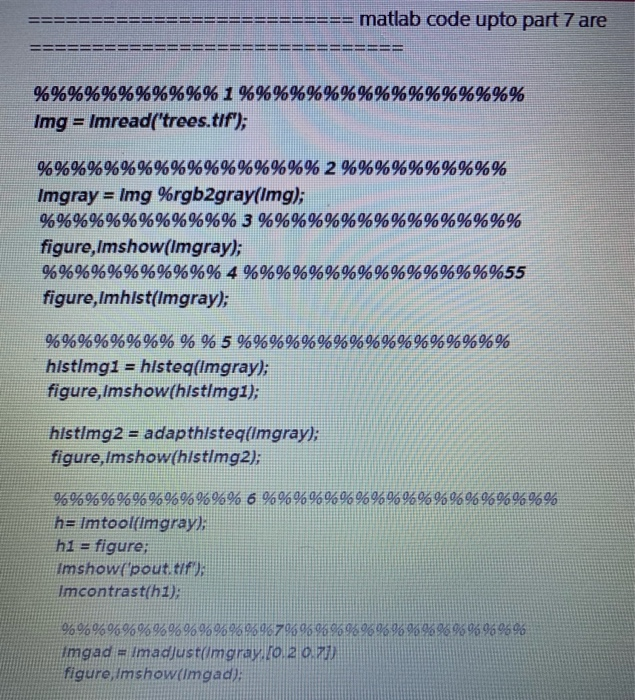
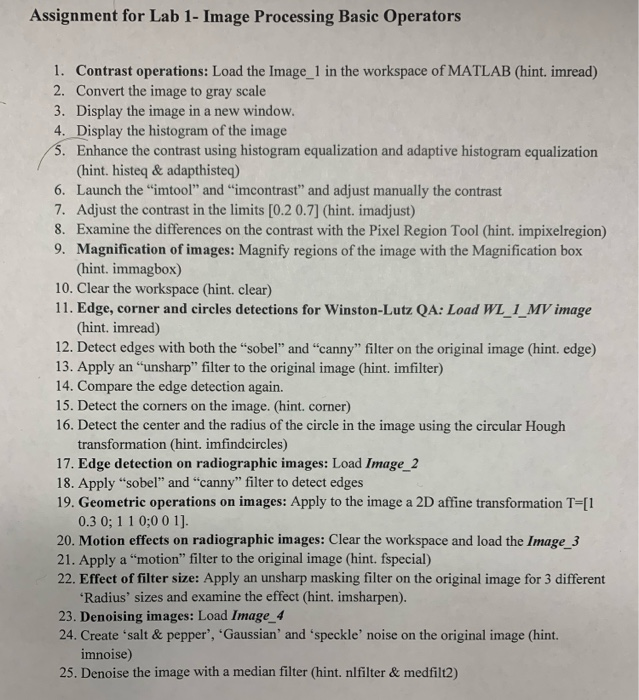
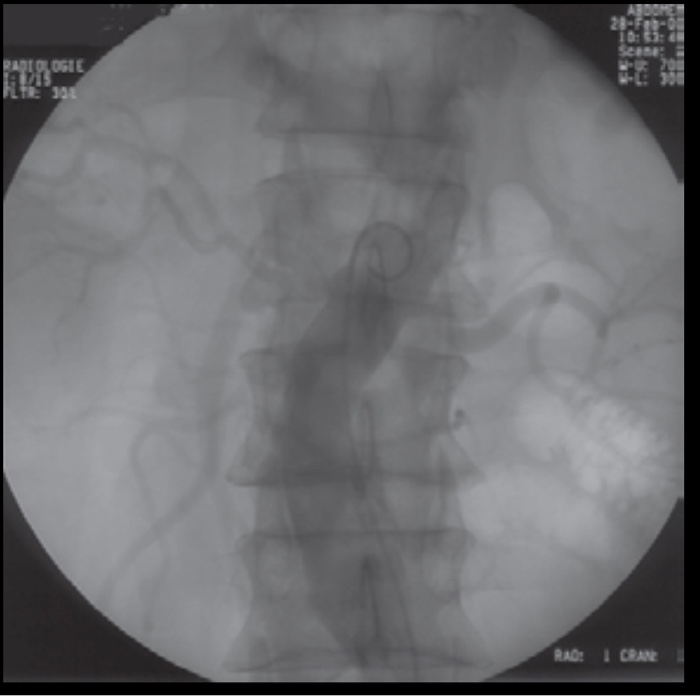
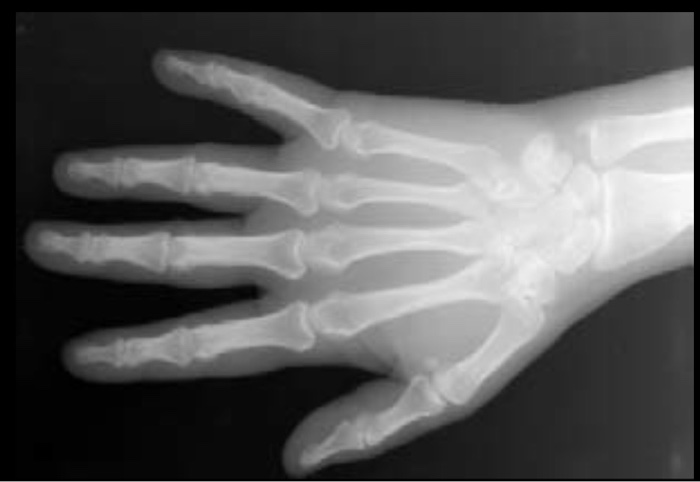
========================== matlab code upto part 7 are ============================== %%%%%%%%%%% 1 %%%%%%%%%%%%%%%%% Img = Imread('trees.tif'); %%%%%%%%%%%%%%%%% 2 %%%%%%%%%% Imgray = Img %rgb2gray(Img); %%%%%%%%%%%% 3 %%%%%%%%%%%%%%%% figure, Imshow(Imgray); %%%%%%%%%%% 4 %%%%%%%%%%%%%%%%55 figure,lmhist(Imgray); %%%%%%%% % % 5 %%%%%%%%%%%%%%%%% hlstlmg1 = hlsteq(Imgray); figure, Imshow(hlstimg1); hlstimg2 = adapthlsteq(Imgray); figure, Imshow(hlstimg2); %%%%%%%%%%%% 6 %%%%%%%%%%%%%%%%%%% h= ImtoolImgray), h1 = figure; Imshow(pout.tif Imcontrast(hi); %%%%%%%%%%%%%%6796%%%9596%9696%96969696969 imgad = Imadjustmgrayo 2 OP figure, Imshow(Imgad); Assignment for Lab 1- Image Processing Basic Operators 1. Contrast operations: Load the Image_1 in the workspace of MATLAB (hint. imread) 2. Convert the image to gray scale 3. Display the image in a new window. 4. Display the histogram of the image 5. Enhance the contrast using histogram equalization and adaptive histogram equalization (hint. histeg & adapthisteq) 6. Launch the "imtool" and "imcontrast" and adjust manually the contrast 7. Adjust the contrast in the limits [0.2 0.7] (hint. imadjust) 8. Examine the differences on the contrast with the Pixel Region Tool (hint. impixelregion) 9. Magnification of images: Magnify regions of the image with the Magnification box (hint. immagbox) 10. Clear the workspace (hint. clear) 11. Edge, corner and circles detections for Winston-Lutz QA: Load WL_1_MV image (hint. imread) 12. Detect edges with both the "sobel" and "canny" filter on the original image (hint. edge) 13. Apply an "unsharp" filter to the original image (hint. imfilter) 14. Compare the edge detection again. 15. Detect the corners on the image. (hint corner) 16. Detect the center and the radius of the circle in the image using the circular Hough transformation (hint. imfindcircles) 17. Edge detection on radiographic images: Load Image_2 18. Apply "sobel" and "canny" filter to detect edges 19. Geometric operations on images: Apply to the image a 2D affine transformation T=[1 0.30; 1 1 0;0 0 1]. 20. Motion effects on radiographic images: Clear the workspace and load the Image 3 21. Apply a "motion" filter to the original image (hint. Especial) 22. Effect of filter size: Apply an unsharp masking filter on the original image for 3 different 'Radius' sizes and examine the effect (hint. imsharpen). 23. Denoising images: Load Image_4 24. Create 'salt & pepper", "Gaussian' and 'speckle' noise on the original image (hint. imnoise) 25. Denoise the image with a median filter (hint. nlfilter & medfilt2) RAD: CRANE
Step by Step Solution
There are 3 Steps involved in it

Get step-by-step solutions from verified subject matter experts
 Study Help