







Question: I want VBA in Excel Code F A C D E 1 1 Scores on aptitude tests for a company's employees 2. 3 Employee Score
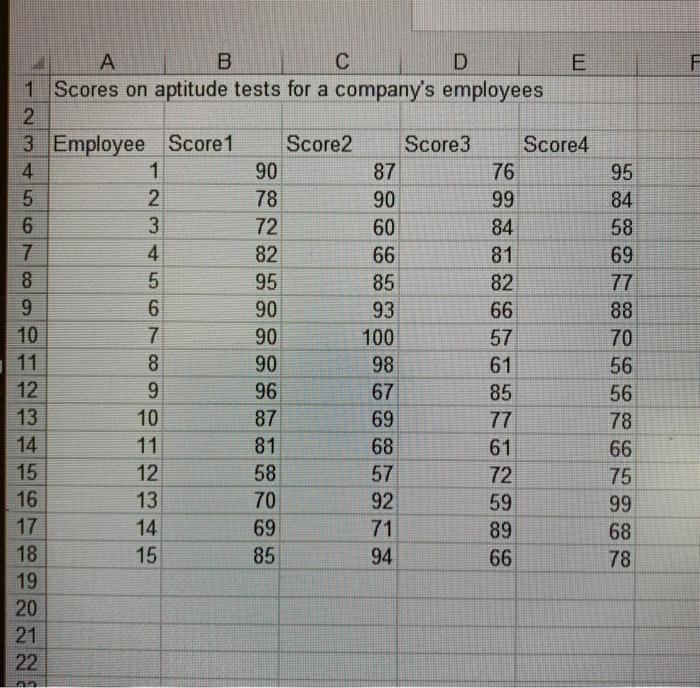
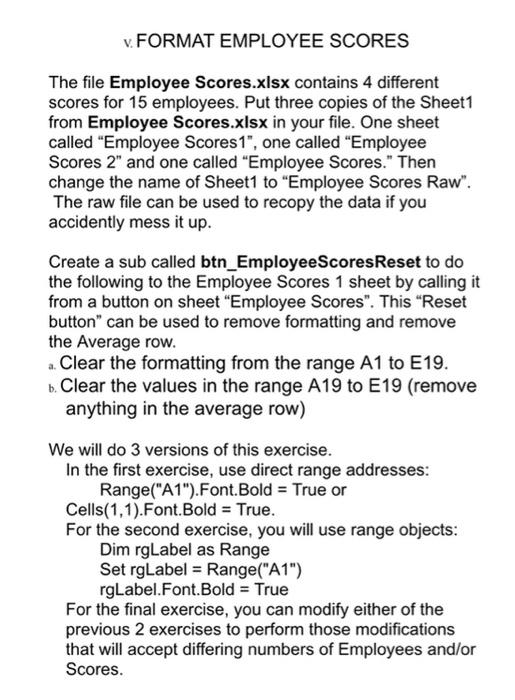
F A C D E 1 1 Scores on aptitude tests for a company's employees 2. 3 Employee Score 1 Score2 Score3 Score4 4 1 90 87 76 5 2 78 90 99 6 3 72 60 84 7 4 82 66 81 8 5 95 85 82 9 6 90 93 66 10 7 90 100 57 8 90 98 61 12 9 96 67 85 13 10 87 69 77 14 81 68 61 15 12 58 57 72 16 13 70 92 59 17 14 69 71 89 18 15 85 94 66 19 20 21 22 95 84 58 69 77 88 70 56 56 78 66 75 99 68 78 FORMAT EMPLOYEE SCORES The file Employee Scores.xlsx contains 4 different scores for 15 employees. Put three copies of the Sheet1 from Employee Scores.xlsx in your file. One sheet called "Employee Scores 1", one called "Employee Scores 2" and one called "Employee Scores." Then change the name of Sheet1 to "Employee Scores Raw". The raw file can be used to recopy the data if you accidently mess it up. Create a sub called btn_EmployeeScoresReset to do the following to the Employee Scores 1 sheet by calling it from a button on sheet Employee Scores". This "Reset button" can be used to remove formatting and remove the Average row. Clear the formatting from the range A1 to E19. b. Clear the values in the range A19 to E19 (remove anything in the average row) We will do 3 versions of this exercise. In the first exercise, use direct range addresses: Range("A1").Font.Bold = True or Cells(1,1).Font.Bold = True. For the second exercise, you will use range objects: Dim rgLabel as Range Set rgLabel = Range("A1") rgLabel.Font.Bold = True For the final exercise, you can modify either of the previous 2 exercises to perform those modifications that will accept differing numbers of Employees and/or Scores
Step by Step Solution
There are 3 Steps involved in it

Get step-by-step solutions from verified subject matter experts
 Study Help