







Question: I would need to also create a reset.css that's compatible with this new web page. I do not have additional information for the reset.css. I
I would need to also create a reset.css that's compatible with this new web page.
I do not have additional information for the reset.css. I did create a basic reset.css.
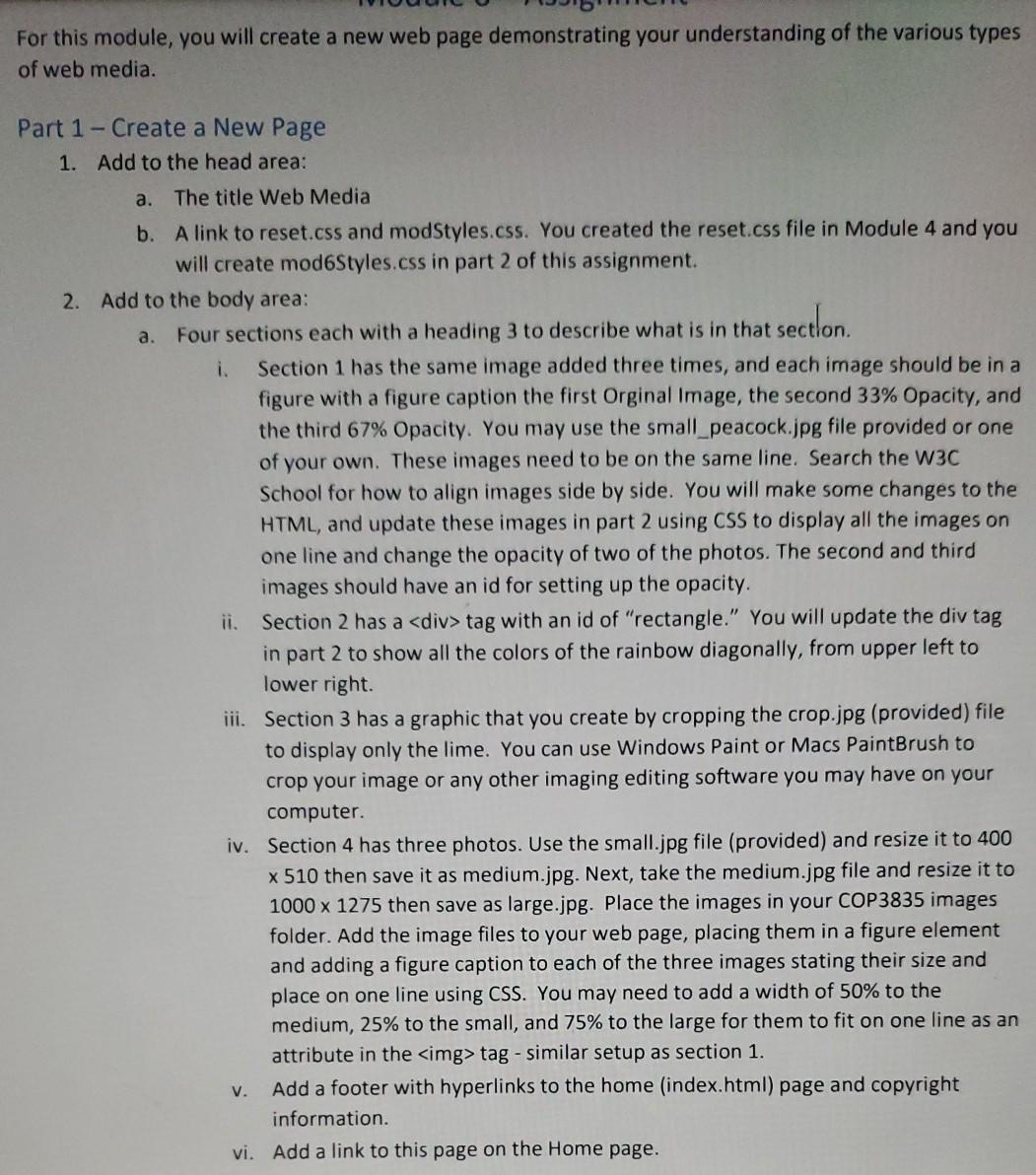
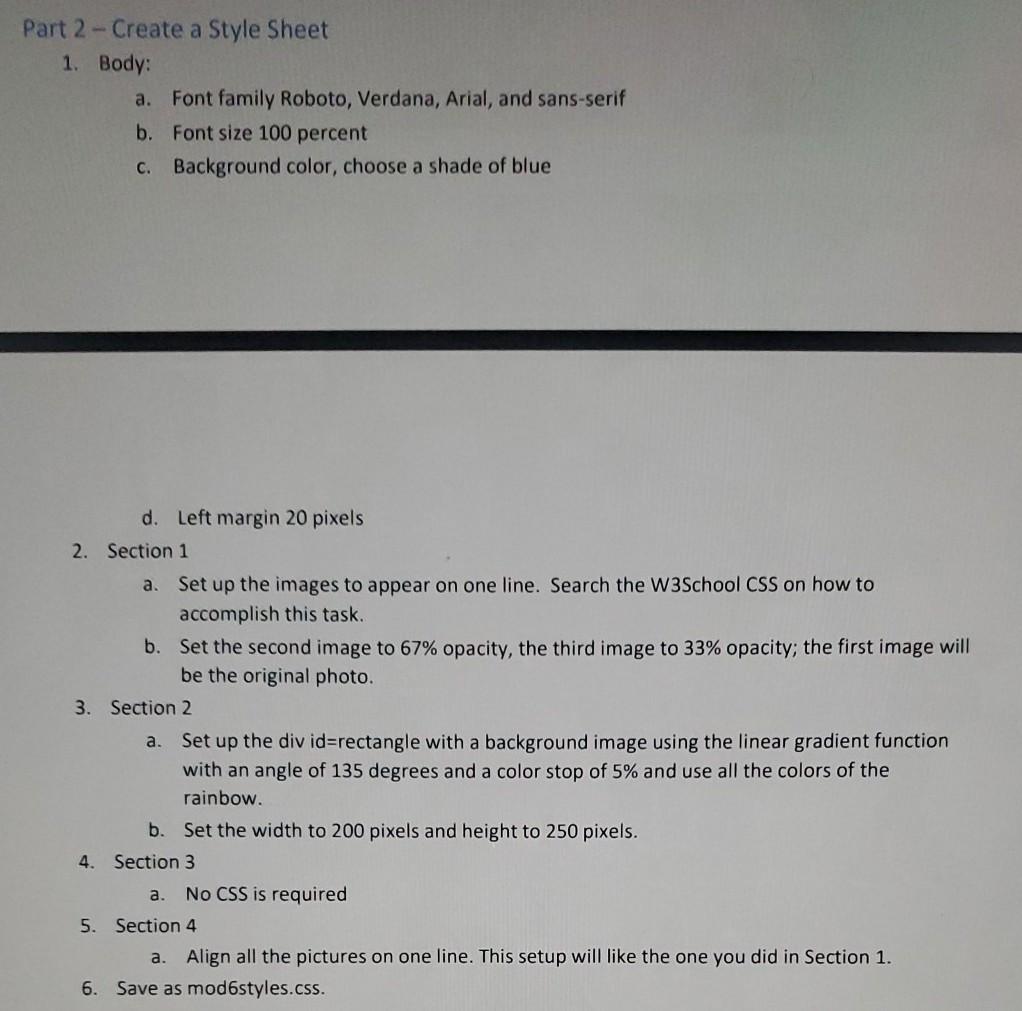
For this module, you will create a new web page demonstrating your understanding of the various types of web media. a. Part 1 - Create a New Page 1. Add to the head area: a. The title Web Media b. A link to reset.css and modStyles.css. You created the reset.css file in Module 4 and you will create mod6Styles.css in part 2 of this assignment. 2. Add to the body area: Four sections each with a heading 3 to describe what is in that section i. Section 1 has the same image added three times, and each image should be in a figure with a figure caption the first Orginal image, the second 33% Opacity, and the third 67% Opacity. You may use the small_peacock.jpg file provided or one of your own. These images need to be on the same line. Search the W3C School for how to align images side by side. You will make some changes to the HTML, and update these images in part 2 using CSS to display all the images on one line and change the opacity of two of the photos. The second and third images should have an id for setting up the opacity. ii. Section 2 has a tag with an id of "rectangle." You will update the div tag in part 2 to show all the colors of the rainbow diagonally, from upper left to lower right. iii. Section 3 has a graphic that you create by cropping the crop.jpg (provided) file to display only the lime. You can use Windows Paint or Macs PaintBrush to crop your image or any other imaging editing software you may have on your computer. iv. Section 4 has three photos. Use the small.jpg file (provided) and resize it to 400 x 510 then save it as medium.jpg. Next, take the medium.jpg file and resize it to 1000 x 1275 then save as large.jpg. Place the images in your COP3835 images folder. Add the image files to your web page, placing them in a figure element and adding a figure caption to each of the three images stating their size and place on one line using CSS. You may need to add a width of 50% to the medium, 25% to the small, and 75% to the large for them to fit on one line as an attribute in the tag - similar setup as section 1. Add a footer with hyperlinks to the home (index.html) page and copyright information. vi. Add a link to this page on the Home page. v. Part 2 - Create a Style Sheet 1. Body: a. Font family Roboto, Verdana, Arial, and sans-serif b. Font size 100 percent C. Background color, choose a shade of blue a. d. Left margin 20 pixels 2. Section 1 a. Set up the images to appear on one line. Search the W3School CSS on how to accomplish this task. b. Set the second image to 67% opacity, the third image to 33% opacity; the first image will be the original photo. 3. Section 2 Set up the div id=rectangle with a background image using the linear gradient function with an angle of 135 degrees and a color stop of 5% and use all the colors of the rainbow. b. Set the width to 200 pixels and height to 250 pixels. 4. Section 3 No CSS is required 5. Section 4 Align all the pictures on one line. This setup will like the one you did in Section 1. 6. Save as mod6styles.css. a. a
Step by Step Solution
There are 3 Steps involved in it
1 Expert Approved Answer
Step: 1 Unlock

Question Has Been Solved by an Expert!
Get step-by-step solutions from verified subject matter experts
Step: 2 Unlock
Step: 3 Unlock
 Study Help