







Question: ICT 114 Computer Architecture PLEASE PROVIDE WORKING AND FORMULA AND EXPLANATION This question is based on the EASY68K simulated processor. Assume the contents of all
ICT 114 Computer Architecture
PLEASE PROVIDE WORKING AND FORMULA AND EXPLANATION
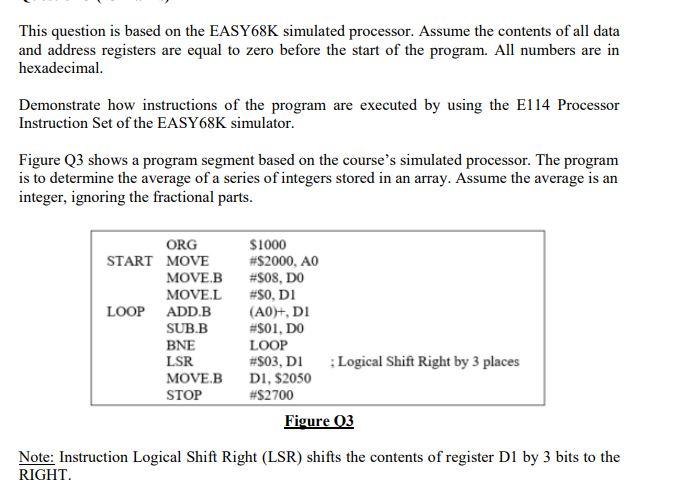
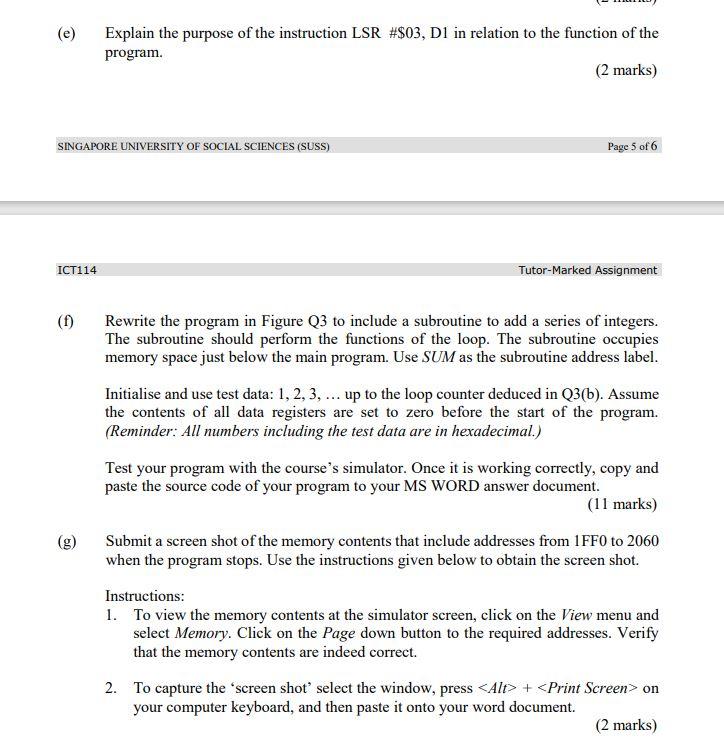
This question is based on the EASY68K simulated processor. Assume the contents of all data and address registers are equal to zero before the start of the program. All numbers are in hexadecimal. Demonstrate how instructions of the program are executed by using the E114 Processor Instruction Set of the EASY68K simulator. Figure Q3 shows a program segment based on the course's simulated processor. The program is to determine the average of a series of integers stored in an array. Assume the average is an integer, ignoring the fractional parts. ORG START MOVE MOVE.B MOVE.L LOOP ADD.B SUB.B BNE LSR MOVE.B STOP $1000 #$2000, AO #S08, DO #50, DI (A0+, DI #301, DO LOOP #$03, DI Logical Shift Right by 3 places D1, $2050 #$2700 Figure 03 Note: Instruction Logical Shift Right (LSR) shifts the contents of register D1 by 3 bits to the RIGHT. (e) Explain the purpose of the instruction LSR #$03, D1 in relation to the function of the program. (2 marks) SINGAPORE UNIVERSITY OF SOCIAL SCIENCES (SUSS) Page 5 of 6 ICT114 Tutor-Marked Assignment Rewrite the program in Figure Q3 to include a subroutine to add a series of integers. The subroutine should perform the functions of the loop. The subroutine occupies memory space just below the main program. Use SUM as the subroutine address label. Initialise and use test data: 1, 2, 3, ... up to the loop counter deduced in Q3(b). Assume the contents of all data registers are set to zero before the start of the program. (Reminder: All numbers including the test data are in hexadecimal.) Test your program with the course's simulator. Once it is working correctly, copy and paste the source code of your program to your MS WORD answer document. (11 marks) Submit a screen shot of the memory contents that include addresses from 1FF0 to 2060 when the program stops. Use the instructions given below to obtain the screen shot. Instructions: 1. To view the memory contents at the simulator screen, click on the View menu and select Memory. Click on the Page down button to the required addresses. Verify that the memory contents are indeed correct. 2. To capture the screen shot' select the window, press
Step by Step Solution
There are 3 Steps involved in it

Get step-by-step solutions from verified subject matter experts
 Study Help