







Question: iluependent Challenge 4 - Team Project (continued) Trip Financing 1. Open the PR 3-Loan Amortization Schedule file that you created for Project 3, then save
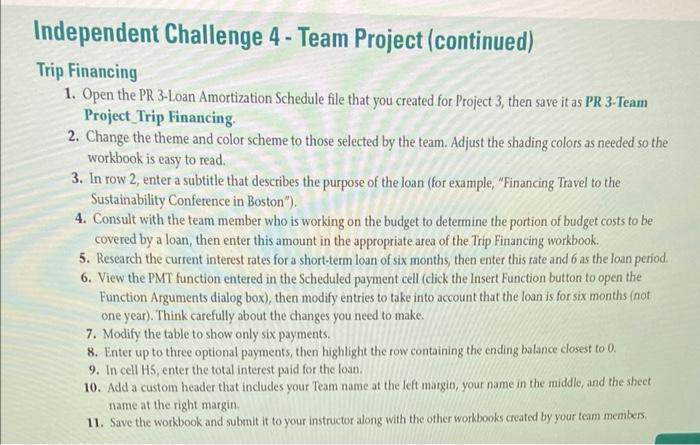
iluependent Challenge 4 - Team Project (continued) Trip Financing 1. Open the PR 3-Loan Amortization Schedule file that you created for Project 3, then save it as PR 3-Team Project_Trip Financing. 2. Change the theme and color scheme to those selected by the team. Adjust the shading colors as needed so the workbook is easy to read. 3. In row 2, enter a subtitle that describes the purpose of the loan (for example, "Financing Travel to the Sustainability Conference in Boston"). 4. Consult with the team member who is working on the budget to determine the portion of budget costs to be covered by a loan, then enter this amount in the appropriate area of the Trip Financing workbook. 5. Research the current interest rates for a short-term loan of six months, then enter this rate and 6 as the loan period. 6. View the PMT function entered in the Scheduled payment cell (click the Insert Function button to open the Function Arguments dialog box), then modify entries to take into account that the loan is for six months (not one year). Think carefully about the changes you need to make. 7. Modify the table to show only six payments. 8. Enter up to three optional payments, then highlight the row containing the ending balance closest to 0 . 9. In cell HS, enter the total interest paid for the loan. 10. Add a custom header that includes your Team name at the left margin, your name in the middle, and the sheet name at the right margin. 11. Save the workbook and submit it to your instructor along with the other workbooks ceated by your team members. iluependent Challenge 4 - Team Project (continued) Trip Financing 1. Open the PR 3-Loan Amortization Schedule file that you created for Project 3, then save it as PR 3-Team Project_Trip Financing. 2. Change the theme and color scheme to those selected by the team. Adjust the shading colors as needed so the workbook is easy to read. 3. In row 2, enter a subtitle that describes the purpose of the loan (for example, "Financing Travel to the Sustainability Conference in Boston"). 4. Consult with the team member who is working on the budget to determine the portion of budget costs to be covered by a loan, then enter this amount in the appropriate area of the Trip Financing workbook. 5. Research the current interest rates for a short-term loan of six months, then enter this rate and 6 as the loan period. 6. View the PMT function entered in the Scheduled payment cell (click the Insert Function button to open the Function Arguments dialog box), then modify entries to take into account that the loan is for six months (not one year). Think carefully about the changes you need to make. 7. Modify the table to show only six payments. 8. Enter up to three optional payments, then highlight the row containing the ending balance closest to 0 . 9. In cell HS, enter the total interest paid for the loan. 10. Add a custom header that includes your Team name at the left margin, your name in the middle, and the sheet name at the right margin. 11. Save the workbook and submit it to your instructor along with the other workbooks ceated by your team members
Step by Step Solution
There are 3 Steps involved in it

Get step-by-step solutions from verified subject matter experts
 Study Help