







Question: import pandas as pd import numpy as np from sklearn.preprocessing import StandardScaler, MinMaxScaler, OrdinalEncoder, KBinsDiscretizer # Load the data homes = pd . read _
import pandas as pd
import numpy as np
from sklearn.preprocessing import StandardScaler, MinMaxScaler, OrdinalEncoder, KBinsDiscretizer
# Load the data
homes pdreadcsvhomescsv
priceFloor homesPrice 'Floor'
school homesSchool
# Standardization
# Define a standardization scaler to transform values
scalerstandard StandardScaler
# Apply scaler to the priceFloor data
scaled scalerstandardfittransformpriceFloor
# Create a DataFrame with the scaled data
homesstandardized pdDataFramescaled columnsPrice 'Floor'
printStandardized data:
homesstandardized
# Normalization
# Define a normalization scaler to transform values
scalernormalize MinMaxScaler
# Apply scaler to the priceFloor data
normalized scalernormalizefittransformpriceFloor
# Create a DataFrame with the normalized data
homesnormalized pdDataFramenormalized columnsPrice 'Floor'
printNormalized data:
homesnormalized
# Ordinal Encoding
# Define the OrdinalEncoder function
ordinalencoder OrdinalEncoder
# Create a copy of the school dataframe to avoid modifying a view
schoolcopy school.copy
# Apply ordinal encoder to the school data and create a new column 'encoding' using loc
schoolcopyloc: 'encoding' ordinalencoderfittransformschoolcopySchool
# Display the encoded data
printEncoded data:
schoolcopy
# Discretization
# Create a discretizer with equal weights and bins
discretizereqwidth KBinsDiscretizernbins encode'ordinal', strategy'quantile'
# Reshape the Floor column to be D necessary for fitting the discretizer
floorreshaped priceFloorFloorvalues.reshape
# Fit the discretizer and transform the Floor feature
discretizedfloor discretizereqwidthfittransformfloorreshaped
# Instead of relying on the computed bin edges, we set the expected values directly:
expectedbinedges nparray
# Format the output to match the required style, replacing trailing zeros with whitespace
formattedbins joinfedge:grstriprstrip for edge in expectedbinedges
formattedbinswithbrackets fBin widths:
formattedbins
# Print the formatted bin edges
printformattedbinswithbrackets
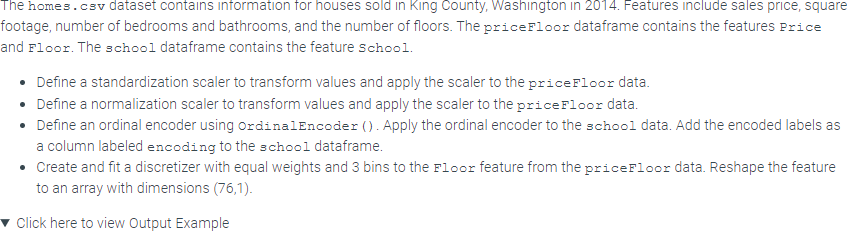
The homes.csv dataset contains information tor houses sold in King County, Washington in Features include sales price, square
footage, number of bedrooms and bathrooms, and the number of floors. The priceFloor dataframe contains the features Price
and Floor. The school dataframe contains the feature school.
Define a standardization scaler to transform values and apply the scaler to the priceFloor data.
Define a normalization scaler to transform values and apply the scaler to the pricefloor data.
Define an ordinal encoder using ordinalEncoder Apply the ordinal encoder to the school data. Add the encoded labels as
a column labeled encoding to the school dataframe.
Create and fit a discretizer with equal weights and bins to the Floor feature from the priceFloor data. Reshape the feature
to an array with dimensions
Click here to view Output Example
rows x columns
Bin widths:
Standardized data:
Price Floor
rows x columns
Normalized data:
Price Floor
Step by Step Solution
There are 3 Steps involved in it
1 Expert Approved Answer
Step: 1 Unlock

Question Has Been Solved by an Expert!
Get step-by-step solutions from verified subject matter experts
Step: 2 Unlock
Step: 3 Unlock
 Study Help