







Question: Import the provided Driver1.java and Driver2.java to org.university.software package. The package hierarchy of your project should be as in the following: University -m org.university.hardware
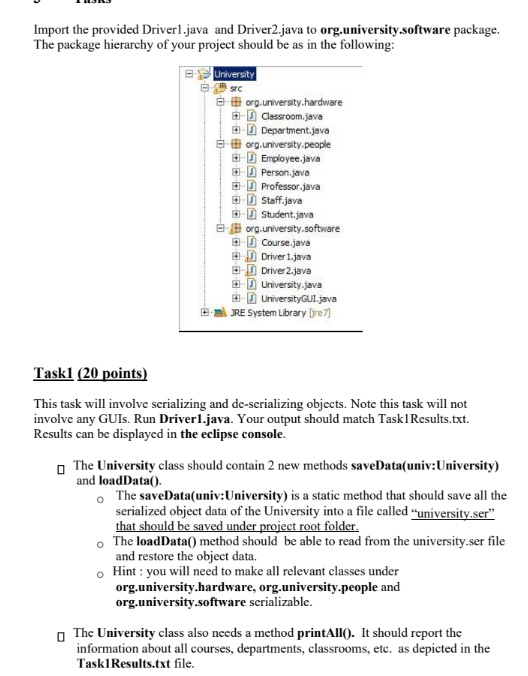
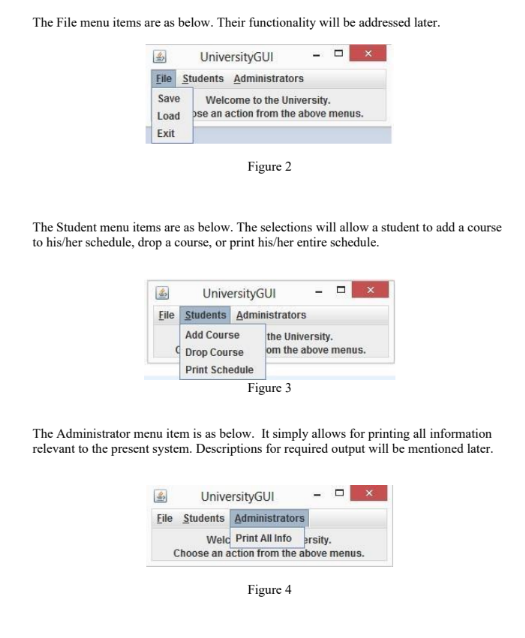
Import the provided Driver1.java and Driver2.java to org.university.software package. The package hierarchy of your project should be as in the following: University -m org.university.hardware Classroom.java Department.java org.university.people Employee.java Person.java Professor.java Staff.java Student.java org.university.software Course.java Driver 1.java Driver 2.java University.java UniversityGUI.java JRE System Library [jre7] Task1 (20 points) This task will involve serializing and de-serializing objects. Note this task will not involve any GUIs. Run Driver1.java. Your output should match Task|Results.txt. Results can be displayed in the eclipse console. The University class should contain 2 new methods saveData(univ: University) and loadData(). The saveData(univ: University) is a static method that should save all the serialized object data of the University into a file called "university.ser" that should be saved under project root folder. The loadData() method should be able to read from the university.ser file and restore the object data. Hint: you will need to make all relevant classes under org.university.hardware, org.university.people and org.university.software serializable. The University class also needs a method printAll(). It should report the information about all courses, departments, classrooms, etc. as depicted in the Task Results.txt file. The File menu items are as below. Their functionality will be addressed later. UniversityGUI File Students Administrators Save Load Exit Welcome to the University. se an action from the above menus. Figure 2 The Student menu items are as below. The selections will allow a student to add a course to his/her schedule, drop a course, or print his/her entire schedule. UniversityGUI File Students Administrators Add Course Drop Course Print Schedule the University. om the above menus. Figure 3 The Administrator menu item is as below. It simply allows for printing all information relevant to the present system. Descriptions for required output will be mentioned later. UniversityGUI Eile Students Administrators Weld Print All Info ersity. Choose an action from the above menus. Figure 4
Step by Step Solution
There are 3 Steps involved in it

Get step-by-step solutions from verified subject matter experts
 Study Help