







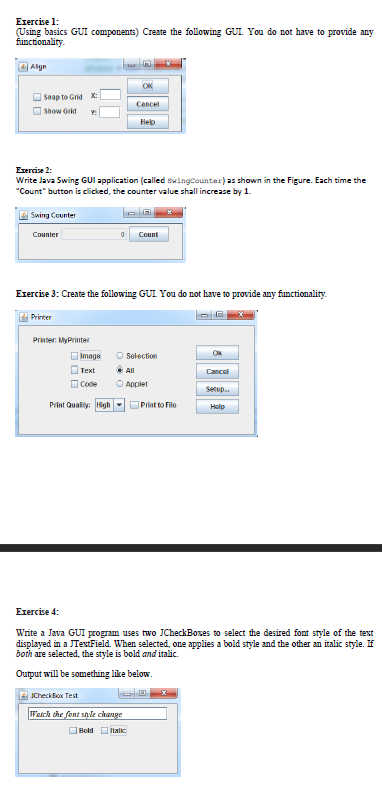
Question: in java Exercise 1: (Using basics GUI components) Create the following GUI. You do not have to provide any functionality. Align Snap to Grid x
 in java
Exercise 1: (Using basics GUI components) Create the following GUI. You do not have to provide any functionality. Align Snap to Grid x Show Grid Y: Swing Counter Exercise 2: Write Java Swing GUI application (called SwingCounter) as shown in the Figure. Each time the "Count" button is clicked, the counter value shall increase by 1. Counter Printer Printer: MyPrinter Image Text Code 0 Exercise 3: Create the following GUI. You do not have to provide any functionality. Print Quality: High OK Cancel Help Count Selection JCheckBox Test Watch the font style change BoldItalic All Applet Print to File Cancel Exercise 4: Write a Java GUI program uses two JCheckBoxes to select the desired font style of the text displayed in a JTextField. When selected, one applies a bold style and the other an italic style. If both are selected, the style is bold and italic. Output will be something like below. U Help
Step by Step Solution
3.41 Rating (154 Votes )
There are 3 Steps involved in it
Exercise 1 Creating a GUI with basic components Heres an example of how you can create a GUI with basic components using Java Swing import javaxswing public class BasicGUIExample public static void ma... View full answer

Get step-by-step solutions from verified subject matter experts
 Study Help