







Question: IN PYTHON !!!! HW4 Lexer GUI using python Now it is time to merge our GUI design with our lexer logic together and create the
IN PYTHON !!!!
HW4 Lexer GUI using python
Now it is time to merge our GUI design with our lexer logic together and create the Lexer GUI.
You will need the complete answers from the below works to form the answer for this HW.
--- HW2: get input from input window and print output out line-by-line to output window.
--- PythonLab3: with 1 line of source code input, cut the line into tokens, and output a string with
Example code that your Lexer should be able to process:
int A1=5
int BBB2 =1034
int cresult = A1 +BBB2 + BBB2
if (cresult >10):
print(TinyPie )
Please pay attention to this program, as you can see, user can choose to type any number of spaces between an identifier, literal and the = sign or + sign or > sign, etc.
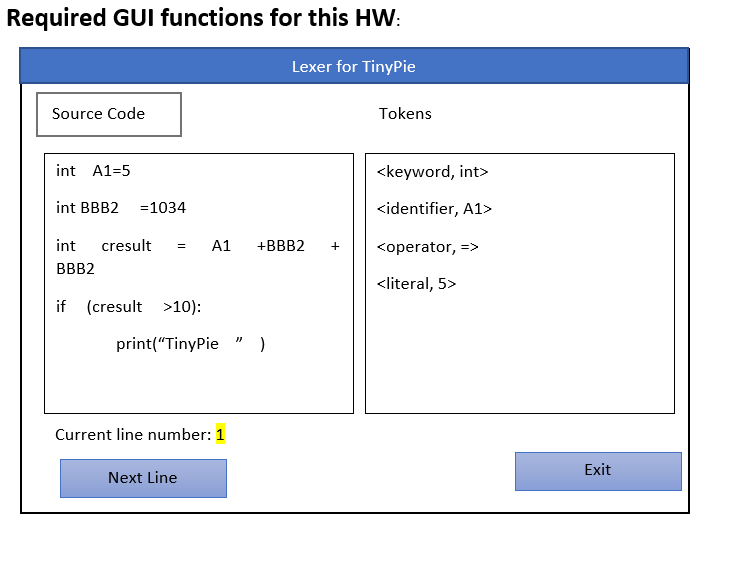
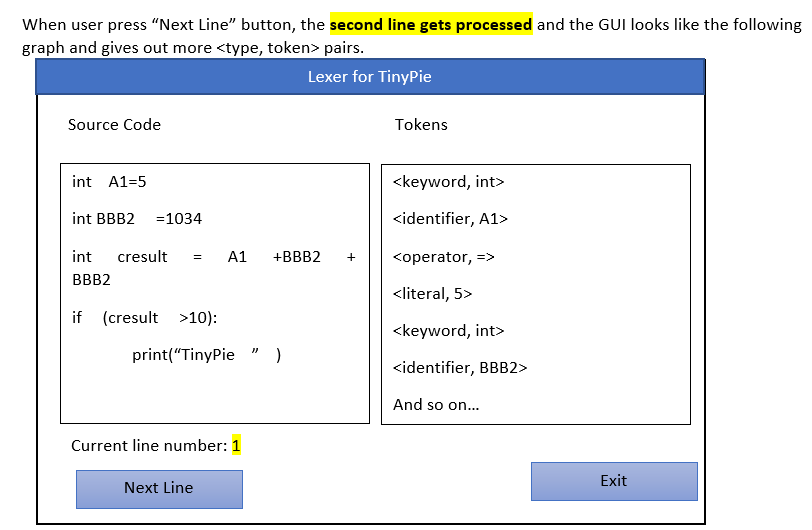
When user press the next line the first time, the first line gets processed and give out the
Again, your lexer can have different appearance from this example. We check for functionalities when grading. Grading details on next page.
IMPORTANT: Start coding early and ask for help early to get your Lexer work. It is a lot harder to debug code with GUI in it. You can use VS code or python visualizer to debug your pythonLab3, and copy/past code over to your GUI when you know cutting 1 line into token list is working.
Submit only 1 python 3 .py file that we can run and check if your lexer works. This is solo work.
Please note this is the code that needs editing
----------------------------------------------------------
import tkinter as tk
current_line_index = 0
def next_line():
global current_line_index
text = ip_text_box.get('1.0', 'end-1c').split(' ')
if current_line_index >= len(text) - 1:
return
ip_line_tb.delete(0, tk.END)
ip_line_tb.insert(tk.END, current_line_index + 1)
op_text_box.insert(tk.END, text[current_line_index] + ' ')
current_line_index += 1
def quit(): app.quit()
# Main window
app = tk.Tk()
#app.configure(background = 'red')
app.title('Lexical Analyzer for TinyPie')
app.geometry("1500x700+20+50")
app.resizable(False, False)
ip_container = tk.Frame(app, width=1, height=1,background = 'dark orange')
ip_container.grid_propagate(False)
ip_container.pack(side="left", fill="both", expand=True)
ip_label = tk.Label(app, text='Source Code Input:')
ip_label.place(x=50, y=50)
ip_text_box = tk.Text(ip_container)
ip_text_box.place(x=50, y=80)
ip_line_label = tk.Label(app, text='Current Processing Line:')
ip_line_label.place(x=400, y=500)
ip_line_tb = tk.Entry(app)
ip_line_tb.size()
ip_line_tb.place(x=550, y=500)
ip_next_button = tk.Button(app, text='Next', command=next_line)
ip_next_button.place(x=550, y=550)
op_container = tk.Frame(app, width=10, height=10, background = 'RoyalBlue1')
op_container.grid_propagate(False)
op_container.pack(side="right", fill="both", expand=True)
op_label = tk.Label(app, text='Lexical Analysed Result:')
op_label.place(x=790, y=50)
op_text_box = tk.Text(op_container)
op_text_box.place(x=50,y=80)
op_next_button = tk.Button(app, text='Quit', command=quit)
op_next_button.place(x=1350, y=550)
app.mainloop()
#OUTPUT
Show transcribed image text
Required GUI functions for this HW Lexer for TinyPie Source Code Tokens nt A1-5 int BBB2-1034 int cresult = A1 +BBB2 +| |
Step by Step Solution
There are 3 Steps involved in it

Get step-by-step solutions from verified subject matter experts
 Study Help