







Question: In this exercise you will record and edit a macro that allows you to set up a printout. The following tells you what to put
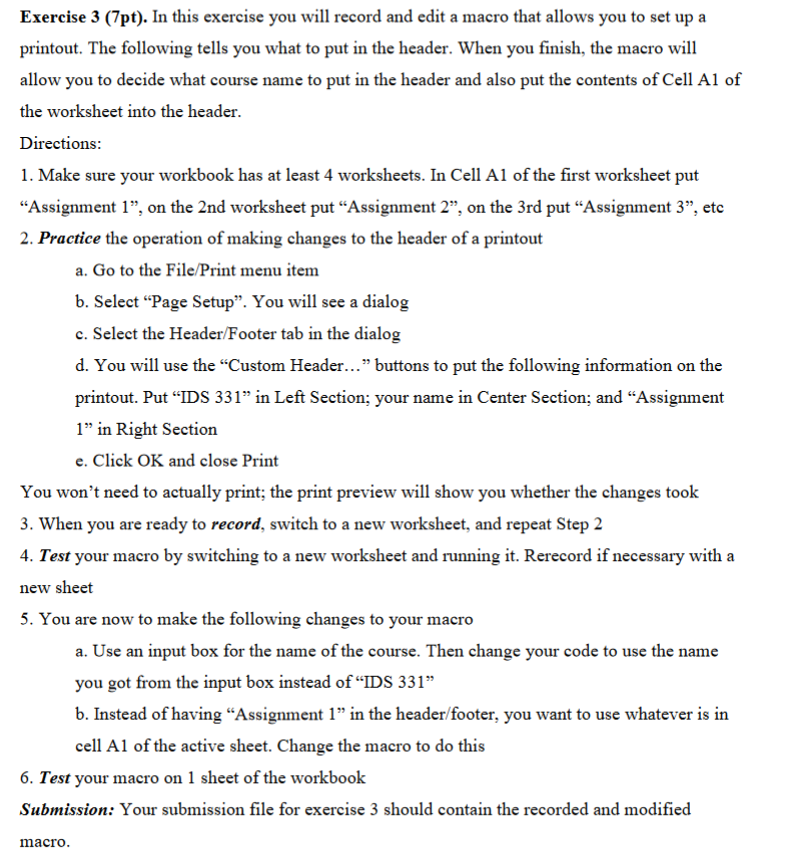
In this exercise you will record and edit a macro that allows you to set up a printout. The following tells you what to put in the header. When you finish, the macro will allow you to decide what course name to put in the header and also put the contents of Cell A1 of the worksheet into the header. Directions: Make sure your workbook has at least 4 worksheets. In Cell A1 of the first worksheet put "Assignment 1", on the 2nd worksheet put "Assignment 2". on the 3rd put "Assignment 3". etc Practice the operation of making changes to the header of a printout a. Go to the File/Print menu item b. Select "Page Setup". You will see a dialog c. Select the Header Footer tab in the dialog d. You will use the "Custom Header..."buttons to put the following information on the printout. Put "IDS 331" in Left Section: your name in Center Section: and "Assignment 1" in Right Section e. Click OK and close Print You won't need to actually print: the print preview will show you whether the changes took When you are ready to record, switch to a new worksheet, and repeat Step 2 Test your macro by switching to a new worksheet and running it. Rerecord if necessary with a new sheet You are now to make the following changes to your macro a. Use an input box for the name of the course. Then change your code to use the name you got from the input box instead of "IDS 331" b. Instead of having "Assignment 1" in the header footer, you want to use whatever is in cell A1 of the active sheet. Change the macro to do this Test your macro on 1 sheet of the workbook Your submission file for exercise 3 should contain the recorded and modified macro
Step by Step Solution
There are 3 Steps involved in it

Get step-by-step solutions from verified subject matter experts
 Study Help