







Question: In this exercise, youll complete a form so it looks as shown below. Place the forms.html and survey.html files in the root folder of your
In this exercise, youll complete a form so it looks as shown below.
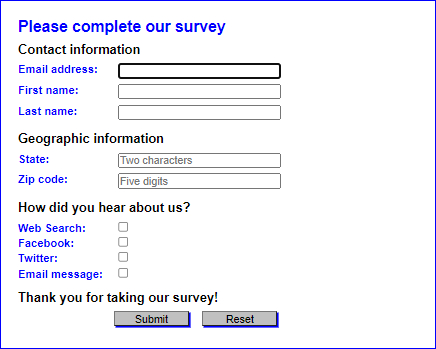
Place the forms.html and survey.html files in the root folder of your site.
Open this HTML file and run it to see that it already provides the first two headings, the first three fields, the last heading, and the two buttons: forms.html
Modify the attributes for the form so it uses the get method and submits the form to the file named survey_data.html. Then, test the submission of the completed form.
This should display a page that shows the submitted data.
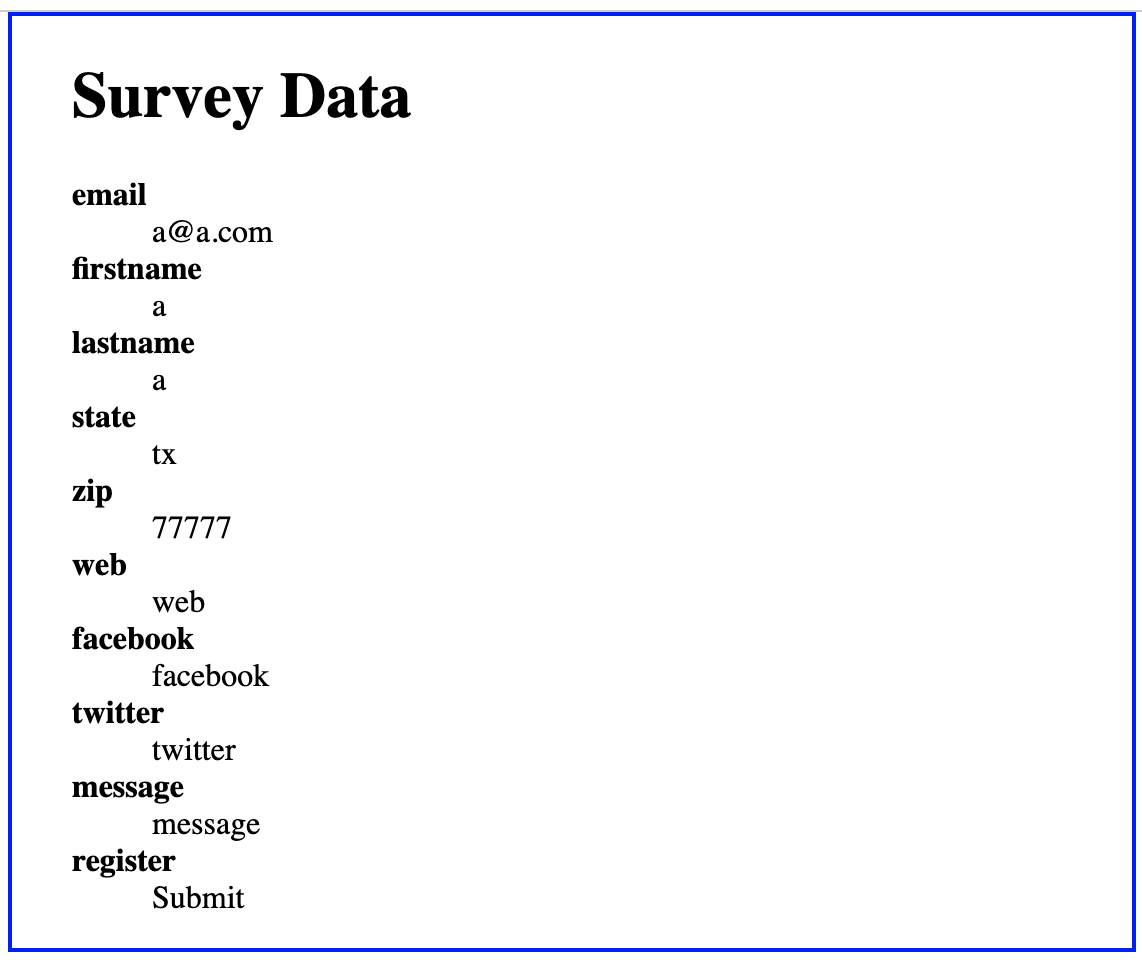
Add the autofocus attribute to the first field and the required attribute to all three of the fields. Then, test to make sure the data validation works.
Add the Geographic information heading and fields. These fields should also be required and they should have the placeholders that are shown above. To validate the state and zip code fields with regular expressions, you can use these patterns: [A-Za-Z]{2} and \d{5}
Add the How did you hear about us heading and checkbox fields.
Enhance the CSS in the HTML file so the form looks like the one above. In particular, you will need to change the width of the checkboxes so they will align right.
Do a final test to make sure everything works as it should.
a10_forms.html:
Please complete our survey
survey_data.html :
Survey Data
Geographic information State: Zip code: How did you hear about us? Web Search: Facebook: Twitter: Email message: Thank you for taking our survey! Survey Data email a@a.com firstname a lastname a state tx zip 77777 web web facebook facebook twitter twitter message message register Submit
Step by Step Solution
There are 3 Steps involved in it

Get step-by-step solutions from verified subject matter experts
 Study Help