







Question: In this exercise, youll modify an application that uses a timer to display the elapsed minutes and seconds in a text box so it displays
In this exercise, youll modify an application that uses a timer to display the elapsed minutes and seconds in a text box so it displays the elapsed time in a Progressbar widget. Estimated time: 10 to 15 minutes to research the widget and another 10 to 15 minutes to implement the changes.
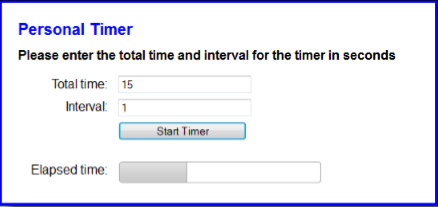 1. Open the HTML and JavaScript files in this folder: exercises_short\ch11\personal_timer\ Now, run this application to see that when you enter a total time and interval and click the Start Timer button, the elapsed minutes and seconds are displayed in the last text box and are updated each time the interval passes.
2. Go to the jQuery UI website at http://jqueryui.com and display the documentation for the Progressbar widget. Review the code for one or more of the examples, then review the API documentation.
3. Modify the HTML for the application so it uses a Progressbar widget to display the elapsed time instead of a text box. Be sure to give the widget an id of progressbar so the CSS for the application works correctly.
4. Add a statement to the JavaScript file that activates the widget with a starting value of 0.
5. Modify the code thats executed if the two entries are valid so it uses the widget. When you do that, you can delete the code that calculates and displays the elapsed minutes and seconds since its no longer needed. Then, you can add code that calculates and changes the value of the Progressbar widget.
index.html
Personal timer Personal Timer
Please enter the total time and interval for the timer in seconds
* *
main.css
body { font-family: Arial, Helvetica, sans-serif; background-color: white; margin: 0 auto; padding: 20px; width: 500px; height: 210px; border: 3px solid blue; } h1 { font-size: 125%; color: blue; margin-top: 0; margin-bottom: .5em; } h2 { font-size: 100%; margin-top: 0; margin-bottom: 1em; } label { float: left; width: 7em; text-align: right; } input { width: 12em; margin-left: 1em; margin-bottom: .5em; } span { color: red; } #elapsed { float: left; margin-left: 1 em; } #progressbar { height: 25px; width: 250px; float: left; margin-left: .8em; } #complete { float: left; margin-left: 1em; padding-bottom: 1em; } timer.js
$(document).ready(function() { $("#start_timer").click( function () { var totalTime = $("#time").val(); var interval = $("#interval").val(); var isValid = true; // validate the time if (totalTime == "") { $("#time_error").text("This field is required."); isValid = false; } else if (isNaN(totalTime)) { $("#time_error").text("Time must be a number."); isValid = false; } else { $("#time_error").text(""); } // validate the interval if (interval == "") { $("#interval_error").text("This field is required."); isValid = false; } else if (isNaN(interval)) { $("#interval_error").text("Interval must be a number."); isValid = false; } else { $("#interval_error").text(""); } if (isValid) { totalTime = totalTime * 1000; interval = interval * 1000; var elapsedTime = 0; var displayMinutes = 0; var displaySeconds = 0; var timer = setInterval( function () { elapsedTime += interval; displaySeconds = elapsedTime / 1000; if (displaySeconds else { displayMinutes = parseInt(displaySeconds / 60); displaySeconds = displaySeconds % 60; if (displaySeconds == 0) { $("#elapsed").val(displayMinutes + " minutes"); } else { $("#elapsed").val(displayMinutes + " minutes " + displaySeconds + " seconds"); } } if (elapsedTime == totalTime) { clearInterval(timer); $("#complete span").text("Time is up!"); } }, interval ); } } ); $("#totalTime").focus(); });
Personal Timer Please enter the total time and interval for the timer in seconds Total time: 15 nterval Start Timer Elapsed time
Step by Step Solution
There are 3 Steps involved in it

Get step-by-step solutions from verified subject matter experts
 Study Help