







Question: In this lab, you'll practice creating classes and objects, using ArrayList objects, and working with interacting objects (with some nice visuals). Even better, you'll be
In this lab, you'll practice creating classes and objects, using ArrayList objects, and working with interacting objects (with some nice visuals). Even better, you'll be working with circles, widely considered to be the roundest of all two-dimensional shapes. 1. Import the starter code to begin. Instructions (if needed), for your IDE of choice: a. Jgrasp: i. Download the starter code folder from the website (Download -> Direct download). ii. Extract (unzip) the downloaded folder (right-click -> Extract all). iii. Copy the entire (unzipped) folder to your H: drive; rename it in the usual fashion. b. Eclipse: i. In Eclipse, create a new Java project named in the usual fashion. ii. Download the starter code folder from the website (Download -> Direct download). iii. Extract (unzip) the downloaded folder (right-click -> Extract all). iv. Drag and drop the unzipped materials as follows: 1. Drag the source (*.java) files into the "src" folder. 2. See here for help (don't worry about text files): youtu.be/LOSICIeP6Ko 2. Create a class Circle.java which is a simple abstraction of an on-screen circle (image). A Circle should (initially) have the following: int x and int y The center point of the circle's on-screen location. These values represent
the circle's (initial) location on screen.
int radius The radius of the circle. Color color The color of the circle. Color is a class that is built into Java, a software
abstraction of color. You can create a new color using Color's three-parameter constructor (e.g. new Color(50, 100, 150)), where each integer is a value 0-255 (corresponding to red, green, and blue components, respectively). There are also pre-built colors in the Color class that you can use, e.g. Color.RED or Color.BLACK. Import: java.awt.Color.
3. Write Circle's 4-parameter constructor. Give the parameter variables real good names. 4. A Circle is responsible for drawing itself. Write a void draw() method that displays the circle on screen using the StdDraw.java graphics library (included in starter code). Use the following: StdDraw.setPenColor(color); //set the current color of the drawing window StdDraw.filledCircle(x, y, radius); //draw a filled circle at
Page 1 of 5
5. The CircleAnimations class performs some on-screen animations using Circle objects; we say CircleAnimations is a client of the Circle class. a. CircleAnimations' constructor has been written for you. Nice! Look it over so you know what variables a CircleAnimations object will have. For example, this class maintains a list of all the circles currently in the animation.
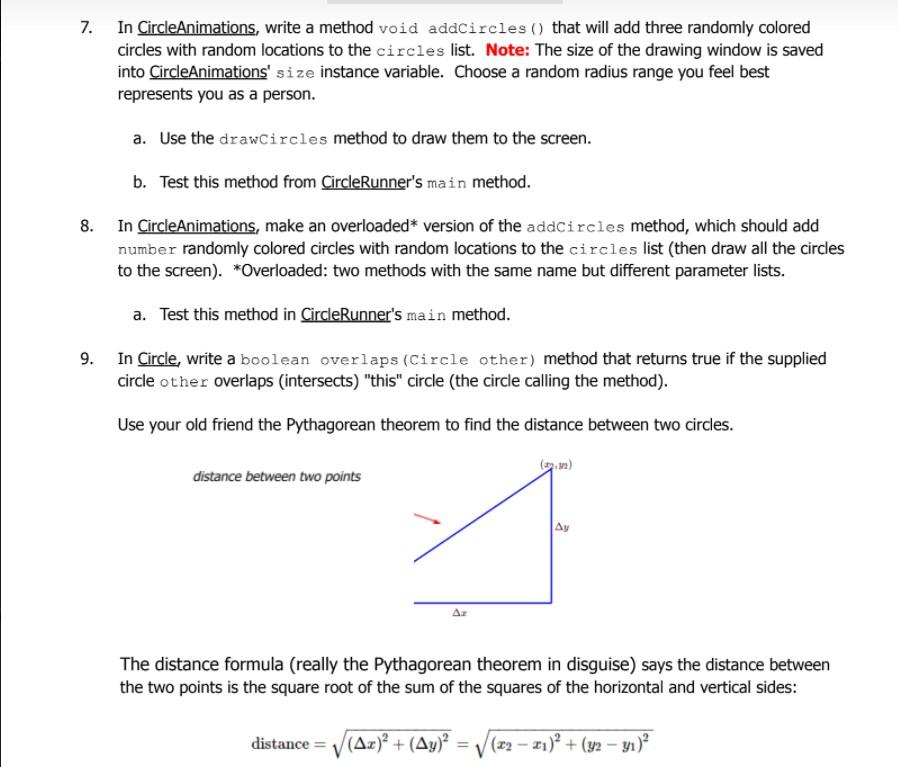
6. In CircleAnimations, write a method void drawCircles() that will iterate through all objects in the circles list and draw them to the screen. The drawCircles method should be called last from any method that adds circles to the list or makes changes to the circles so that the results appear on screen. You don't need to test this method quite yet. 7. In CircleAnimations, write a method void addCircles() that will add three randomly colored circles with random locations to the circles list. Note: The size of the drawing window is saved into CircleAnimations' size instance variable. Choose a random radius range you feel best represents you as a person. a. Use the drawCircles method to draw them to the screen. b. Test this method from CircleRunner's main method. 8. In CircleAnimations, make an overloaded* version of the addCircles method, which should add number randomly colored circles with random locations to the circles list (then draw all the circles to the screen). *Overloaded: two methods with the same name but different parameter lists. a. Test this method in CircleRunner's main method. 9. In Circle, write a boolean overlaps(Circle other) method that returns true if the supplied circle other overlaps (intersects) "this" circle (the circle calling the method). Use your old friend the Pythagorean theorem to find the distance between two circles.
The distance formula (really the Pythagorean theorem in disguise) says the distance between the two points is the square root of the sum of the squares of the horizontal and vertical sides:
Page 2 of 5
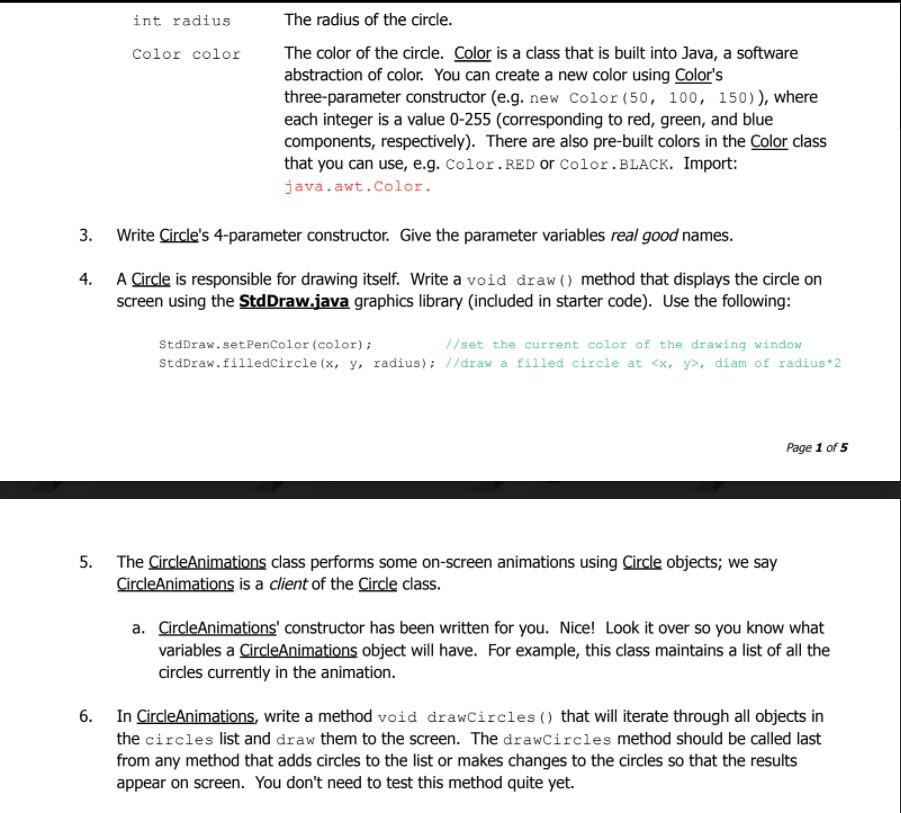
Two circles overlap if the distance between their centers is less than their combined radii. There is a test method you CircleRunner (uncomment it) you may use. Feel free to add more. 10. In CircleAnimations, write a void noOverlapping() method that draws number randomly colored circles in random locations, with the restriction that a circle should not be drawn that overlaps with any other previously added circle in the list. Shown right: 2000 randomly colored circles with random radii from 1 to 75 pixels. Dont forget to draw the circles after you have added them. Hints: Generate a random circle first (before adding it to the list). If you find the randomly generated circle overlaps with another circle already in the list, simply generate another. Repeat as many times as necessary, a while loop works well for this. o It would help to make another method to check the circles list for overlaps. Add the circle to the list when you find one that doesn't overlap.
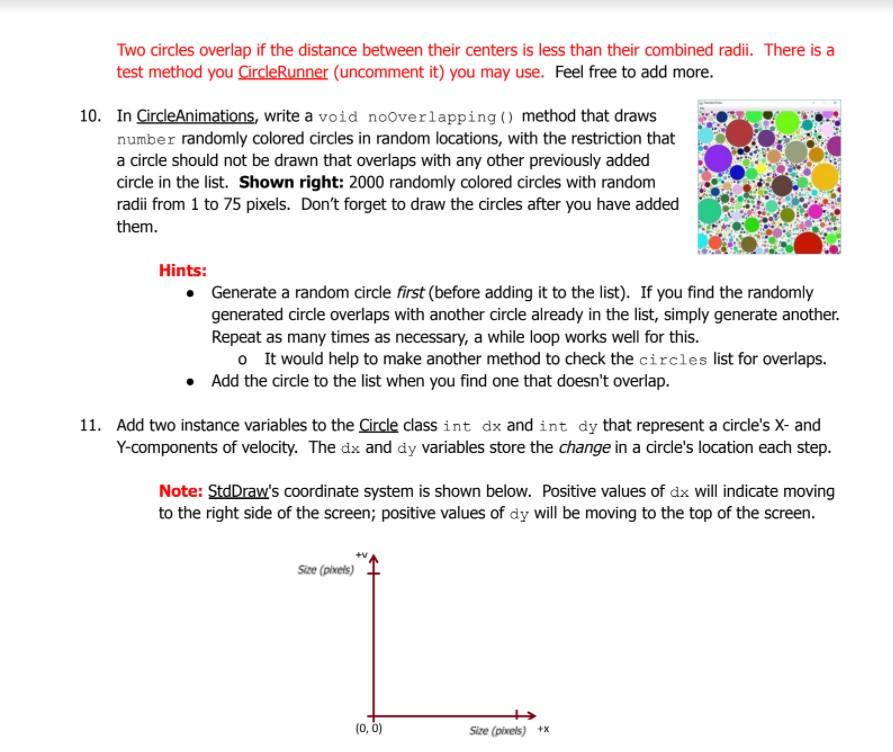
11. Add two instance variables to the Circle class int dx and int dy that represent a circle's X- and Y-components of velocity. The dx and dy variables store the change in a circle's location each step. Note: StdDraw's coordinate system is shown below. Positive values of dx will indicate moving to the right side of the screen; positive values of dy will be moving to the top of the screen.
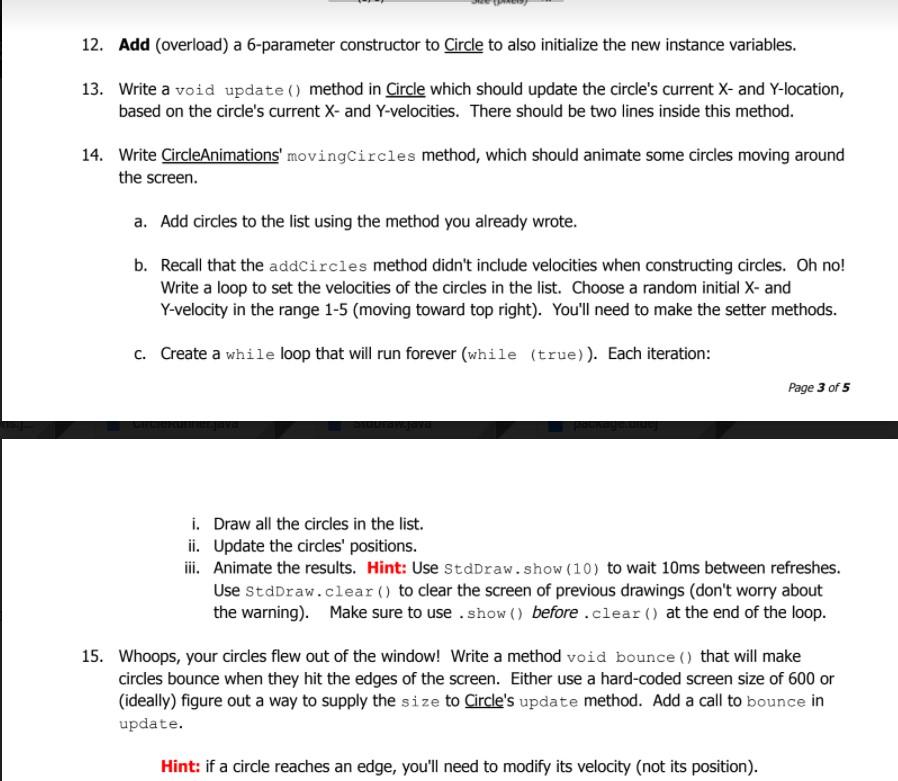
12. Add (overload) a 6-parameter constructor to Circle to also initialize the new instance variables. 13. Write a void update() method in Circle which should update the circle's current X- and Y-location, based on the circle's current X- and Y-velocities. There should be two lines inside this method. 14. Write CircleAnimations' movingCircles method, which should animate some circles moving around the screen. a. Add circles to the list using the method you already wrote. b. Recall that the addCircles method didn't include velocities when constructing circles. Oh no! Write a loop to set the velocities of the circles in the list. Choose a random initial X- and Y-velocity in the range 1-5 (moving toward top right). You'll need to make the setter methods. c. Create a while loop that will run forever (while (true)). Each iteration:
Page 3 of 5
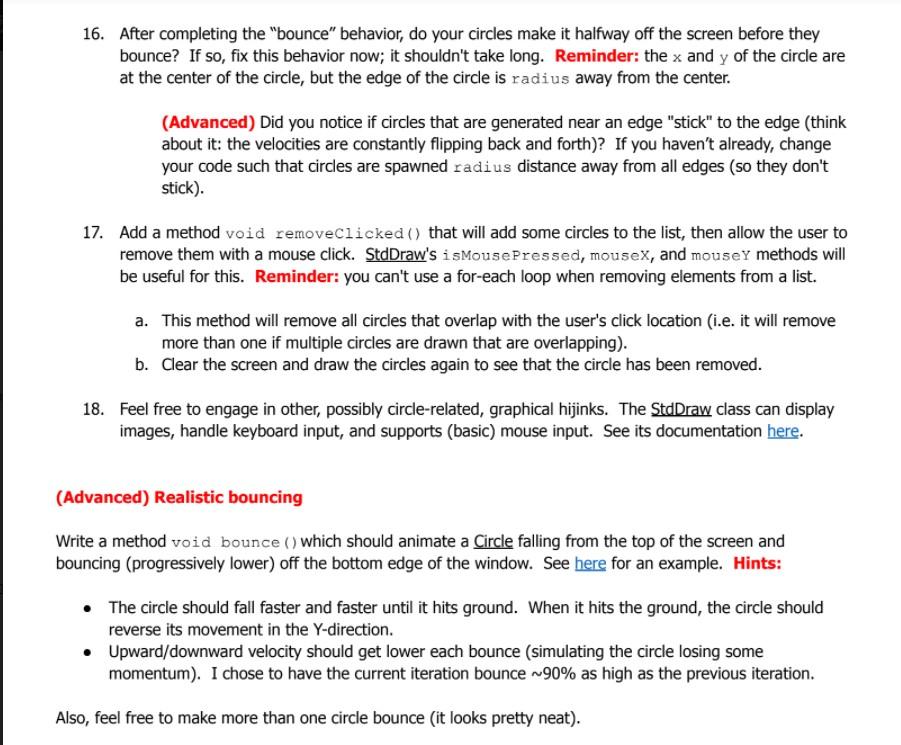
i. Draw all the circles in the list. ii. Update the circles' positions. iii. Animate the results. Hint: Use StdDraw.show(10) to wait 10ms between refreshes. Use StdDraw.clear() to clear the screen of previous drawings (don't worry about the warning). Make sure to use .show() before .clear() at the end of the loop. 15. Whoops, your circles flew out of the window! Write a method void bounce() that will make circles bounce when they hit the edges of the screen. Either use a hard-coded screen size of 600 or (ideally) figure out a way to supply the size to Circle's update method. Add a call to bounce in update. Hint: if a circle reaches an edge, you'll need to modify its velocity (not its position). 16. After completing the bounce behavior, do your circles make it halfway off the screen before they bounce? If so, fix this behavior now; it shouldn't take long. Reminder: the x and y of the circle are at the center of the circle, but the edge of the circle is radius away from the center. (Advanced) Did you notice if circles that are generated near an edge "stick" to the edge (think about it: the velocities are constantly flipping back and forth)? If you havent already, change your code such that circles are spawned radius distance away from all edges (so they don't stick).
17. Add a method void removeClicked() that will add some circles to the list, then allow the user to remove them with a mouse click. StdDraw's isMousePressed, mouseX, and mouseY methods will be useful for this. Reminder: you can't use a for-each loop when removing elements from a list. a. This method will remove all circles that overlap with the user's click location (i.e. it will remove more than one if multiple circles are drawn that are overlapping). b. Clear the screen and draw the circles again to see that the circle has been removed. 18. Feel free to engage in other, possibly circle-related, graphical hijinks. The StdDraw class can display images, handle keyboard input, and supports (basic) mouse input. See its documentation here.
(Advanced) Realistic bouncing Write a method void bounce()which should animate a Circle falling from the top of the screen and bouncing (progressively lower) off the bottom edge of the window. See here for an example. Hints: The circle should fall faster and faster until it hits ground. When it hits the ground, the circle should reverse its movement in the Y-direction. Upward/downward velocity should get lower each bounce (simulating the circle losing some momentum). I chose to have the current iteration bounce ~90% as high as the previous iteration. Also, feel free to make more than one circle bounce (it looks pretty neat).
Page 4 of 5
(Advanced) Draw circles with the mouse Write a method that will allow the user to draw circles with the mouse, similar to MS Paint's circle tool. The basic approach is as follows: The first click will start the drawing process The circle will get bigger as the mouse is dragged (based on the location of the mouse) o The current size of the circle should be drawn while the mouse is dragging When the mouse is released, the circle is permanently added (to the list of circles)
CircleAnimations
import java.awt.Color; import java.util.ArrayList; import java.util.List; import java.util.Random;
ArrayList
public class CircleAnimations { private ArrayList
/** create a drawing pane of a particular size */ public void drawCircles() { for(int i = 0; i (); size = s; rng = new Random();
//don't mess with this StdDraw.setCanvasSize(size, size); //set up drawing canvas StdDraw.setXscale(0, size); // is bottom left.
CircleRunner
import java.awt.*;
public class CircleRunner { public static void main(String[] args) { CircleAnimations app = new CircleAnimations(600); //supply window size, will be 600x600
//test your methods below (with the app object)
// testCircleOverlap(); //uncomment to test your overlap method, when required }
public static void testCircleOverlap() { //uncomment contents to use /* * The distance between a and b is ~2.83, which is greater than the combined radius of 2 (a and b do NOT overlap) * * The distance between a and c is ~2.83, which is less than the combined radius of 6 (a and c overlap) */ // Circle a = new Circle(1, 1, 1, null); //color is irrelevant for this // Circle b = new Circle(3, 3, 1, null); // Circle c = new Circle(3, 3, 5, null); // // System.out.println(a.overlaps(b)); //should print false // System.out.println(a.overlaps(c)); //should print true Complete the circle java and circle animations java as per the given instructions in the question docx
Circles In this lab, you'll practice creating classes and objects, using ArrayList objects, and working with interacting objects (with some nice visuals). Even better, you'll be working with circles, widely considered to be the roundest of all two-dimensional shapes. CS circles ? 1. Import the starter code to begin. Instructions (if needed), for your IDE of choice: a. Igrasp: 1. Download the starter code folder from the website (Download -> Direct download). ii. Extract (unzip) the downloaded folder (right-click -> Extract all). ii. Copy the entire (unzipped) folder to your H: drive; rename it in the usual fashion. b._Eclipse: i. In Eclipse, create a new Java project named in the usual fashion. ii. Download the starter code folder from the website (Download -> Direct download). iii. Extract (unzip) the downloaded folder (right-click -> Extract all). iv. Drag and drop the unzipped materials as follows: 1. Drag the source (*.java) files into the "Src" folder. 2. See here for help (don't worry about text files): youtu.be/LOSICIEP6KO 2. Create a class Circle.java which is a simple abstraction of an on-screen circle (image). A Circle should (initially) have the following: int x and int y The center point of the circle's on-screen location. These values represent the circle's (initial) location on screen. int radius The radius of the circle. int radius Color color The radius of the circle. The color of the circle. Color is a class that is built into Java, a software abstraction of color. You can create a new color using Color's three-parameter constructor (e.g. new Color (50, 100, 150)), where each integer is a value 0-255 (corresponding to red, green, and blue components, respectively). There are also pre-built colors in the Color class that you can use, e.g. Color. RED or Color.BLACK. Import: java.awt.Color. 3. Write Circle's 4-parameter constructor. Give the parameter variables real good names. 4. A Circle is responsible for drawing itself. Write a void draw() method that displays the circle on screen using the StdDraw.java graphics library (included in starter code). Use the following: StdDraw.setPenColor (color); //set the current color of the drawing window StdDraw.filledcircle(x, y, radius); //draw a filled circle at
Step by Step Solution
There are 3 Steps involved in it

Get step-by-step solutions from verified subject matter experts
 Study Help