







Question: In this part, you will upload and analyze Apache web server logs that represent regular activity for VSI into your Splunk environment. To do
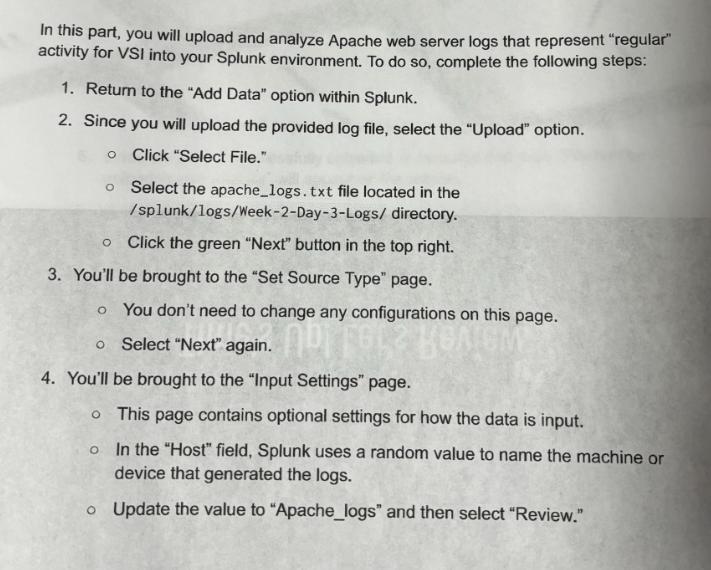
In this part, you will upload and analyze Apache web server logs that represent "regular" activity for VSI into your Splunk environment. To do so, complete the following steps: 1. Return to the "Add Data" option within Splunk. 2. Since you will upload the provided log file, select the "Upload" option. o Click "Select File." o O Select the apache_logs.txt file located in the /splunk/logs/Week-2-Day-3-Logs/ directory. Click the green "Next" button in the top right. 3. You'll be brought to the "Set Source Type" page. o You don't need to change any configurations on this page. o Select "Next": again. BAIGM 4. You'll be brought to the "Input Settings" page. O o This page contains optional settings for how the data is input. In the "Host" field, Splunk uses a random value to name the machine or device that generated the logs. o Update the value to "Apache_logs" and then select "Review."
Step by Step Solution
There are 3 Steps involved in it

Get step-by-step solutions from verified subject matter experts
 Study Help