







Question: In this problem, you will build a grade calculator GUI application. This application uses many elements in tkinter including Frames, Labels, Entry, and Buttons. This
In this problem, you will build a grade calculator GUI application. This application uses many elements in tkinter including Frames, Labels, Entry, and Buttons.
This GUI application will accept three values from the user:
The average grade of all the tests taken.
The average grade of all the labs completed.
The average grade of all the exams taken.
When the user hits the Calculate button, the program will calculate the overall average of the grades using the following weighting:
Table : Grade Weighting for Activities in application.
Activity Weighting
Tests
Labs
Exams
When the user hits the Quit button, the program will exit.
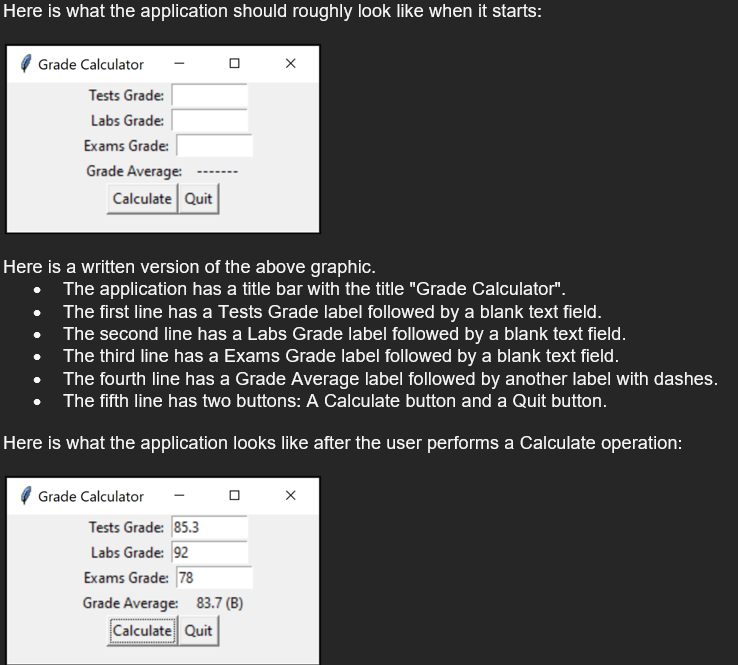
Here is what the application should roughly look like when it starts:
Here is a written version of the above graphic.
The application has a title bar with the title "Grade Calculator".
The first line has a Tests Grade label followed by a blank text field.
The second line has a Labs Grade label followed by a blank text field.
The third line has a Exams Grade label followed by a blank text field.
The fourth line has a Grade Average label followed by another label with dashes.
The fifth line has two buttons: A Calculate button and a Quit button.
Here is what the application looks like after the user performs a Calculate operation:
Here is a written version of the above graphic:
The Tests Grade text field has filled in
The Labs Grade text field has filled in
The Exams Grade text field has filled in
The field after Grade Average shows followed by B in parenthesis.
Note that this application should gracefully catch errors in the user's input like entering a number that cannot be converted to a float and provide some kind of feedback. This feedback could be done by changing the label after Grade Average to "Error" or the application could popup an error dialog. Either is acceptable for this implementation.
This application has two features not mentioned in the textbook:
This application has a custom title, "Grade Calculator" in the application title bar. To get this custom title, you use the title method of the main window:
self.mainwindow.titleGrade Calculator'
This application starts with a custom size of width by height To get this custom size, you use the geometry method of the main window:
self.mainwindow.geometryx
Create a file named LabPpy and implement your GUI application in that file. Review the textbook for details on how to create each element and how to support the updates of the grade average label using a callback function. The textbook also provides details for creating a quit button using the destroy method.
For this problem you are REQUIRED to implement this solution using the classbased approach shown in the textbook and described in the video lectures. Solutions that are submitted using a functionbased approach will be lose credit for their implementation.
Step by Step Solution
There are 3 Steps involved in it
1 Expert Approved Answer
Step: 1 Unlock

Question Has Been Solved by an Expert!
Get step-by-step solutions from verified subject matter experts
Step: 2 Unlock
Step: 3 Unlock
 Study Help