





Question: wait for second screenshot In this problem, you will build a grade calculator GUI application. This application uses many elements in tkinter including Frames, Labels,

wait for second screenshot
wait for second screenshot In this problem, you
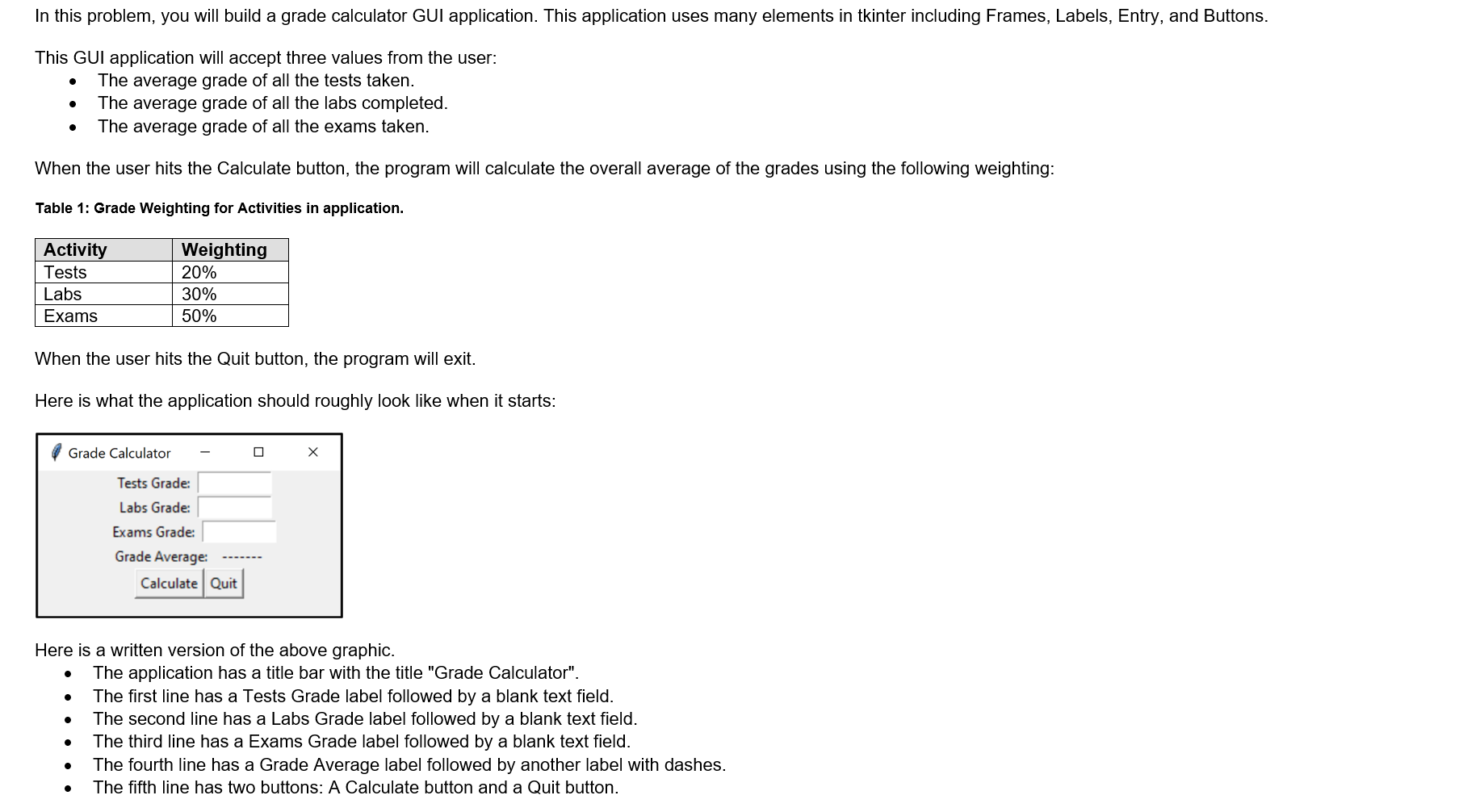
In this problem, you will build a grade calculator GUI application. This application uses many elements in tkinter including Frames, Labels, Entry, and Buttons. This GUI application will accept three values from the user: The average grade of all the tests taken. The average grade of all the labs completed. e The average grade of all the exams taken. When the user hits the Calculate button, the program will calculate the overall average of the grades using the following weighting: Table 1: Grade Weighting for Activities in application. Activity Weighting Tests 20% Labs 30% Exams 50% When the user hits the Quit button, the program will exit. Here is what the application should roughly look like when it starts: Grade Calculator = Tests Grade: Labs Grade: Exams Grade: Grade Average: Calculate | Quit Here is a written version of the above graphic. e The application has a title bar with the title "Grade Calculator". e The first line has a Tests Grade label followed by a blank text field. e The second line has a Labs Grade label followed by a blank text field. e The third line has a Exams Grade label followed by a blank text field. e The fourth line has a Grade Average label followed by another label with dashes. e The fifth line has two buttons: A Calculate button and a Quit button

Step by Step Solution

There are 3 Steps involved in it

1 Expert Approved Answer
Step: 1 Unlock blur-text-image

Question Has Been Solved by an Expert!

Get step-by-step solutions from verified subject matter experts

Step: 2 Unlock
Step: 3 Unlock

Students Have Also Explored These Related Mathematics Questions!