







Question: In this project you will explore how to retrieve text data from a JSON file and display that data in a web table. The first
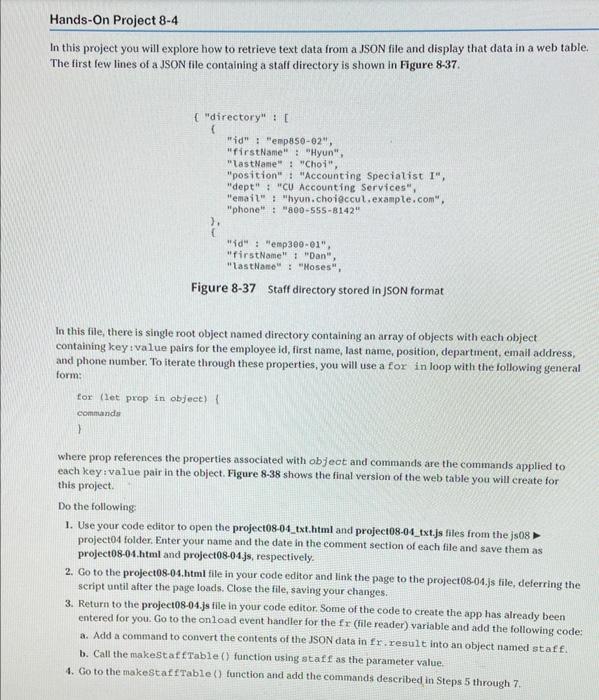
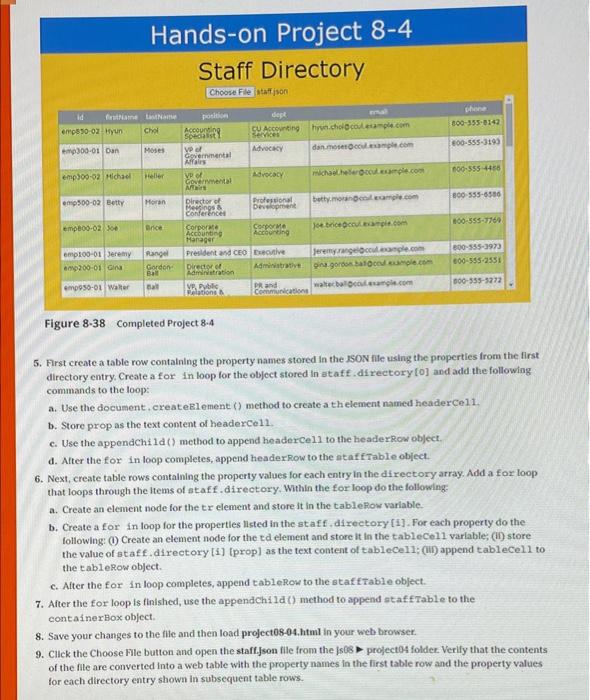
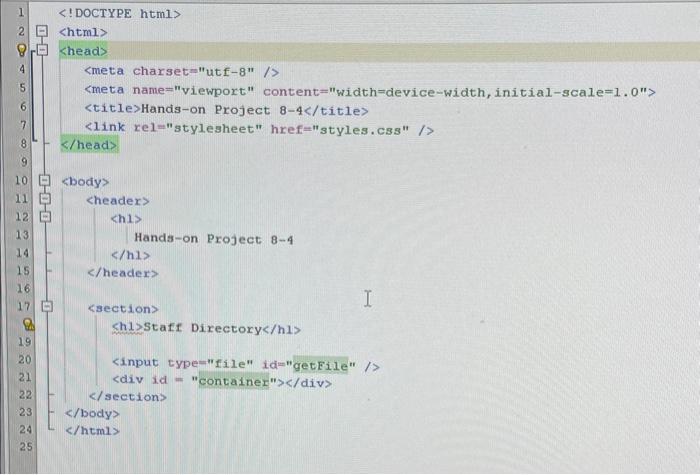
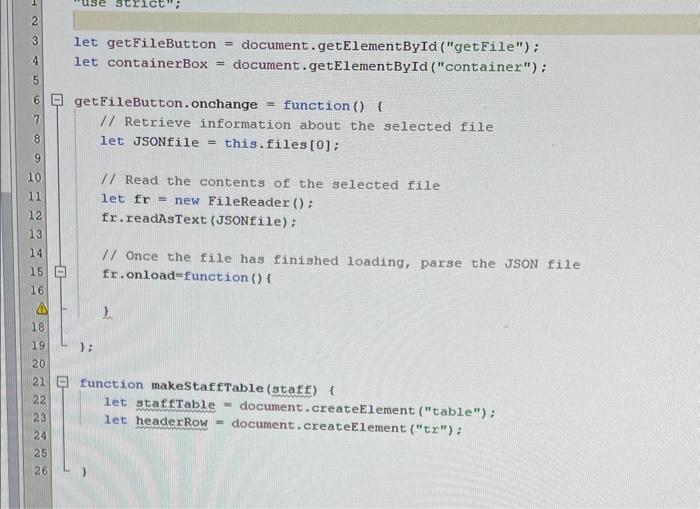
In this project you will explore how to retrieve text data from a JSON file and display that data in a web table. The first few lines of a JSON file containing a staff directory is shown in Figure 8-37. Figure 8-37 Staff directory stored in JSON format In this file, there is single root object named directory containing an array of objects with each object containing key : value pairs for the employee id, first name, last name, position, department, email address. and phone number. To iterate through these properties, you will use a for in loop with the following general form: for (1et prop in object) 1 commands 1 where prop references the properties associated with objeot and commands are the commands applied to each key:value pair in the object. Figure 838 shows the final version of the web table you will create for this project. Do the following: 1. Use your code editor to open the project08-04_txt.html and project08-04_txt.js files from the js08 project04 folder. Enter your name and the date in the comment section of each file and save them as project08-04.html and project08-04.js, respectively. 2. Go to the project08-04.html file in your code editor and link the page to the project08-04.js file, deferring the seript until after the page loads. Close the file, saving your changes. 3. Return to the project08-04.js ille in your code editor. Some of the code to create the app has already been entered for you. Go to the onload event handler for the fx (file reader) variable and add the following code: a. Add a command to convert the contents of the JSON data in fx. result into an object named staf f. b. Call the makestaffable () function using ataff as the parameter value. 4. Go to the makestaff fable () function and add the commands described in Steps 5 through 7 . Staff Directory Figure 8.38 Completed Project 84 5. First create a table row contalning the property names stored in the Js0N file using the properties from the first directory entry. Create a for in loop for the object stored in ataf f. dif rectory {0} and add the following commands to the loop: a. Use the document, createElement () method to create a thelement named headercel1. b. Store prop as the text content of headerce11. c. Use the appendchild () method to append headercell to the headerRow object. a. After the for in loop completes, append headerrow to the itaf f Table object. 6. Next, create table rows contalning the property values lor each entry in the directory array. Add a for loop that loops through the items of ataff. directory. Within the for loop do the following: a. Create an element node for the tr element and store it in the tablefow variable- b. Create a for in loop for the properties listed in the ataff. directory [1]. For each property do the following: (1) Create an element node for the td element and store it in the tablecel1 varlable; (ii) store the value of ataff. directory [i] [prop] as the text content of tablecel1; (iii) append tablecell to the tablerow object. c. After the for in loop completes, append tablerow to the staf f Table object. 7. After the for loop is finished, use the appendchild () method to append staf frable to the containerbox object. 8. Save your changes to the file and then load project08-04.html in your web browser. 9. Cllck the Choose Flle button and open the staff.json file from the is 08 profect04 folder. Verify that the contents of the file are converted into a web table with the property names in the first table row and the property values for each directory entry shown in subsequent table rows. head meta name="viewport" content = "width=device-width, initial-scale=1. 0 " Hands-on Project 84 title> /> /head > h1> Hands-on project 84 /hl> / headers /> div id = "container" /div /body let getFileButton = document.getElementById("getFile"): let containerBox = document.getElementById ("container") ; getFileButton. onchange = function () // Retrieve information about the selected file let JSONfile = this.files [0]; I/ Read the contents of the selected file let fr= new FileReader () ; fr. readAsText (JSONfile): I/ Once the file has finished loading, parse the JSON file fr.onload=function () f 1 3 function makestaffTable (staff) } let staffable = document. createElement ("table") : let headerRow = document. createElement ( "t t d
Step by Step Solution
There are 3 Steps involved in it

Get step-by-step solutions from verified subject matter experts
 Study Help