







Question: Initial configuration Create a Java application named csc143.timer.Timer The application shall create a window with two buttons and a label. . The first button shall
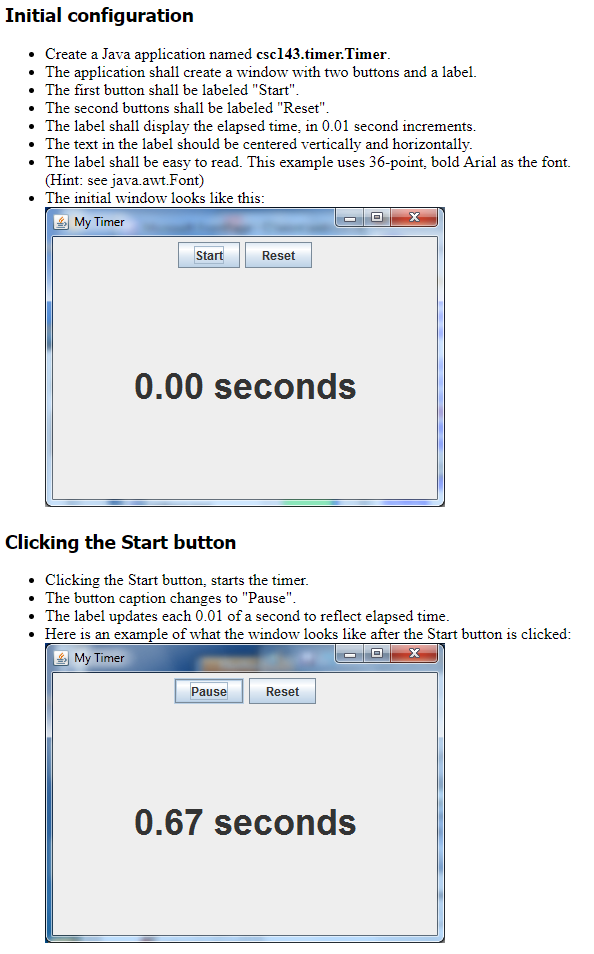
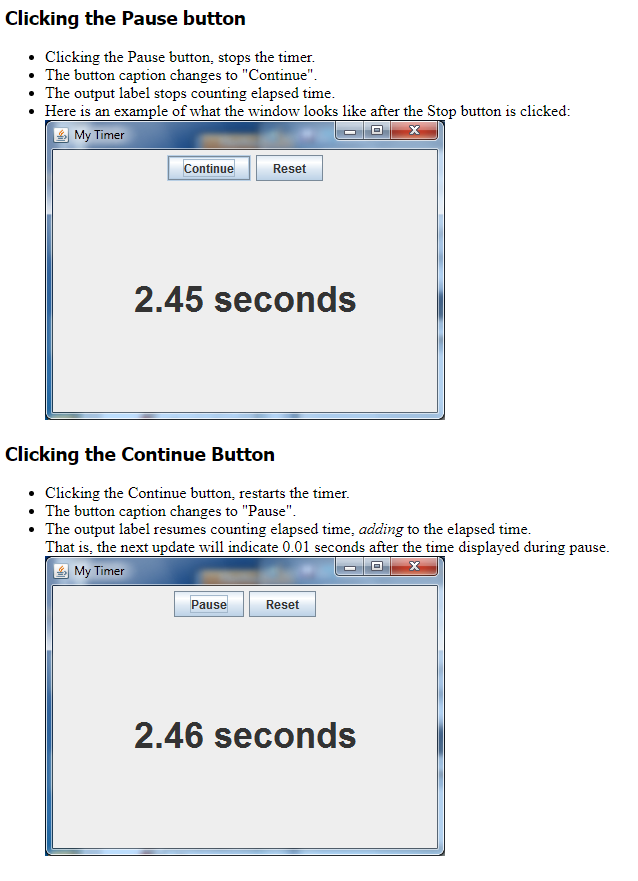
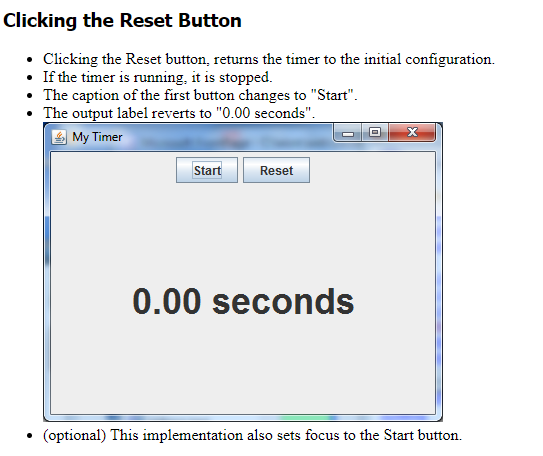
Initial configuration Create a Java application named csc143.timer.Timer The application shall create a window with two buttons and a label. . The first button shall be labeled "Start" . The second buttons shall be labeled "Reset" . The label shall display the elapsed time, in 0.01 second increments The text in the label should be centered vertically and horizontally. . The label shall be easy to read. This example uses 36-point, bold Arial as the font. (Hint: see java.awt.Font) . The initial window looks like this My Timer Sta Reset 0.00 seconds Clicking the Start button Clicking the Start button, starts the timer . The button caption changes to "Pause" . The label updates each 0.01 of a second to reflect elapsed time Here is an example of what the window looks like after the Start button is clicked My Timer Paus Reset 0.67 seconds Clicking the Pause button .Clicking the Pause button, stops the timer. The button caption changes to "Continue The output label stops counting elapsed time. Here is an example of what the window looks like after the Stop button is clicked My Timer ontinue Reset 2.45 seconds Clicking the Continue Button Clicking the Continue button, restarts the timer. The button caption changes to "Pause" The output label resumes counting elapsed time, adding to the elapsed time. That is, the next update will indicate 0.01 seconds after the time displayed during pause. My Timer PauseReset 2.46 seconds Clicking the Reset Button Clicking the Reset button, returns the timer to the initial configuration. If the timer is running, it is stopped. The caption of the first button changes to "Start" . The output label reverts to "0.00 seconds" l My Timer Reset 0.00 Seconds (optional) This implementation also sets focus to the Start button. Initial configuration Create a Java application named csc143.timer.Timer The application shall create a window with two buttons and a label. . The first button shall be labeled "Start" . The second buttons shall be labeled "Reset" . The label shall display the elapsed time, in 0.01 second increments The text in the label should be centered vertically and horizontally. . The label shall be easy to read. This example uses 36-point, bold Arial as the font. (Hint: see java.awt.Font) . The initial window looks like this My Timer Sta Reset 0.00 seconds Clicking the Start button Clicking the Start button, starts the timer . The button caption changes to "Pause" . The label updates each 0.01 of a second to reflect elapsed time Here is an example of what the window looks like after the Start button is clicked My Timer Paus Reset 0.67 seconds Clicking the Pause button .Clicking the Pause button, stops the timer. The button caption changes to "Continue The output label stops counting elapsed time. Here is an example of what the window looks like after the Stop button is clicked My Timer ontinue Reset 2.45 seconds Clicking the Continue Button Clicking the Continue button, restarts the timer. The button caption changes to "Pause" The output label resumes counting elapsed time, adding to the elapsed time. That is, the next update will indicate 0.01 seconds after the time displayed during pause. My Timer PauseReset 2.46 seconds Clicking the Reset Button Clicking the Reset button, returns the timer to the initial configuration. If the timer is running, it is stopped. The caption of the first button changes to "Start" . The output label reverts to "0.00 seconds" l My Timer Reset 0.00 Seconds (optional) This implementation also sets focus to the Start button
Step by Step Solution
There are 3 Steps involved in it

Get step-by-step solutions from verified subject matter experts
 Study Help