







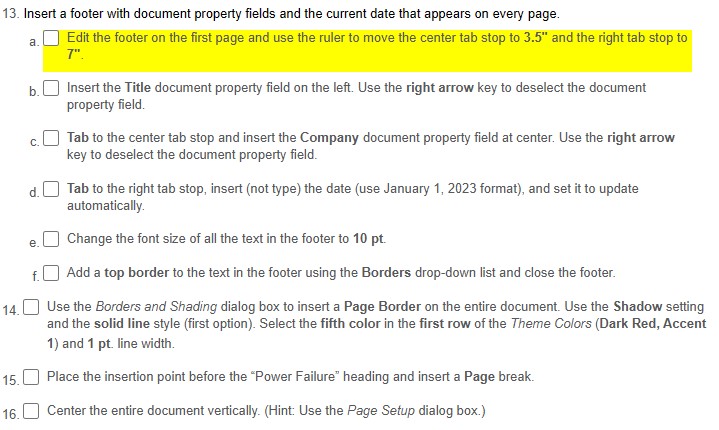
Question: Insert a footer with document property fields and the current date that appears on every page. a . Edit the footer on the first page
Insert a footer with document property fields and the current date that appears on every page.
a
Edit the footer on the first page and use the ruler to move the center tab stop to and the right tab stop to
b Insert the Title document property field on the left. Use the right arrow key to deselect the document
property field.
c Tab to the center tab stop and insert the Company document property field at center. Use the right arrow
key to deselect the document property field.
d Tab to the right tab stop, insert not type the date use January format and set it to update
automatically.
e Change the font size of all the text in the footer to pt
f Add a top border to the text in the footer using the Borders dropdown list and close the footer.
Use the Borders and Shading dialog box to insert a Page Border on the entire document. Use the Shadow setting
and the solid line style first option Select the fifth color in the first row of the Theme Colors Dark Red, Accent
and pt line width.
Place the insertion point before the "Power Failure" heading and insert a Page break.
Center the entire document vertically. Hint: Use the Page Setup dialog box.
Step by Step Solution
There are 3 Steps involved in it
1 Expert Approved Answer
Step: 1 Unlock

Question Has Been Solved by an Expert!
Get step-by-step solutions from verified subject matter experts
Step: 2 Unlock
Step: 3 Unlock
 Study Help