







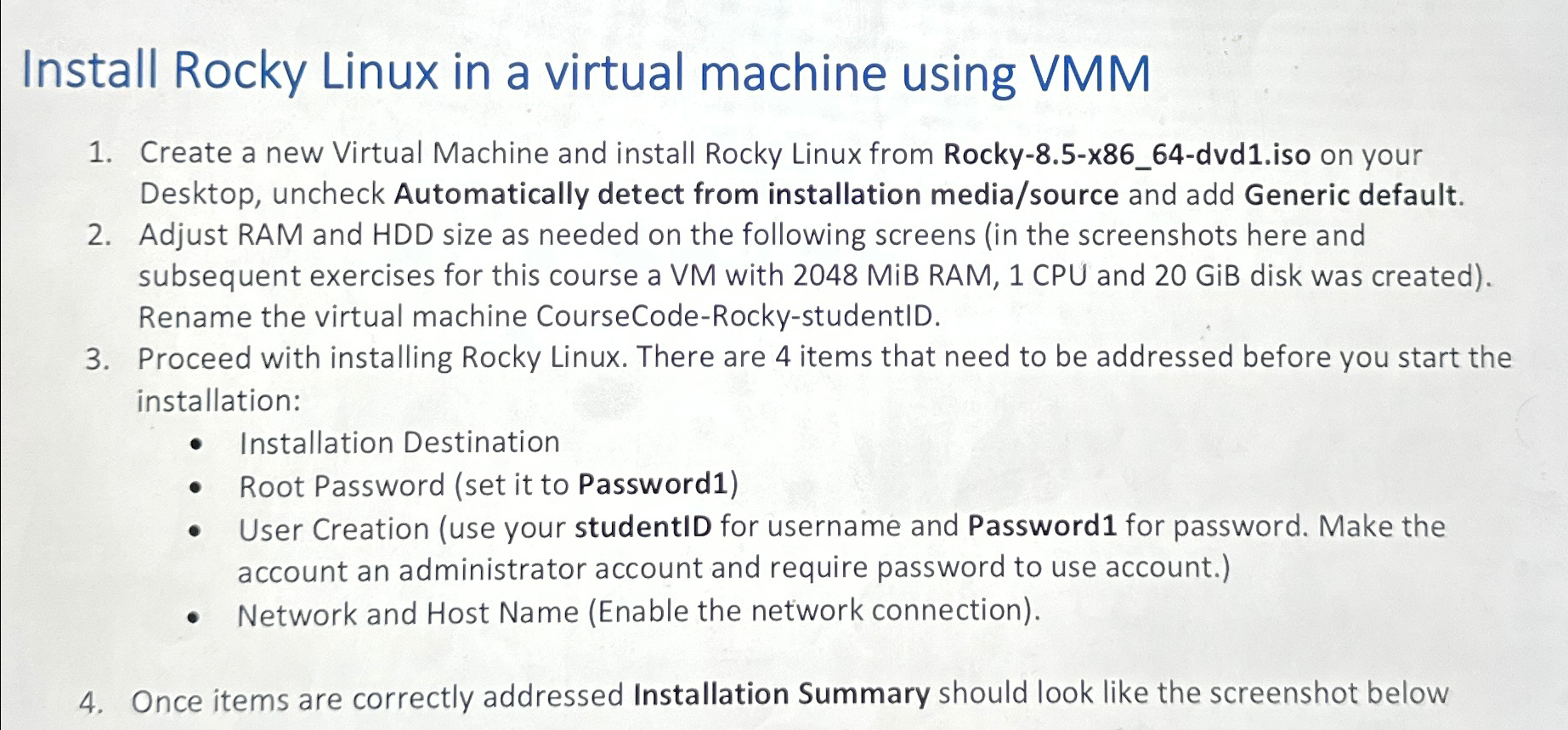
Question: Install Rocky Linux in a virtual machine using VMM Create a new Virtual Machine and install Rocky Linux from Rocky - 8 . 5 -
Install Rocky Linux in a virtual machine using VMM
Create a new Virtual Machine and install Rocky Linux from Rockyxdvdiso on your Desktop, uncheck Automatically detect from installation mediasource and add Generic default.
Adjust RAM and HDD size as needed on the following screens in the screenshots here and subsequent exercises for this course a VM with MiB RAM, CPU and GiB disk was created Rename the virtual machine CourseCodeRockystudentID.
Proceed with installing Rocky Linux. There are items that need to be addressed before you start the installation:
Installation Destination
Root Password set it to Password
User Creation use your studentID for username and Password for password. Make the account an administrator account and require password to use account.
Network and Host Name Enable the network connection
Once items are correctly addressed Installation Summary should look like the screenshot below
Step by Step Solution
There are 3 Steps involved in it
1 Expert Approved Answer
Step: 1 Unlock

Question Has Been Solved by an Expert!
Get step-by-step solutions from verified subject matter experts
Step: 2 Unlock
Step: 3 Unlock
 Study Help