







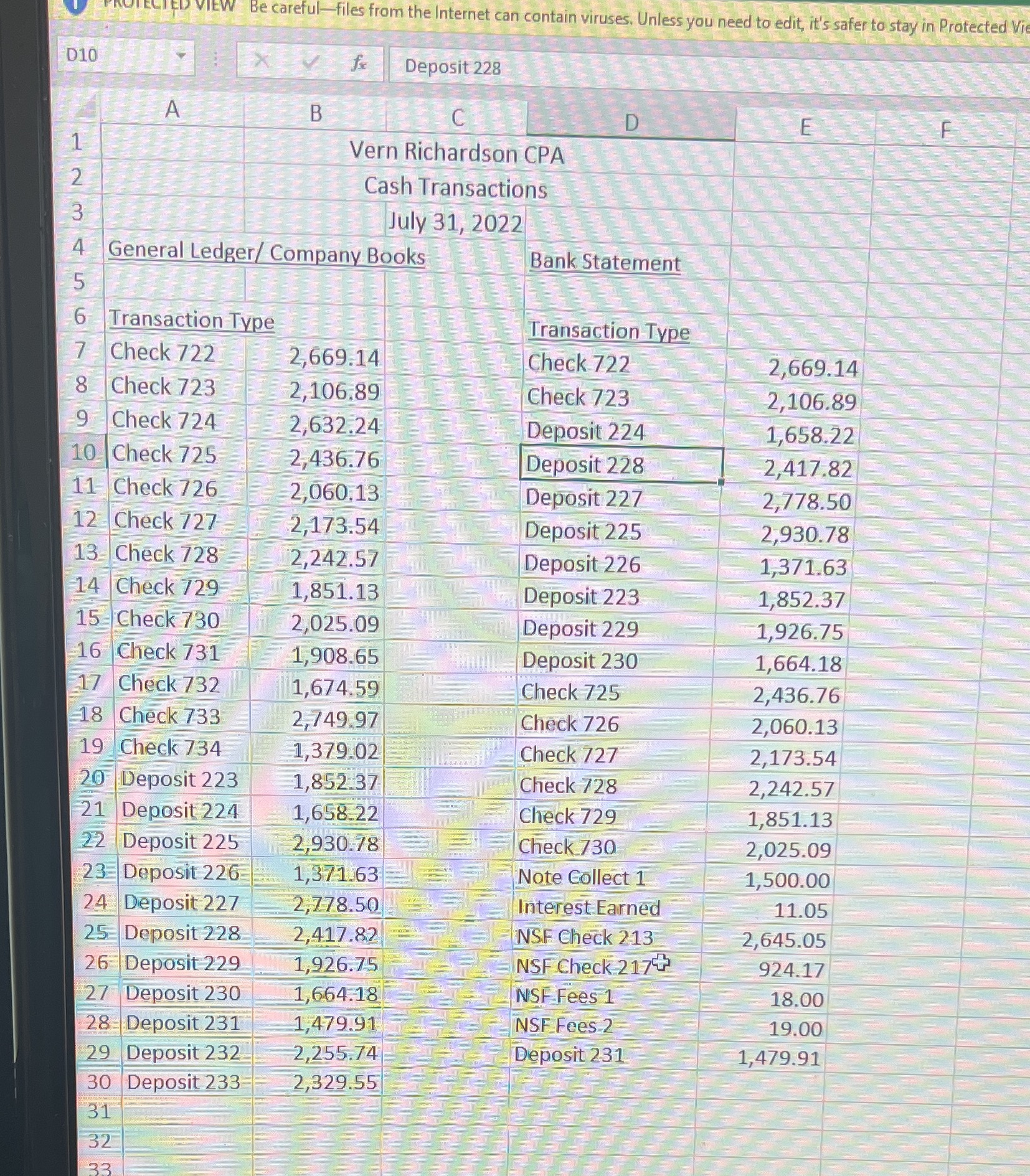
Question: Instructions: 1. Review the data you have been given. 2. Copy the data from the worksheet into a new worksheet called Working Data, and name
Instructions:
1. Review the data you have been given.
2. Copy the data from the worksheet into a new worksheet called Working Data, and name the original worksheet Original Data.
3. Under General Ledger in the table to the right of the Bank Statement data, complete the roll forward and calculate the ending balance in cash per the general ledger. Do the same for the Bank balance. You will need these numbers for your reconciliation.
4. Holding the control key down, highlight both columns of dollar amounts (General Ledger and Bank Statement amounts in columns C and G).
5. From the home tab, choose Conditional Formatting, then New Rule. Choose format only unique and duplicate values. Under Format all, choose unique values. Click on the Format and set the fill color to any color you choose. This will show you only the numbers that need to be reconciled. (For example, you can change the color of the font or choose to fill the cells.) Click OK.
6. Create a third worksheet called Reconciliation. Prepare a bank reconciliation using the data and the information you learned from the conditional formatting. Assume that any errors made were made by the company, not the bank. All items should be referenced to the data.
7. Add a new worksheet called Journal Entries, and prepare any entries needed to adjust the cash balance.
8. Move the Reconciliation worksheet to be the first one and the Journal Entries worksheet to be the second one.
Step by Step Solution
There are 3 Steps involved in it

Get step-by-step solutions from verified subject matter experts
 Study Help