Question: Instructions for QBO Project (Note: QBO changes their system interface frequently; thus, I will provide revised instructions if needed.) Assignment Overview You need to develop
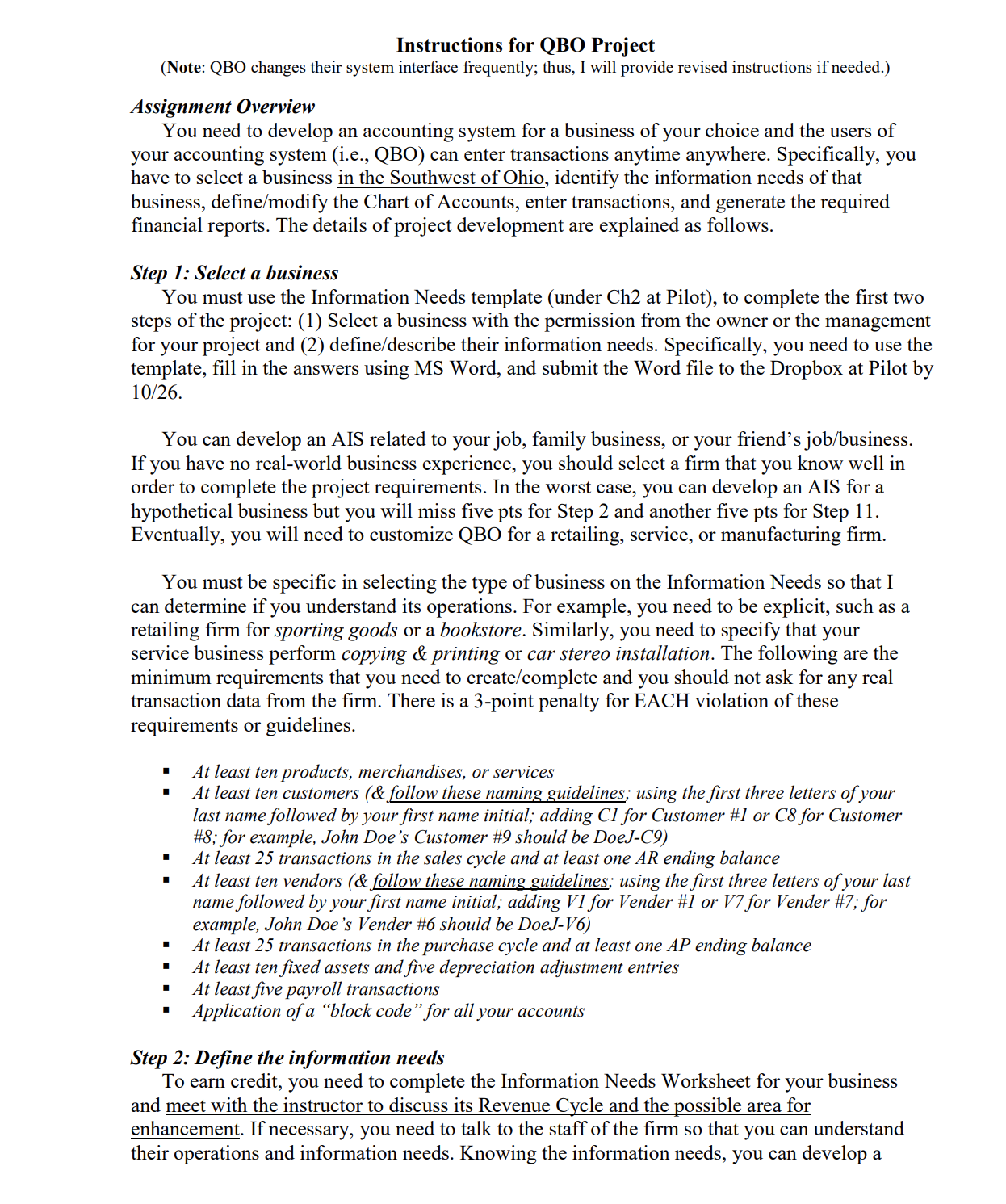
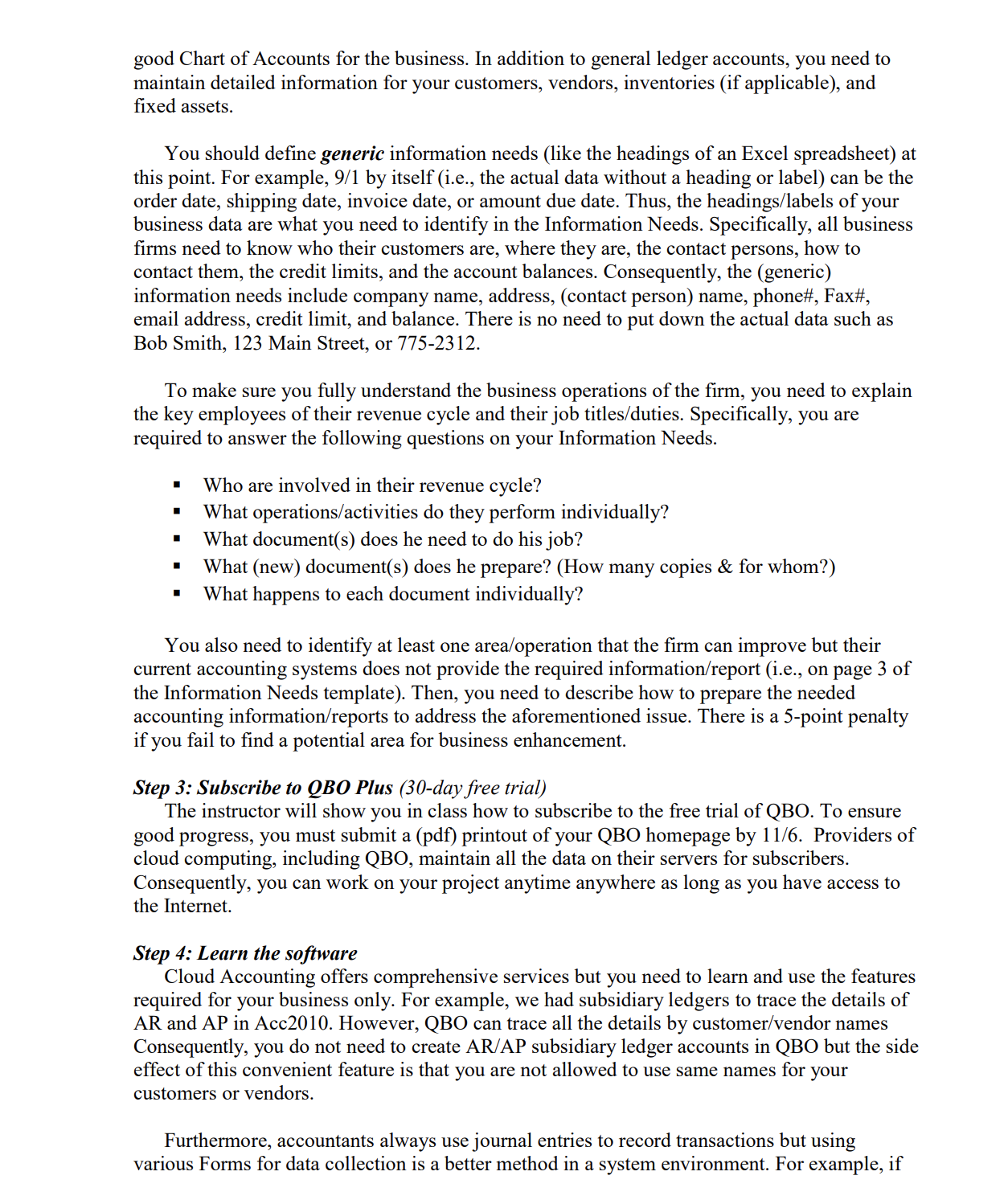
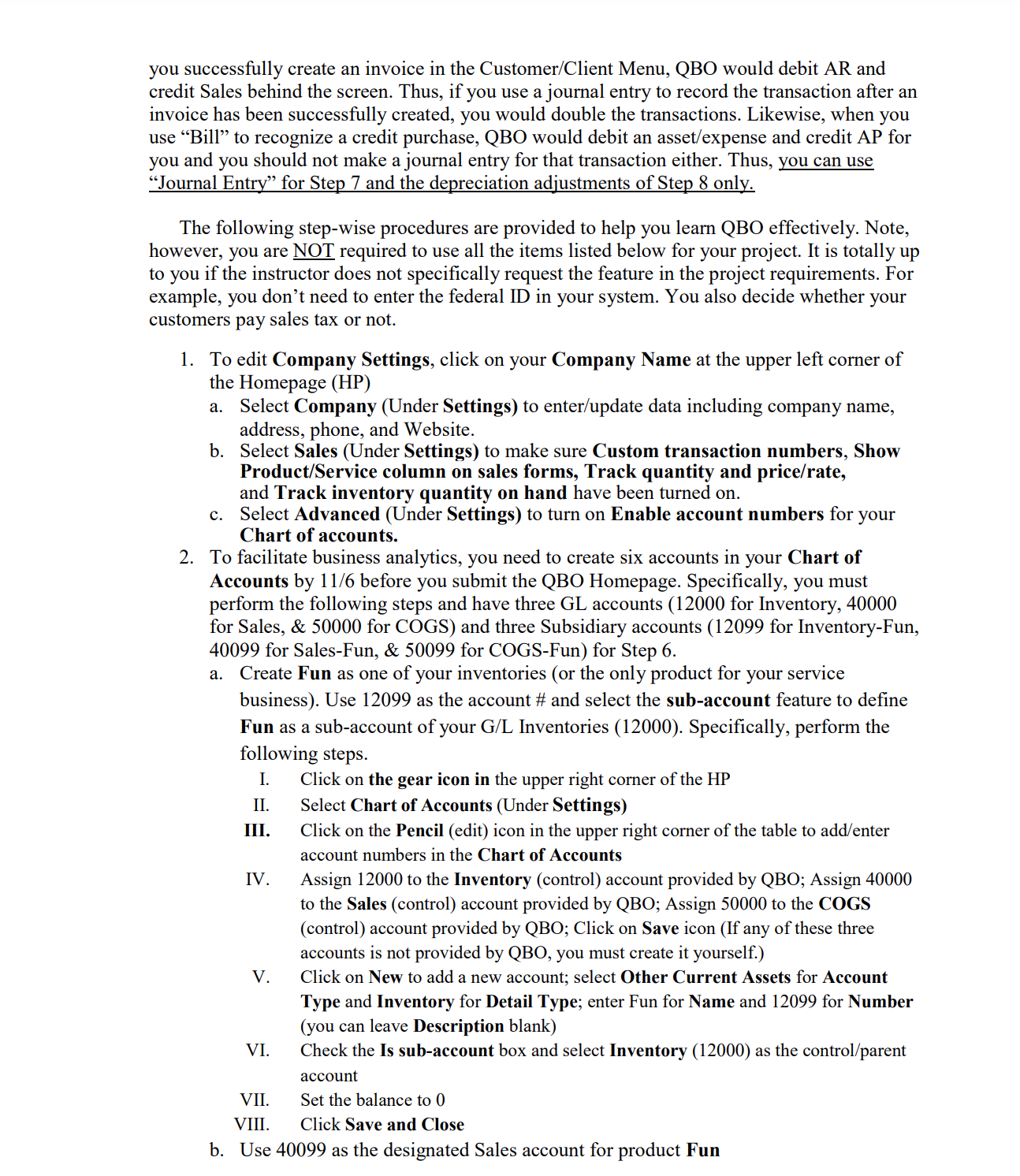
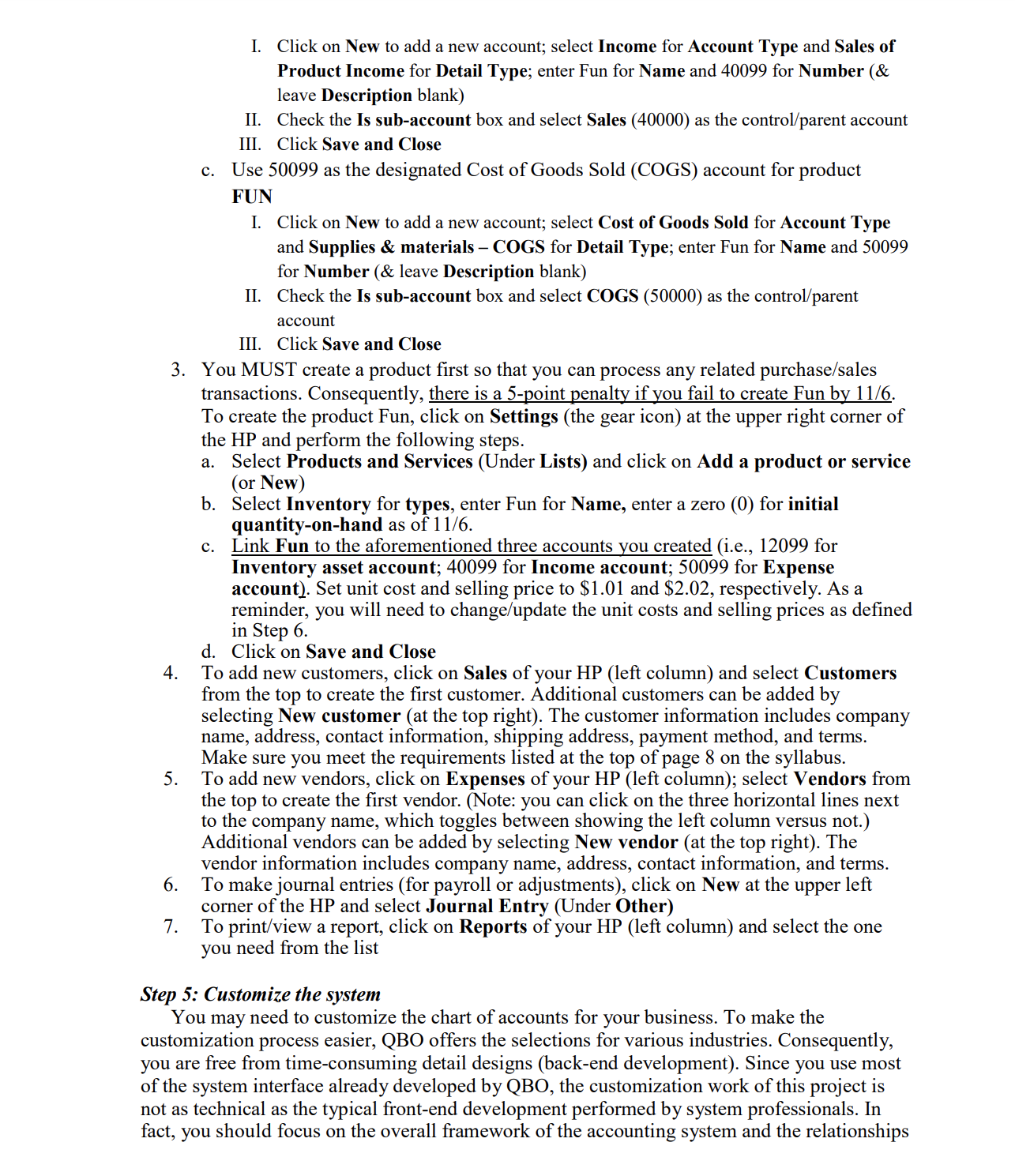
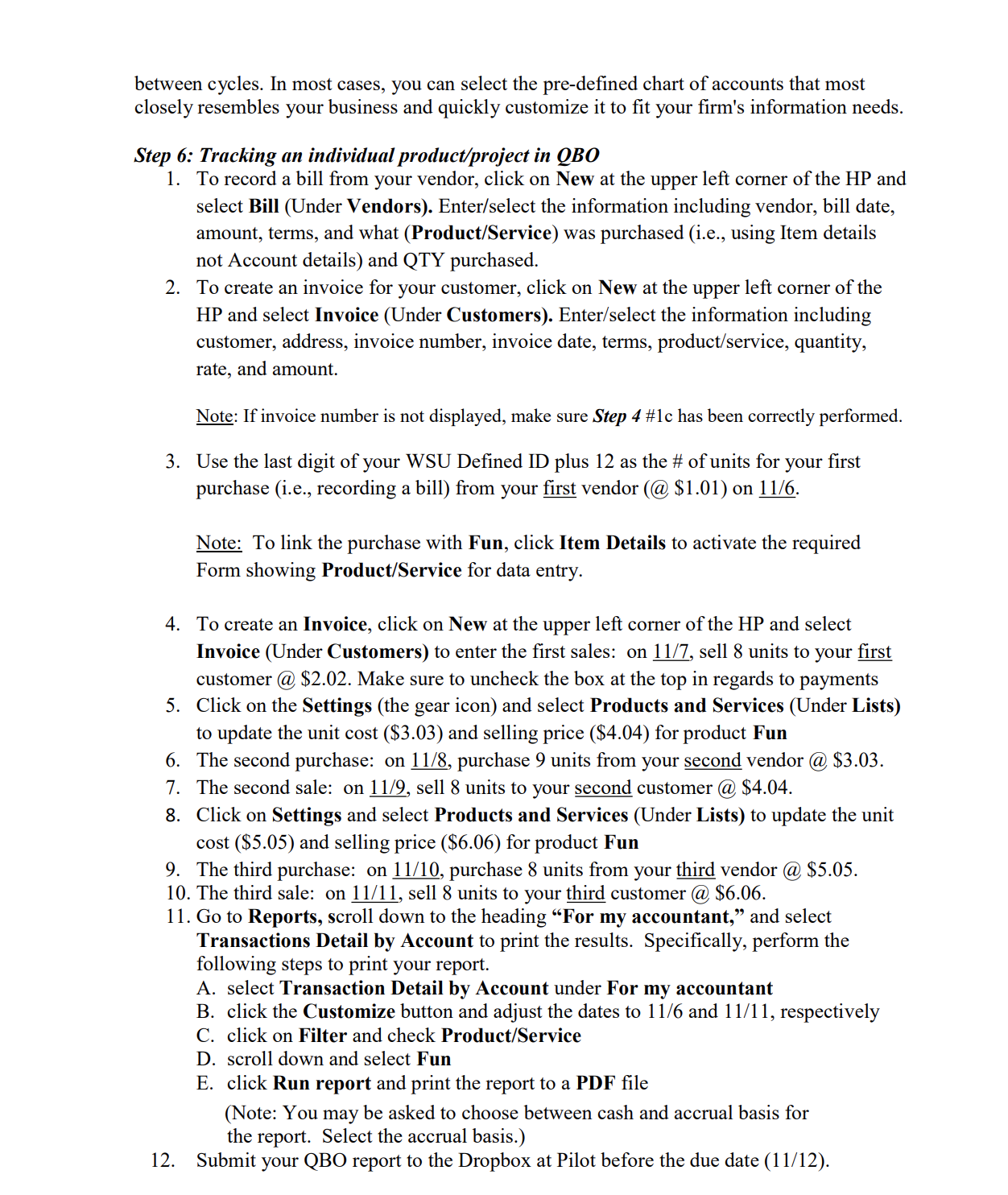
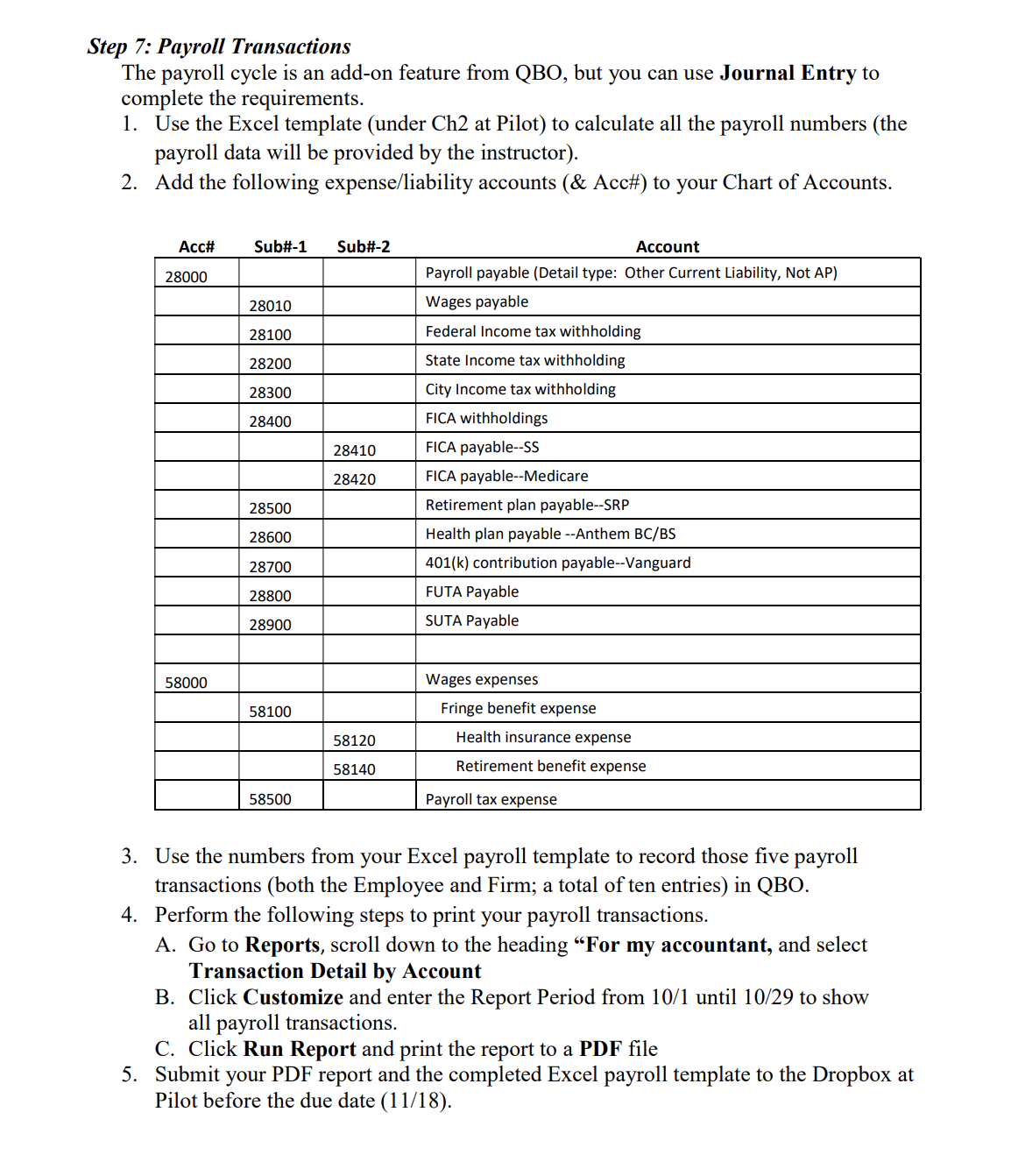
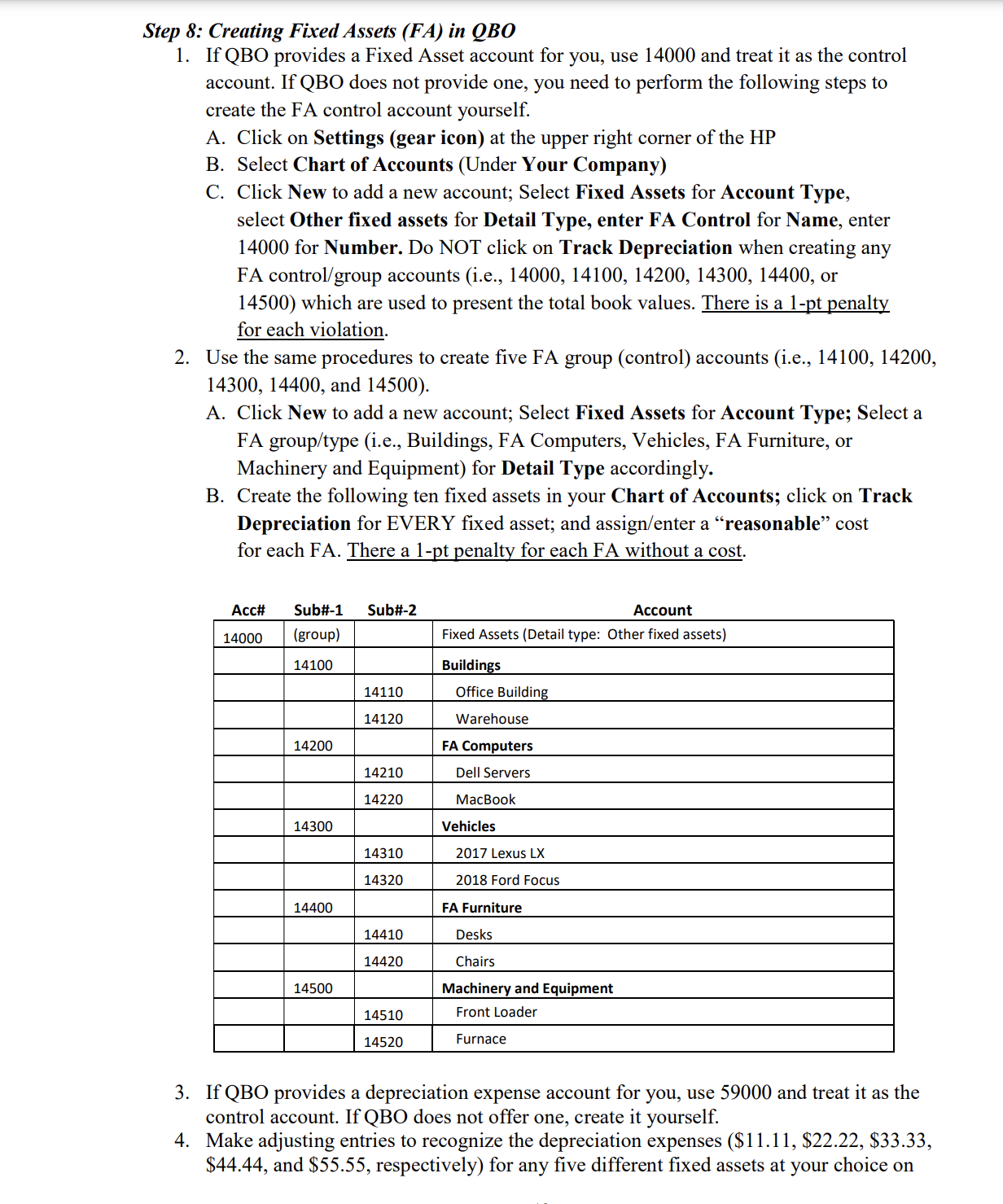
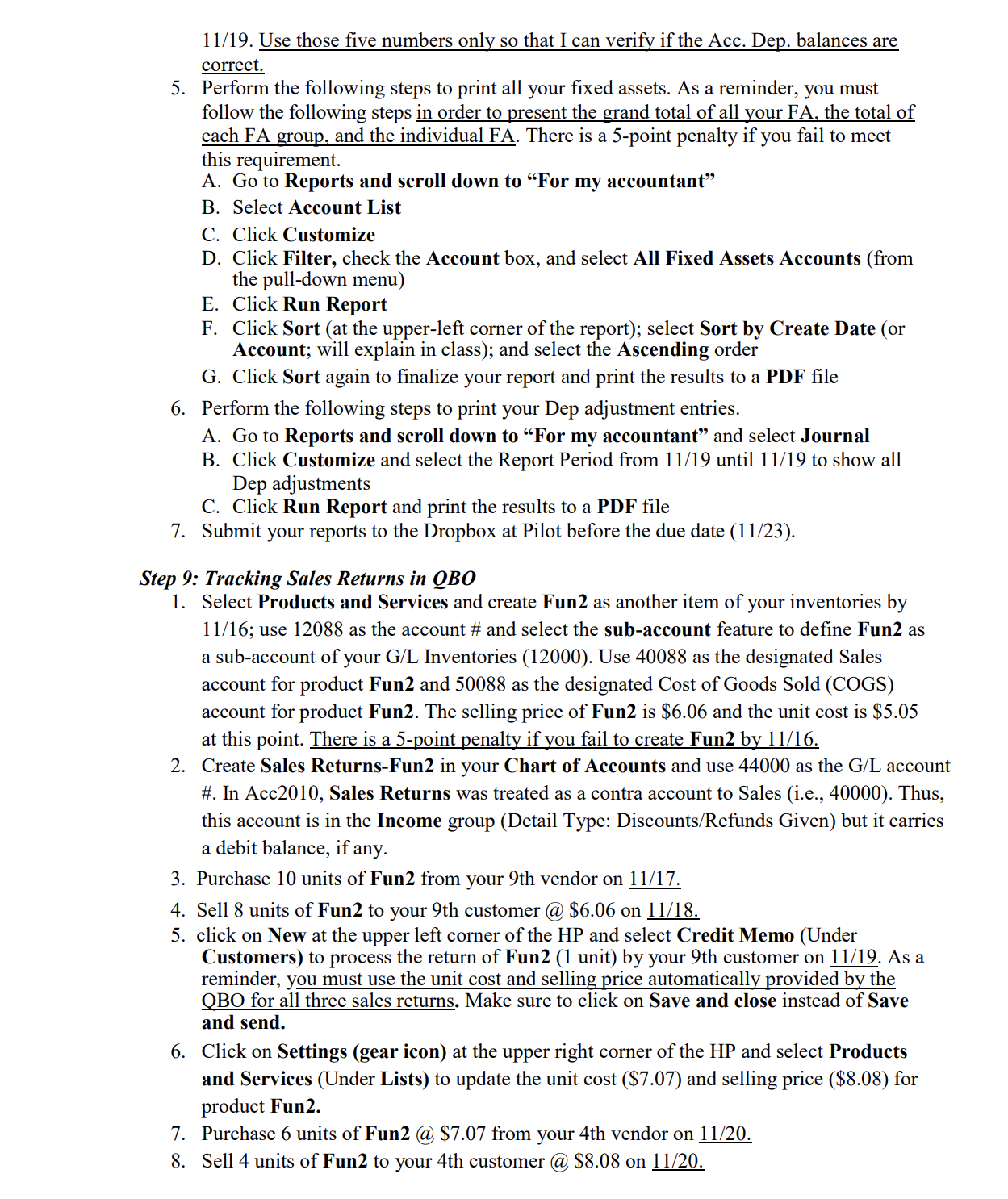
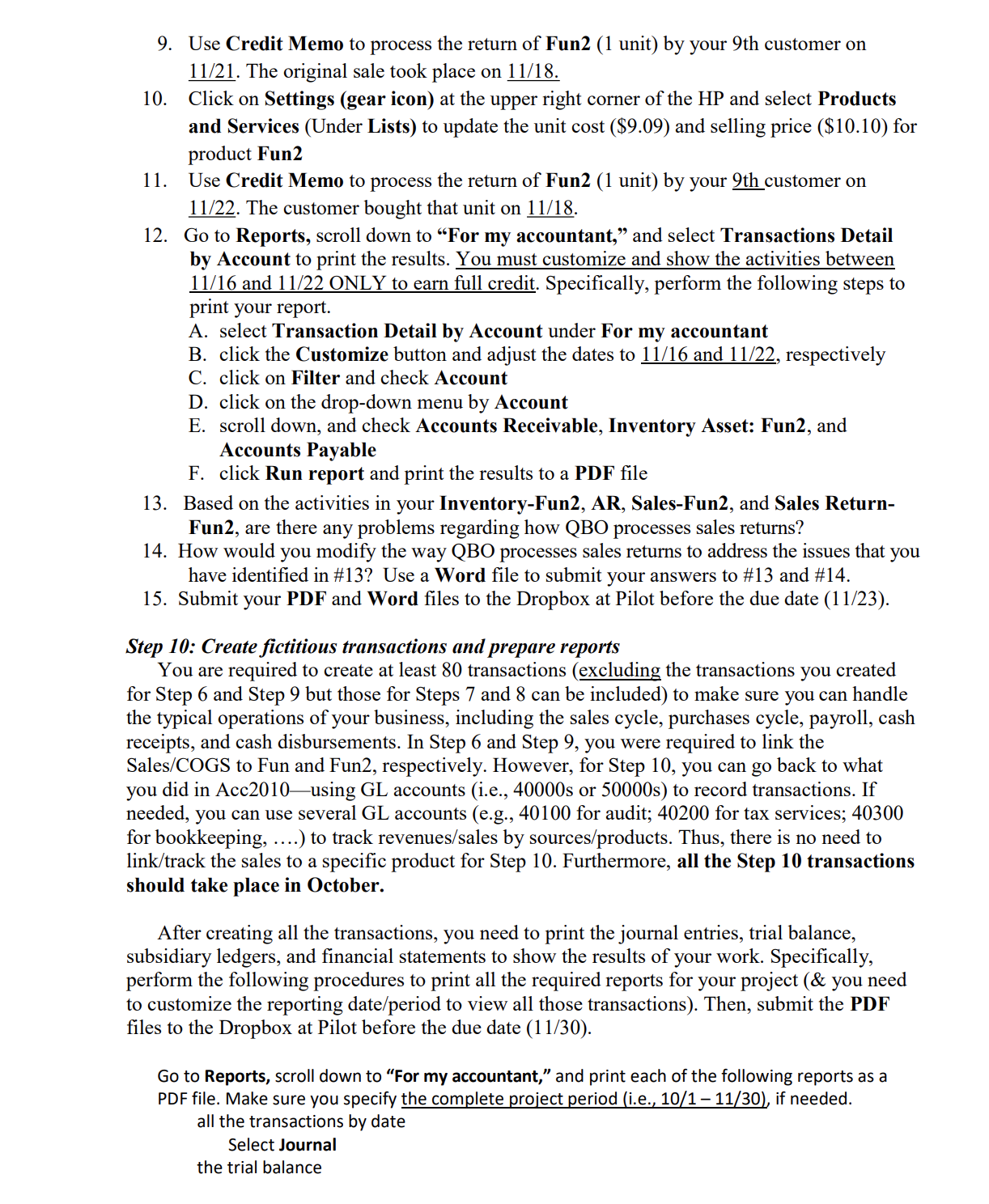
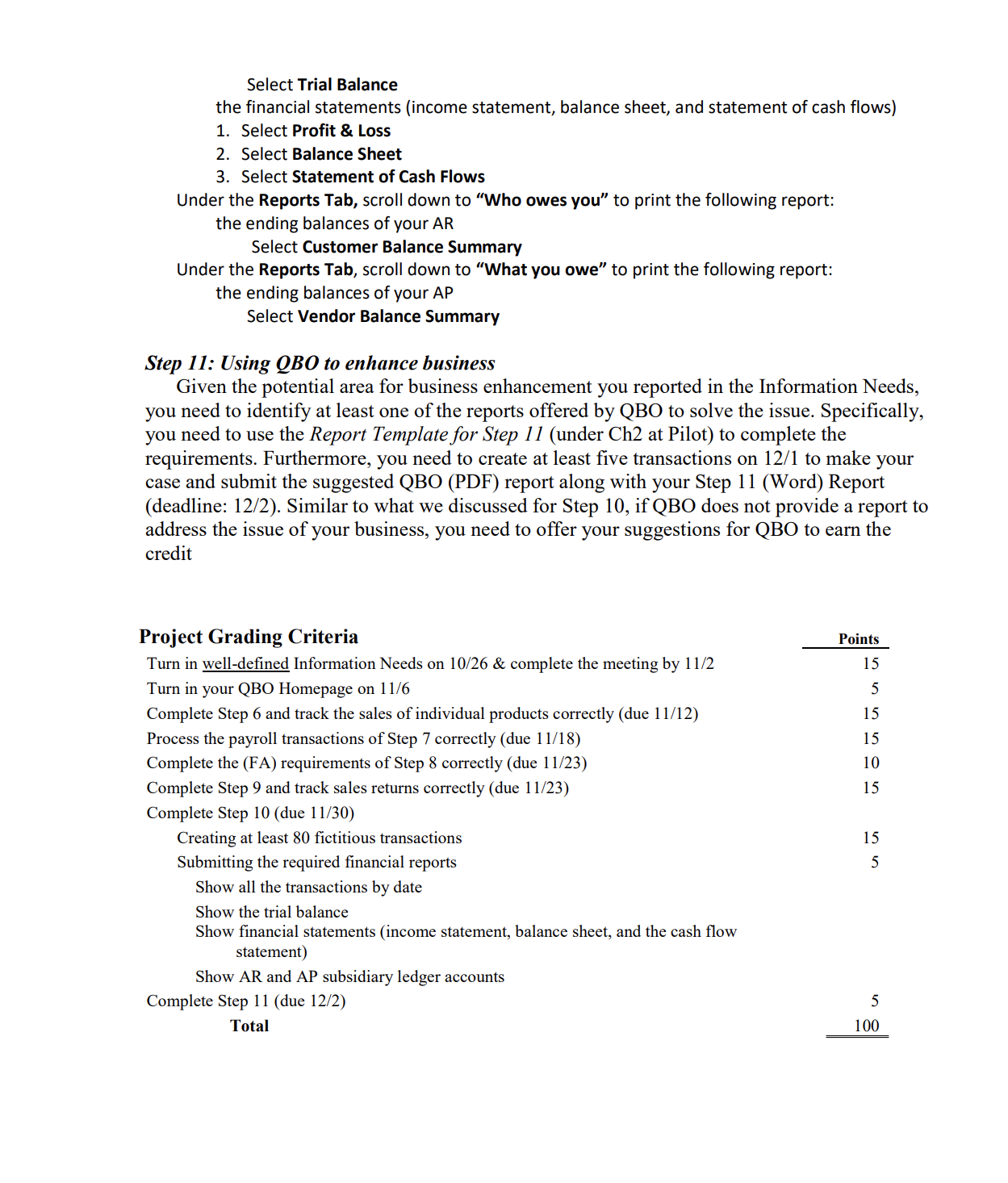
Instructions for QBO Project (Note: QBO changes their system interface frequently; thus, I will provide revised instructions if needed.) Assignment Overview You need to develop an accounting system for a business of your choice and the users of your accounting system (i.e., QBO) can enter transactions anytime anywhere. Specifically, you have to select a business in the Southwest of Ohio, identify the information needs of that business, define/modify the Chart of Accounts, enter transactions, and generate the required financial reports. The details of project development are explained as follows. Step 1: Select a business You must use the Information Needs template (under Ch2 at Pilot), to complete the first two steps of the project: (1) Select a business with the permission from the owner or the management for your project and (2) define/describe their information needs. Specifically, you need to use the template, fill in the answers using MS Word, and submit the Word file to the Dropbox at Pilot by 10/26. You can develop an AIS related to your job, family business, or your friend's job/business. If you have no real-world business experience, you should select a firm that you know well in order to complete the project requirements. In the worst case, you can develop an AIS for a hypothetical business but you will miss five pts for Step 2 and another five pts for Step 1 1. Eventually, you will need to customize QBO for a retailing, service, or manufacturing firm. You must be specific in selecting the type of business on the Information Needs so that I can determine if you understand its operations. For example, you need to be explicit, such as a retailing firm for sporting goods or a bookstore. Similarly, you need to specify that your service business perform copying & printing or car stereo installation. The following are the minimum requirements that you need to create/complete and you should not ask for any real transaction data from the firm. There is a 3-point penalty for EACH violation of these requirements or guidelines. At least ten products, merchandises, or services At least ten customers (& follow these naming guidelines; using the first three letters of your last name followed by your first name initial; adding Cl for Customer #1 or C8 for Customer #8; for example, John Doe's Customer #9 should be DoeJ-C9) At least 25 transactions in the sales cycle and at least one AR ending balance At least ten vendors (& follow these naming guidelines; using the first three letters of your last name followed by your first name initial; adding VI for Vender #1 or V7 for Vender #7; for example, John Doe's Vender #6 should be DoeJ-V6) At least 25 transactions in the purchase cycle and at least one AP ending balance At least ten fixed assets and five depreciation adjustment entries At least five payroll transactions Application of a "block code" for all your accounts Step 2: Define the information needs To earn credit, you need to complete the Information Needs Worksheet for your business and meet with the instructor to discuss its Revenue Cycle and the possible area for enhancement. If necessary, you need to talk to the staff of the firm so that you can understand their operations and information needs. Knowing the information needs, you can develop agood Chart of Accounts for the business. In addition to general ledger accounts, you need to maintain detailed information for your customers, vendors, inventories (if applicable), and xed assets. You should dene generic information needs (like the headings of an Excel spreadsheet) at this point. For example, 9/ 1 by itself (i.e., the actual data without a heading or label) can be the order date, shipping date, invoice date, or amount due date. Thus, the headings/labels of your business data are what you need to identify in the Information Needs. Specically, all business rms need to know who their customers are, where they are, the contact persons, how to contact them, the credit limits, and the account balances. Consequently, the (generic) information needs include company name, address, (contact person) name, phone#, F ax#, email address, credit limit, and balance. There is no need to put down the actual data such as Bob Smith, 123 Main Street, or 775-2312. To make sure you fully understand the business operations of the rm, you need to explain the key employees of their revenue cycle and their job titles/duties. Specically, you are required to answer the following questions on your Information Needs. I Who are involved in their revenue cycle? I What operations/activities do they perform individually? I What document(s) does he need to do his job? I What (new) document(s) does he prepare? (How many copies & for whom?) I What happens to each document individually? You also need to identify at least one areafoperation that the rm can improve but their current accounting systems does not provide the required informationfreport (i.e., on page 3 of the Information Needs template). Then, you need to describe how to prepare the needed accounting informationfreports to address the aforementioned issue. There is a 5-point penalty if you fail to nd a potential area for business enhancement. Step 3: Subscribe to QBO Plus (30-dayfree trial) The instructor will show you in class how to subscribe to the ee trial of QBO. To ensure good progress, you must submit a (pdf) printout of your QBO homepage by 11/ 6. Providers of cloud computing, including QBO, maintain all the data on their servers for subscribers. Consequently, you can work on your project anytime anywhere as long as you have access to the Internet. Step 4: Learn the soware Cloud Accounting offers comprehensive services but you need to learn and use the features required for your business only. For example, we had subsidiary ledgers to trace the details of AR and AP in AchOlO. However, QBO can trace all the details by customerfvendor names Consequently, you do not need to create ARfAP subsidiary ledger accounts in QBO but the side effect of this convenient feature is that you are not allowed to use same names for your customers or vendors. Furthermore, accountants always use journal entries to record transactions but using various Forms for data collection is a better method in a system environment. For example, if you successfully create an invoice in the Customer/Client Menu, QBO would debit AR and credit Sales behind the screen. Thus, if you use a journal entry to record the transaction after an invoice has been successfully created, you would double the transactions. Likewise, when you use \"Bill\" to recognize a credit purchase, QBO would debit an asset/expense and credit AP for you and you should not make a journal entry for that transaction either. Thus, you can use S 'Journal Entgy\" for Step 7 and the depreciation adjustments of Step 8 only. The following stepwise procedures are provided to help you learn QBO effectively. Note, however, you are NOT required to use all the items listed below for your project. It is totally up to you if the instructor does not specically request the feature in the project requirements. For example, you don't need to enter the federal ID in your system. You also decide whether your customers pay sales tax or not. 1. To edit Company Settings, click on your Company Name at the upper left corner of the Homepage (HP) a. Select Company (Under Settings) to enter/update data including company name, address, phone, and Website. b. Select Sales (Under Settings) to make sure Custom transaction numbers, Show Producthervice column on sales forms, Track quantity and pricefrate, and Track inventory quantity on hand have been turned on. c. Select Advanced (Under Settings) to turn on Enable account numbers for your Chart of accounts. 2. To facilitate business analytics, you need to create six accounts in your Chart of Accounts by 11/6 before you submit the QBO Homepage. Specically, you must perform the following steps and have three GL accounts (12000 for Inventory, 40000 for Sales, & 50000 for COGS) and three Subsidiary accounts (12099 for Inventory-Fun, 40099 for Sales-Fun, & 50099 for COGS-Fun) for Step 6. a. Create Fun as one of your inventories (or the only product for your service business). Use 12099 as the account # and select the subaccount feature to dene Fun as a sub-account of your G/L Inventories (12000). Specically, perform the following steps. I. Click on the gear icon in the upper right corner of the HP 11. Select Chart of Accounts (Under Settings) III. Click on the Pencil (edit) icon in the upper right corner of the table to addfenter account numbers in the Chart of Accounts IV. Assign 12000 to the Inventory (control) account provided by QBO; Assign 40000 to the Sales (control) account provided by QBO; Assign 50000 to the COGS (control) account provided by QBO; Click on Save icon (If any of these three accounts is not provided by QBO, you must create it yourself.) V. Click on New to add a new account; select Other Current Assets for Account Type and Inventory for Detail Type; enter Fun for Name and 12099 for Number (you can leave Description blank) VI. Check the Is sub-account box and select Inventory (12000) as the control/parent account VII. Set the balance to 0 V111. Click Save and Close b. Use 40099 as the designated Sales account for product Fun I. Click on New to add a new account; select Income for Account Type and Sales of Product Income for Detail Type; enter Fun for Name and 40099 for Number (8: leave Description blank) 11. Check the Is sub-account box and select Sales (40000) as the controlfparent account III. Click Save and Close 0. Use 50099 as the designated Cost of Goods Sold (COGS) account for product FUN I. Click on New to add a new account; select Cost of Goods Sold for Account Type and Supplies & materials COGS for Detail Type; enter Fun for Name and 50099 for Number (& leave Description blank) II. Check the Is sub-account box and select COGS (50000) as the control/parent account III. Click Save and Close 3. You MUST create a product rst so that you can process any related purchase/sales transactions. Consequently, there is a 5point penalty if you fail to create Fun by 11/6. To create the product Fun, click on Settings (the gear icon) at the upper right corner of the HP and perform the following steps. a. Select Products and Services (Under Lists) and click on Add a product or service (or New) b. Select Inventory for types, enter Fun for Name, enter a zero (0) for initial quantity-on-hand as of 11/6. 0. Link Fun to the aforementioned three accounts you created (i.e., 12099 for Inventory asset account; 40099 for Income account; 50099 for Expense account). Set unit cost and selling price to $1.01 and $2.02, respectively. As a reminder, you will need to change/update the unit costs and selling prices as dened in Step 6. d. Click on Save and Close 4. To add new customers, click on Sales of your HP (left column) and select Customers from the top to create the first customer. Additional customers can be added by selecting New customer (at the top right). The customer information includes company name, address, contact information, shipping address, payment method, and terms. Make sure you meet the requirements listed at the top of page 8 on the syllabus. 5. To add new vendors, click on Expenses of your HP (left column); select Vendors from the top to create the rst vendor. (Note: you can click on the three horizontal lines next to the company name, which toggles between showing the left colunm versus not.) Additional vendors can be added by selecting New vendor (at the top right). The vendor information includes company name, address, contact information, and terms. 6. To make journal entries (for payroll or adjustments), click on New at the upper left corner of the HP and select Journal Entry (Under Other) 7. To print/view a report, click on Reports of your HP (le: column) and select the one you need 'om the list Step 5: Customize the system You may need to customize the chart of accounts for your business. To make the customization process easier, QBO offers the selections for various industries. Consequently, you are free from time-consuming detail designs (back-end development). Since you use most of the system interface already developed by QBO, the customization work of this project is not as technical as the typical frontend development performed by system professionals. In fact, you should focus on the overall framework of the accounting system and the relationships between cycles. In most cases, you can select the pre-defined chart of accounts that most closely resembles your business and quickly customize it to fit your firm's information needs. Step 6: Tracking an individual product/project in QBO 1. To record a bill from your vendor, click on New at the upper left corner of the HP and select Bill (Under Vendors). Enter/select the information including vendor, bill date, amount, terms, and what (Product/Service) was purchased (i.e., using Item details not Account details) and QTY purchased. 2. To create an invoice for your customer, click on New at the upper left corner of the HP and select Invoice (Under Customers). Enter/select the information including customer, address, invoice number, invoice date, terms, product/service, quantity, rate, and amount. Note: If invoice number is not displayed, make sure Step 4 #1c has been correctly performed. 3. Use the last digit of your WSU Defined ID plus 12 as the # of units for your first purchase (i.e., recording a bill) from your first vendor (@ $1.01) on 11/6. Note: To link the purchase with Fun, click Item Details to activate the required Form showing Product/Service for data entry. 4. To create an Invoice, click on New at the upper left corner of the HP and select Invoice (Under Customers) to enter the first sales: on 1 1/7, sell 8 units to your first customer @ $2.02. Make sure to uncheck the box at the top in regards to payments 5. Click on the Settings (the gear icon) and select Products and Services (Under Lists) to update the unit cost ($3.03) and selling price ($4.04) for product Fun 6. The second purchase: on 11/8, purchase 9 units from your second vendor @ $3.03. 7. The second sale: on 11/9, sell 8 units to your second customer @ $4.04. 8. Click on Settings and select Products and Services (Under Lists) to update the unit cost ($5.05) and selling price ($6.06) for product Fun 9. The third purchase: on 11/10, purchase 8 units from your third vendor @ $5.05. 10. The third sale: on 11/11, sell 8 units to your third customer @ $6.06. 1 1. Go to Reports, scroll down to the heading "For my accountant," and select Transactions Detail by Account to print the results. Specifically, perform the following steps to print your report. A. select Transaction Detail by Account under For my accountant B. click the Customize button and adjust the dates to 11/6 and 11/11, respectively C. click on Filter and check Product/Service D. scroll down and select Fun E. click Run report and print the report to a PDF file (Note: You may be asked to choose between cash and accrual basis for the report. Select the accrual basis.) 12. Submit your QBO report to the Dropbox at Pilot before the due date (11/12).Step 7: Payroll Transactions The payroll cycle is an add-on feature from QBO, but you can use Journal Entry to complete the requirements. 1. Use the Excel template (under Ch2 at Pilot) to calculate all the payroll numbers (the payroll data will be provided by the instructor). 2. Add the following expense/liability accounts (& Acc#) to your Chart of Accounts. Acc# Sub#-1 Sub#-2 Account 28000 Payroll payable (Detail type: Other Current Liability, Not AP) 28010 Wages payable 28100 Federal Income tax withholding 28200 State Income tax withholding 28300 City Income tax withholding 28400 FICA withholdings 28410 FICA payable--SS 28420 FICA payable--Medicare 28500 Retirement plan payable--SRP 28600 Health plan payable --Anthem BC/BS 28700 401(k) contribution payable--Vanguard 28800 FUTA Payable 28900 SUTA Payable 58000 Wages expenses 58100 Fringe benefit expense 58120 Health insurance expense 58140 Retirement benefit expense 58500 Payroll tax expense 3. Use the numbers from your Excel payroll template to record those five payroll transactions (both the Employee and Firm; a total of ten entries) in QBO. 4. Perform the following steps to print your payroll transactions. A. Go to Reports, scroll down to the heading "For my accountant, and select Transaction Detail by Account B. Click Customize and enter the Report Period from 10/1 until 10/29 to show all payroll transactions. C. Click Run Report and print the report to a PDF file 5. Submit your PDF report and the completed Excel payroll template to the Dropbox at Pilot before the due date (11/18).Step 8: Creating Fixed Assets (FA) in QBO 1. If QBO provides a Fixed Asset account for you, use 14000 and treat it as the control account. If QBO does not provide one, you need to perform the following steps to create the FA control account yourself. A. Click on Settings (gear icon) at the upper right corner of the HP B. Select Chart of Accounts (Under Your Company) C. Click New to add a new account; Select Fixed Assets for Account Type, select Other fixed assets for Detail Type, enter FA Control for Name, enter 14000 for Number. Do NOT click on Track Depreciation when creating any FA control/group accounts (i.e., 14000, 14100, 14200, 14300, 14400, or 14500) which are used to present the total book values. There is a 1-pt penalty for each violation. 2. Use the same procedures to create five FA group (control) accounts (i.e., 14100, 14200, 14300, 14400, and 14500). A. Click New to add a new account; Select Fixed Assets for Account Type; Select a FA group/type (i.e., Buildings, FA Computers, Vehicles, FA Furniture, or Machinery and Equipment) for Detail Type accordingly. B. Create the following ten fixed assets in your Chart of Accounts; click on Track Depreciation for EVERY fixed asset; and assign/enter a "reasonable" cost for each FA. There a 1-pt penalty for each FA without a cost. Acc# Sub#-1 Sub#-2 Account 14000 (group Fixed Assets (Detail type: Other fixed assets) 14100 Buildings 14110 Office Building 14120 Warehouse 14200 FA Computers 14210 Dell Servers 14220 MacBook 14300 Vehicles 14310 2017 Lexus LX 14320 2018 Ford Focus 14400 FA Furniture 14410 Desks 14420 Chairs 14500 Machinery and Equipment 14510 Front Loader 14520 Furnace 3. If QBO provides a depreciation expense account for you, use 59000 and treat it as the control account. If QBO does not offer one, create it yourself. . Make adjusting entries to recognize the depreciation expenses ($11.11, $22.22, $33.33, $44.44, and $55.55, respectively) for any five different fixed assets at your choice on6. 7. 1 1/ 19. Use those ve numbers only so that I can verify if the Ace. Dep. balances are correct. . Perform the following steps to print all your xed assets. As a reminder, you must follow the following steps in order to present the grand total of all your FA, the total of each FA ggoup, and the individual FA. There is a 5point penalty if you fail to meet this requirement. A. Go to Reports and scroll down to \"For my accountant\" Select Account List Click Customize B. C. D. Click Filter, check the Account box, and select All Fixed Assets Accounts (from the pull-down menu) E. F. Click Run Report Click Sort (at the upper-left corner of the report); select Sort by Create Date (or Account; will explain in class); and select the Ascending order G. Click Sort again to nalize your report and print the results to a PDF le Perform the following steps to print your Dep adjustment entries. A. Go to Reports and scroll down to \"For my accountant\" and select Journal B. Click Customize and select the Report Period from 11/19 until 1 1/ 19 to show all Dep adjustments C. Click Run Report and print the results to a PDF le Submit your reports to the Dropbox at Pilot before the due date (1 1/23). Step 9: Tracking Sales Returns in Q30 1. Select Products and Services and create F un2 as another item of your inventories by 11/ 16; use 12088 as the account # and select the sub-account feature to dene Fun2 as a sub-account of your G/L Inventories (12000). Use 40088 as the designated Sales account for product Fun2 and 50088 as the designated Cost of Goods Sold (COGS) account for product Fun2. The selling price of Fun2 is $6.06 and the unit cost is $5.05 at this point. There is a 5-point penalgg if you fail to create Fun2 by 11/16. Create Sales Returns-Fun2 in your Chart of Accounts and use 44000 as the G/L account #. In Acc2010, Sales Returns was treated as a contra account to Sales (i.e., 40000). Thus, this account is in the Income group (Detail Type: Discounts/Refunds Given) but it carries a debit balance, if any. Purchase 10 units of Fun2 from your 9th vendor on 11/ 17. Sell 8 units of Fun2 to your 9th customer @ $6.06 on 11/18. . click on New at the upper left corner of the HP and select Credit Memo (Under Customers) to process the return of Fun2 (1 unit) by your 9th customer on 11/19. As a reminder, you must use the unit cost and selling price automatically provided by the QBO for all three sales returns. Make sure to click on Save and close instead of Save and send. Click on Settings (gear icon) at the upper right comer of the HP and select Products and Services (Under Lists) to update the unit cost ($7.07) and selling price ($8.08) for product Fun2. Purchase 6 units of F un2 @ $7.07 from your 4th vendor on Sell 4 units of Fun2 to your 4th customer @ $8.08 on Q 9. Use Credit Memo to process the return of Fun2 (1 unit) by your 9th customer on 11/21. The original sale took place on 11/18. 10. Click on Settings (gear icon) at the upper right corner of the HP and select Products and Services (Under Lists) to update the unit cost ($9.09) and selling price ($10.10) for product Fun2 1 1. Use Credit Memo to process the return of Fun2 (1 unit) by your 9th customer on 11/22. The customer bought that unit on 11/18. 12. Go to Reports, scroll down to "For my accountant," and select Transactions Detail by Account to print the results. You must customize and show the activities between 11/16 and 11/22 ONLY to earn full credit. Specifically, perform the following steps to print your report. A. select Transaction Detail by Account under For my accountant B. click the Customize button and adjust the dates to 11/16 and 11/22, respectively C. click on Filter and check Account D. click on the drop-down menu by Account E. scroll down, and check Accounts Receivable, Inventory Asset: Fun2, and Accounts Payable F. click Run report and print the results to a PDF file 13. Based on the activities in your Inventory-Fun2, AR, Sales-Fun2, and Sales Return- Fun2, are there any problems regarding how QBO processes sales returns? 14. How would you modify the way QBO processes sales returns to address the issues that you have identified in #13? Use a Word file to submit your answers to #13 and #14. 15. Submit your PDF and Word files to the Dropbox at Pilot before the due date (11/23). Step 10: Create fictitious transactions and prepare reports You are required to create at least 80 transactions (excluding the transactions you created for Step 6 and Step 9 but those for Steps 7 and 8 can be included) to make sure you can handle the typical operations of your business, including the sales cycle, purchases cycle, payroll, cash receipts, and cash disbursements. In Step 6 and Step 9, you were required to link the Sales/COGS to Fun and Fun2, respectively. However, for Step 10, you can go back to what you did in Acc2010-using GL accounts (i.e., 40000s or 50000s) to record transactions. If needed, you can use several GL accounts (e.g., 40100 for audit; 40200 for tax services; 40300 for bookkeeping, ....) to track revenues/sales by sources/products. Thus, there is no need to link/track the sales to a specific product for Step 10. Furthermore, all the Step 10 transactions should take place in October. After creating all the transactions, you need to print the journal entries, trial balance, subsidiary ledgers, and financial statements to show the results of your work. Specifically, perform the following procedures to print all the required reports for your project (& you need to customize the reporting date/period to view all those transactions). Then, submit the PDF files to the Dropbox at Pilot before the due date (1 1/30). Go to Reports, scroll down to "For my accountant," and print each of the following reports as a PDF file. Make sure you specify the complete project period (i.e., 10/1 - 11/30), if needed. all the transactions by date Select Journal the trial balanceSelect Trial Balance the financial statements (income statement, balance sheet, and statement of cash flows} 1. Select Profit 8: Loss 2. Select Balance Sheet 3. Select Statement of Cash Flows Under the Reports Tab, scroll down to "Who owes you\" to print the following report: the ending balances of your AR Select Customer Balance Summary Under the Reports Tab, scroll down to \"What you owe\" to print the following report: the ending balances of your AP Select Vendor Balance Summary Step 11: Using QBO to enhance business Given the potential area for business enhancement you reported in the Information Needs, you need to identify at least one of the reports offered by QBO to solve the issue. Specically, you need to use the Report T amp/ate for Step I I (under Ch2 at Pilot) to complete the requirements. Furthermore, you need to create at least ve transactions on 12/1 to make your case and submit the suggested QBO (PDF) report along with your Step 11 (Word) Report (deadline: 12/2). Similar to what we discussed for Step 10, if QBO does not provide a report to address the issue of your business, you need to offer your suggestions for QBO to earn the credit Project Grading Criteria Points Turn in well-dened Information Needs on 10/26 & complete the meeting by 1 1/2 15 Turn in your QBO Homepage on 11/6 5 Complete Step 6 and track the sales of individual products correctly (due 1 1/12) 15 Process the payroll transactions of Step 7 correctly (due 1 1/18) 15 Complete the (FA) requirements of Step 8 correctly (due 11/23) 10 Complete Step 9 and track sales returns correctly (due 1 1/23) 15 Complete Step 10 (due 11/30) Creating at least 80 ctitious transactions 15 Submitting the required nancial reports 5 Show all the transactions by date Show the trial balance Show nancial statements (income statement, balance sheet, and the cash ow statement) Show AR and AP subsidiary ledger accounts Complete Step 11 (due 12/2) 5 Total 100
Step by Step Solution
There are 3 Steps involved in it
1 Expert Approved Answer
Step: 1 Unlock
Question Has Been Solved by an Expert!
Get step-by-step solutions from verified subject matter experts
Step: 2 Unlock
Step: 3 Unlock
Students Have Also Explored These Related Accounting Questions!









 Study Help