







Question: Instructions Start Excel. Open the downloaded Excel file named e04_grader_a2_HotelSchedule.xlsx. Save it as a MacroEnabled workbook named e04_grader_a2_HotelScheduIe_LastFirst, using your last and first name. If
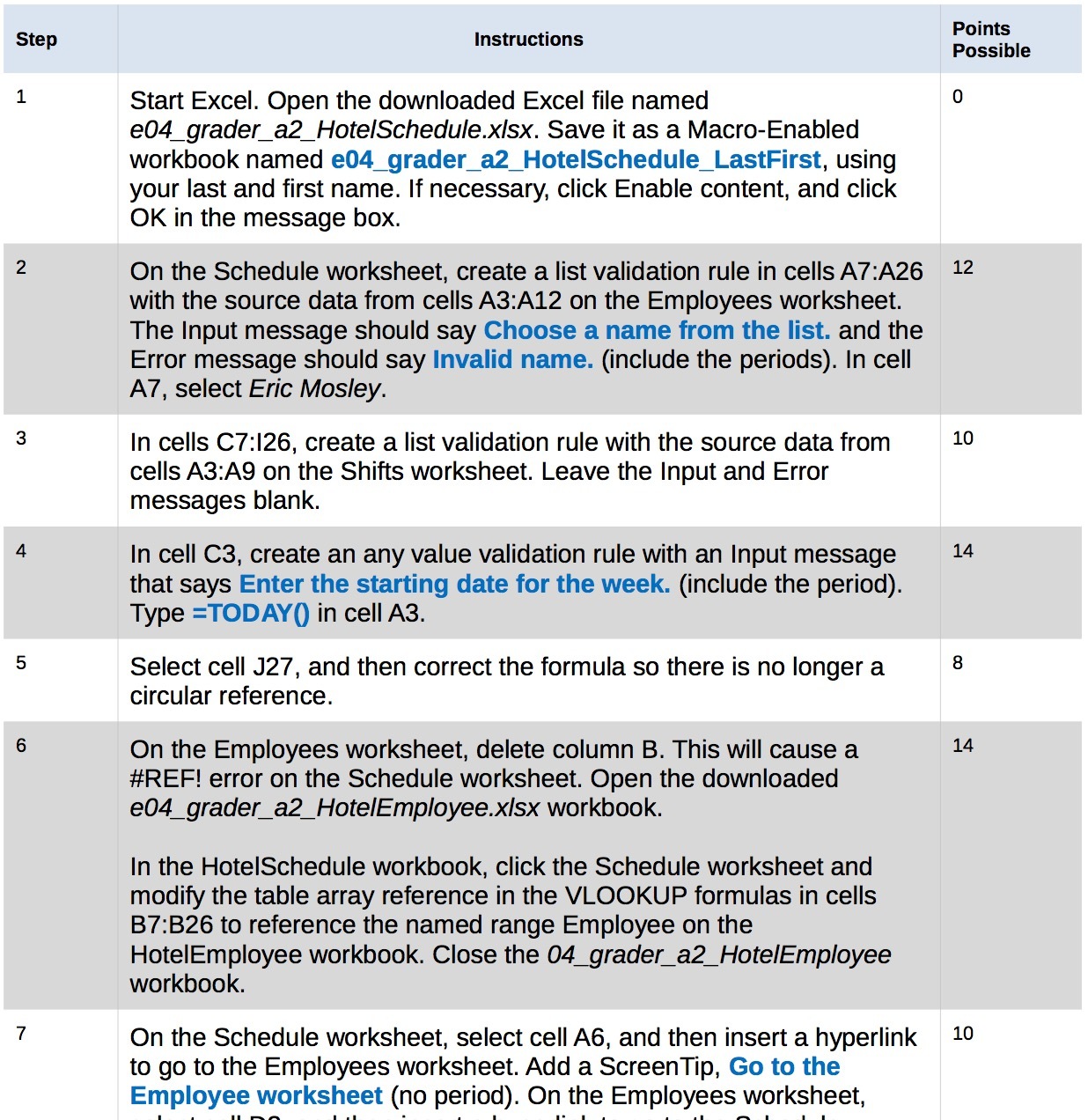
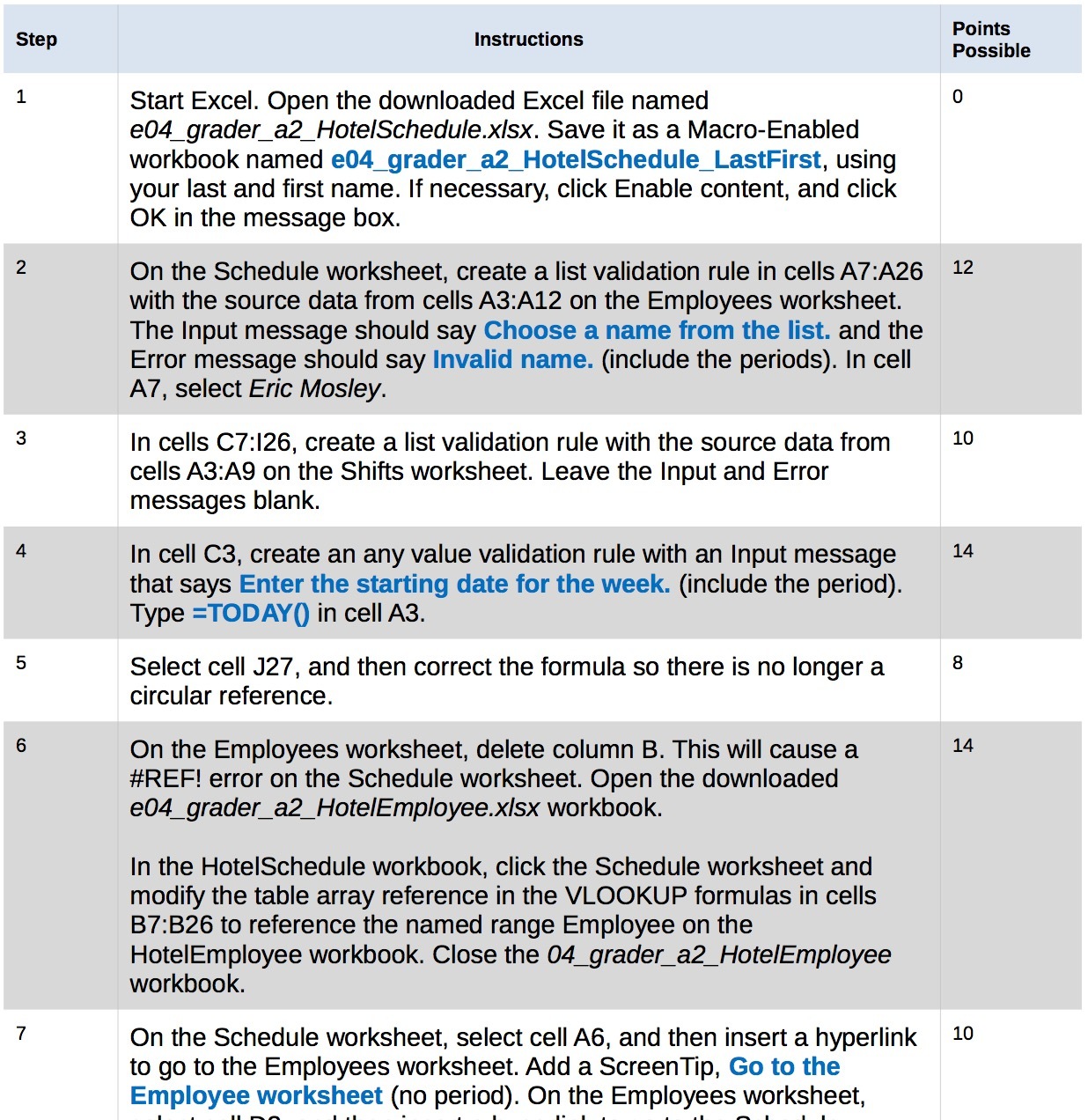
Instructions Start Excel. Open the downloaded Excel file named e04_grader_a2_HotelSchedule.xlsx. Save it as a MacroEnabled workbook named e04_grader_a2_HotelScheduIe_LastFirst, using your last and first name. If necessary, click Enable content. and click OK in the message box. On the Schedule worksheet, create a list validation rule in cells A7:A26 with the source data from cells A3:A12 on the Employees worksheet. The Input message should say Choose a name from the list. and the Error message should say Invalid name. (include the periods). In cell A7, select Eric Mosley. In cells C7:I26, create a list validation rule with the source data from cells A3:A9 on the Shifts worksheet. Leave the Input and Error messages blank. In cell C3, create an any value validation rule with an Input message that says Enter the starting date for the week. (include the period). Type =TODAYO in cell A3. Select cell .127. and then correct the formula so there is no longer a circular reference. On the Employees worksheet, delete column B. This will cause a #REF! error on the Schedule worksheet. Open the downloaded eO4_grader_a2_HotelEmployee.xlsx workbook. In the HotelSchedule workbook. click the Schedule worksheet and modify the table array reference in the VLOOKUP formulas in cells 37:326 to reference the named range Employee on the HotelEmployee workbook. Close the O4_grader_a2_HoteIEmployee workbook. On the Schedule worksheet, select cell A6, and then insert a hyperlink to go to the Employees worksheet. Add a ScreenTip, Go to the Employee worksheet (no period). On the Employees worksheet, Points Possible 12 10 14 14 10
Step by Step Solution
There are 3 Steps involved in it

Get step-by-step solutions from verified subject matter experts
 Study Help