







Question: Instructions Write a GUI-based program that plays a guess-the-number game in which the roles of the computer and the user are the reverse of what
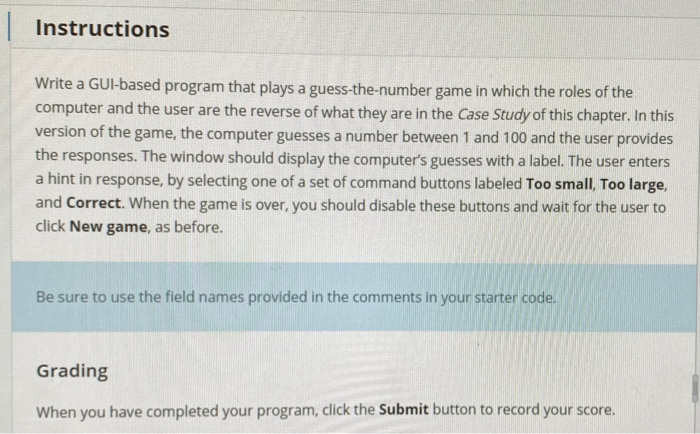
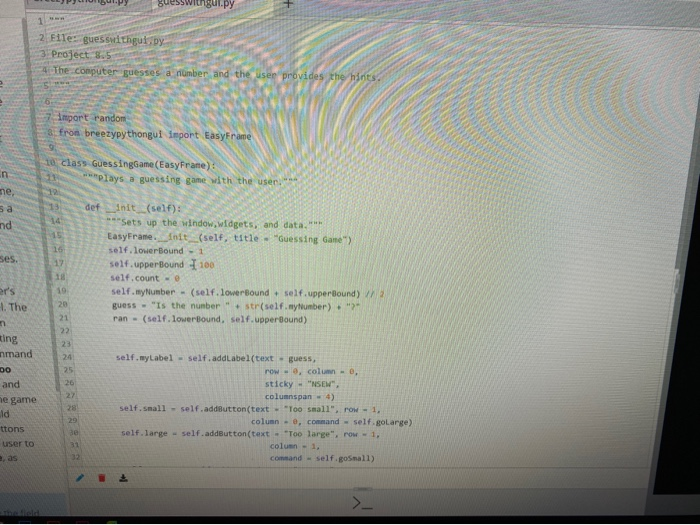
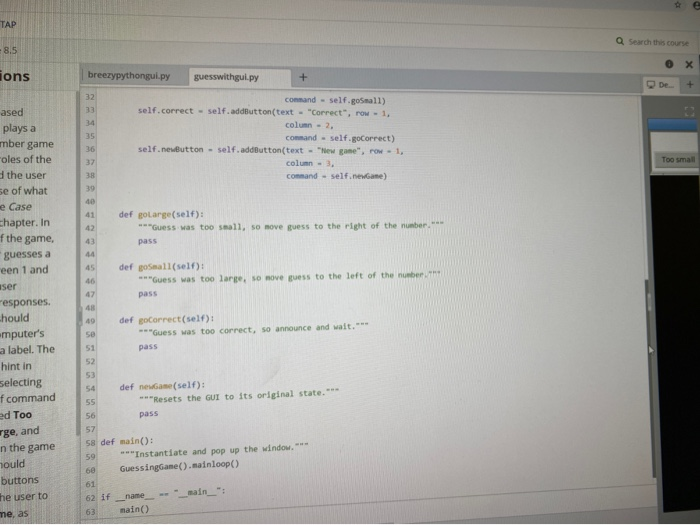
Instructions Write a GUI-based program that plays a guess-the-number game in which the roles of the computer and the user are the reverse of what they are in the Case Study of this chapter. In this version of the game, the computer guesses a number between 1 and 100 and the user provides the responses. The window should display the computer's guesses with a label. The user enters a hint in response, by selecting one of a set of command buttons labeled Too small, Too large, and Correct. When the game is over, you should disable these buttons and wait for the user to click New game, as before. Be sure to use the field names provided in the comments in your starter code. Grading When you have completed your program, click the Submit button to record your score. Pulgui.Pyguesswithgul.py 2. File: guesswithgui.by 3. Project 8.5 The computer guesses a number and the user provid import random 3 from breezypy thongui import EasyFrame 10 Class GuessingGame (EasyFrame): plays a guessing game with the us def __init__(self): ***Sets up the window, widgets, and data. *** EasyFrane. __init__(self, title - "Guessing Game) self. lowerBound - 1 self upperBound 100 self.count - @ self.myNumber - (self. lowerBound + self upperBound) guess - "Is the number + str(self.nyumber)." ran-(self. lowerBound, self.upperBound) er's 4. The ting nmand DO and he game 26 self.myLabel - self.addLabel(text - guess, POW - , column- sticky - "NEW" columnspan - 4) self.small - self.addButton(text - "Too small". POW - 1. column - e, command = self.goLarge) self. large - self.addButton(text - "Too large", row - 1. column - 1. command - self.goSmall) ttons user to e, as -8.5 Q Search this course De.. + ions breezypythongul.py guesswithgul.py command - self.goSmall) self.correct - self.addButton(text - "Correct", row - 1. column - 2. comand self.goCorrect) self.newButton - self.addButton(text - "New game", row - 1, column - 3. command - self.newGame) Too small def golarge(self): Guess was too small, so nove guess to the right of the number pass def goSmall(self): ***"Guess was too large, so nove guess to the left of the number pass ased plays a mber game oles of the the user se of what e Case chapter. In f the game, guesses a een 1 and aser responses. hould mputer's a label. The hint in selecting f command ed Too rge, and in the game hould buttons the user to me, as def goCorrect(self): **"Guess was too correct, so announce and pass def newGame(self): "Resets the GUI to its original state." pass 58 def main(): ***Instantiate and pop up the window. 60 GuessingGame().mainloop() 62 if _name_-"_main_": main() Instructions Write a GUI-based program that plays a guess-the-number game in which the roles of the computer and the user are the reverse of what they are in the Case Study of this chapter. In this version of the game, the computer guesses a number between 1 and 100 and the user provides the responses. The window should display the computer's guesses with a label. The user enters a hint in response, by selecting one of a set of command buttons labeled Too small, Too large, and Correct. When the game is over, you should disable these buttons and wait for the user to click New game, as before. Be sure to use the field names provided in the comments in your starter code. Grading When you have completed your program, click the Submit button to record your score. Pulgui.Pyguesswithgul.py 2. File: guesswithgui.by 3. Project 8.5 The computer guesses a number and the user provid import random 3 from breezypy thongui import EasyFrame 10 Class GuessingGame (EasyFrame): plays a guessing game with the us def __init__(self): ***Sets up the window, widgets, and data. *** EasyFrane. __init__(self, title - "Guessing Game) self. lowerBound - 1 self upperBound 100 self.count - @ self.myNumber - (self. lowerBound + self upperBound) guess - "Is the number + str(self.nyumber)." ran-(self. lowerBound, self.upperBound) er's 4. The ting nmand DO and he game 26 self.myLabel - self.addLabel(text - guess, POW - , column- sticky - "NEW" columnspan - 4) self.small - self.addButton(text - "Too small". POW - 1. column - e, command = self.goLarge) self. large - self.addButton(text - "Too large", row - 1. column - 1. command - self.goSmall) ttons user to e, as -8.5 Q Search this course De.. + ions breezypythongul.py guesswithgul.py command - self.goSmall) self.correct - self.addButton(text - "Correct", row - 1. column - 2. comand self.goCorrect) self.newButton - self.addButton(text - "New game", row - 1, column - 3. command - self.newGame) Too small def golarge(self): Guess was too small, so nove guess to the right of the number pass def goSmall(self): ***"Guess was too large, so nove guess to the left of the number pass ased plays a mber game oles of the the user se of what e Case chapter. In f the game, guesses a een 1 and aser responses. hould mputer's a label. The hint in selecting f command ed Too rge, and in the game hould buttons the user to me, as def goCorrect(self): **"Guess was too correct, so announce and pass def newGame(self): "Resets the GUI to its original state." pass 58 def main(): ***Instantiate and pop up the window. 60 GuessingGame().mainloop() 62 if _name_-"_main_": main()
Step by Step Solution
There are 3 Steps involved in it

Get step-by-step solutions from verified subject matter experts
 Study Help