







Question: Introduction Microsoft Excel Pivot Tables are a quick and effective way to obtain various summary measurements about a dataset. It is then possible to use
Introduction
Microsoft Excel Pivot Tables are a quick and effective way to obtain various summary measurements about a dataset. It is then possible to use the Pivot Table results to calculate secondary measurements. In this tutorial, you will create a simple Pivot Table of frequency counts, and then use the results to calculate relative and percent frequencies.
The data has been collected in the Microsoft Excel Online file below. Open the spreadsheet and perform the required analysis to answer the questions below.
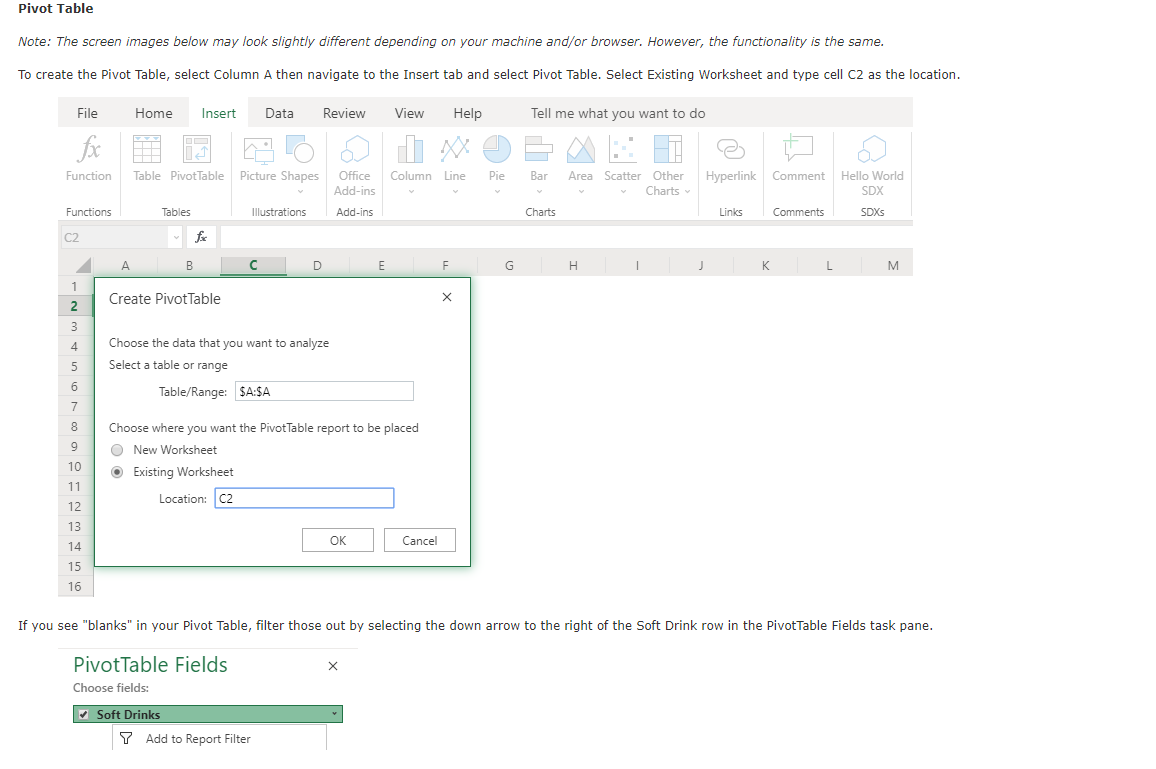
If you see "blanks" in your Pivot Table, filter those out by selecting the down arrow to the right of the Soft Drink row in the PivotTable Fields task pane.
PivotTable Fields
Choose fields:
Soft Drinks
Add to Report Filter If you see "blanks" in your Pivot Table, filter those out by selecting the down arrow to the right of the Soft Drink row in the PivotTable Fields task pane.
PivotTable Fields
Choose fields:
Soft Drinks
abla Add to Report Filter
III Add to Row Labels
Add to Column Labels
sum Add to Values
Add as Slicer
mathrmAdownarrow Sort Ascending
mathrmZdownarrow Sort Descending
Sort By Value...
Clear Filter from 'Soft Drinks'
Label Filters
Value Filters
Filter...
Filter
Search Soft Drinks
Select item:
Select All
CocaCola
Diet Coke
Dr Pepper
Mountain Dew
Pepsi
Sprite
blank Next, in the Pivot Table task pane, drag Soft Drinks to the Rows box and Values box. Make sure the Values box is set to Count of Soft Drinks. You now have created a Frequency Table.
begintabularll
Drag fields between areas below:
begintabularll
abla & FILTERS
endtabular & COLUMNS
hline
endtabular
In Column F and G create columns for "Relative Frequency" and "Percent Frequency that align with the Pivot Table headers.
In your new "Relative Frequency" and "Percent Frequency columns, proceed with those calculations so down the length of the Pivot Table and enter those values below.
begintabularll
Soft Drink & Frequency
endtabular CocaCola
Diet Coke
Dr Pepper
Pepsi
Diet Coke
CocaCola
CocaCola
Sprite
Dr Pepper
CocaCola
CocaCola
Sprite
Sprite
Dr Pepper
CocaCola
Pepsi
Sprite
Diet Coke
CocaCola
Pepsi
Sprite
Mountain Dew
Pepsi
Diet Coke
Pepsi
CocaCola
CocaCola
Dr Pepper
CocaCola
Diet Coke
Sprite
CocaCola
Mountain Dew
Pepsi
Pepsi
Step by Step Solution
There are 3 Steps involved in it
1 Expert Approved Answer
Step: 1 Unlock

Question Has Been Solved by an Expert!
Get step-by-step solutions from verified subject matter experts
Step: 2 Unlock
Step: 3 Unlock
 Study Help