







Question: Involves visual studio, need help with the coding part to create a Business Travel Expense windows form application Here is the template of the project,The
Involves visual studio, need help with the coding part to create a Business Travel Expense windows form application
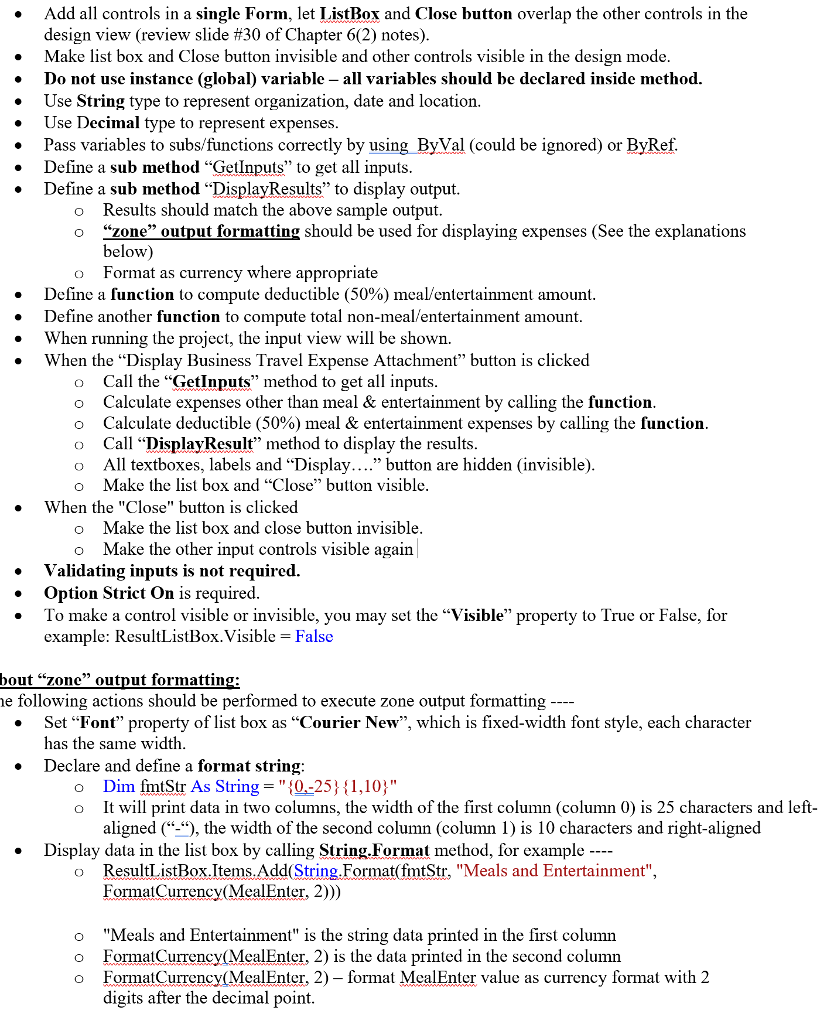
Here is the template of the project,The comments above help complete the missing code
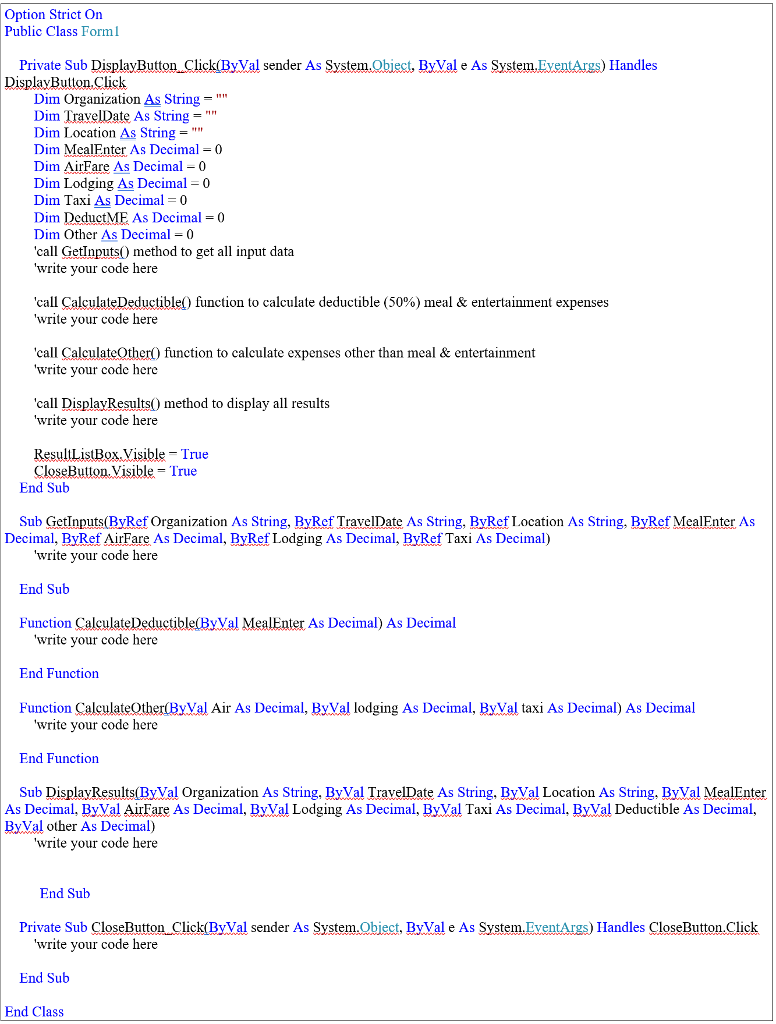
here is what the input and output view is suppose to look like
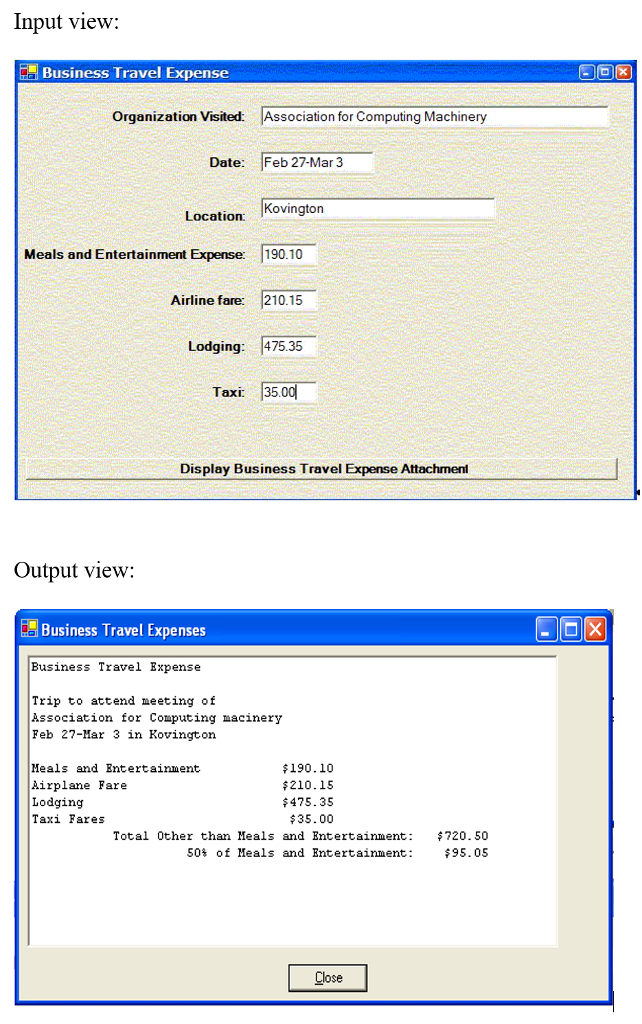
Add all controls in a single Form, let ListBox and Close button overlap the other controls in the design view (review slide #30 of Chapter 6(2) notes) Make list box and Close button invisible and other controls visible in the design mode Do not use instance (global) variable - all variables should be declared inside method Use String type to represent organization, date and location. Use Decimal type to represent expenses . * . Pass variables to subs/functions correctly by using_ByVal (could be ignored) or ByRef . Define a sub method "GetInputs" to get all inputs Define a sub method "DisplayResults" to display output. o Results should match the above sample output o "zone" output formatting should be used for displaying expenses (See the explanations below) Format as currency where appropriate o Define a function to compute deductible (50%) meal/entertainment amount Define another function to compute total non-meal/entertainment amount When running the project, the input view will be shown. When the "Display Business Travel Expense Attachment" button is clicked . o Call the "GetInputs" method to get all inputs o Calculate expenses other than meal & entertainment by calling the function o Calculate deductible (50%) meal & entertainment expenses by calling the function o Call "DisplayResult method to display the results o All textboxes, labels and "Display...." button are hidden (invisible) o Make the list box and Close" button visible When the "Close" button is clicked Make the list box and close button invisible Make the other input controls visible again o o Validating inputs is not required Option Strict On is required . . To make a control visible or invisible, you may set the "Visible" property to True or False, for example: ResultListBoxVisible = False bout "zone" output formattin e following actions should be performed to execute zone output formatting Set "Font" property of list box as "Courier New", which is fixed-width font style, each character has the same width Declare and define a format string: . * Dim fintStr As String = " {0-25 } { 1,10}" It will print data in two columns, the width of the first column (column 0) is 25 characters and left- aligned (-), the width of the second column (column 1) is 10 characters and right-aligned o o Display data in the list box by calling String.Format method, for example . o ResutListBox.Items.Add(String.Format(fmtStr, "Meals and Entertainment", FormatCurrency (MealEnter, 2)) o "Meals and Entertainment" is the string data printed in the first column o FormatCurrency (MealEnter, 2) is the data printed in the second column o FormatCurrency (MealEnter, 2) format McalEnter value as currency format with 2 digits after the decimal point Add all controls in a single Form, let ListBox and Close button overlap the other controls in the design view (review slide #30 of Chapter 6(2) notes) Make list box and Close button invisible and other controls visible in the design mode Do not use instance (global) variable - all variables should be declared inside method Use String type to represent organization, date and location. Use Decimal type to represent expenses . * . Pass variables to subs/functions correctly by using_ByVal (could be ignored) or ByRef . Define a sub method "GetInputs" to get all inputs Define a sub method "DisplayResults" to display output. o Results should match the above sample output o "zone" output formatting should be used for displaying expenses (See the explanations below) Format as currency where appropriate o Define a function to compute deductible (50%) meal/entertainment amount Define another function to compute total non-meal/entertainment amount When running the project, the input view will be shown. When the "Display Business Travel Expense Attachment" button is clicked . o Call the "GetInputs" method to get all inputs o Calculate expenses other than meal & entertainment by calling the function o Calculate deductible (50%) meal & entertainment expenses by calling the function o Call "DisplayResult method to display the results o All textboxes, labels and "Display...." button are hidden (invisible) o Make the list box and Close" button visible When the "Close" button is clicked Make the list box and close button invisible Make the other input controls visible again o o Validating inputs is not required Option Strict On is required . . To make a control visible or invisible, you may set the "Visible" property to True or False, for example: ResultListBoxVisible = False bout "zone" output formattin e following actions should be performed to execute zone output formatting Set "Font" property of list box as "Courier New", which is fixed-width font style, each character has the same width Declare and define a format string: . * Dim fintStr As String = " {0-25 } { 1,10}" It will print data in two columns, the width of the first column (column 0) is 25 characters and left- aligned (-), the width of the second column (column 1) is 10 characters and right-aligned o o Display data in the list box by calling String.Format method, for example . o ResutListBox.Items.Add(String.Format(fmtStr, "Meals and Entertainment", FormatCurrency (MealEnter, 2)) o "Meals and Entertainment" is the string data printed in the first column o FormatCurrency (MealEnter, 2) is the data printed in the second column o FormatCurrency (MealEnter, 2) format McalEnter value as currency format with 2 digits after the decimal point
Step by Step Solution
There are 3 Steps involved in it

Get step-by-step solutions from verified subject matter experts
 Study Help