







Question: IP: 128.171.224.100/24 Task 1: Prepare the Network - Using PacketTracer to create the topology and cable your network as shown in the image. - Make
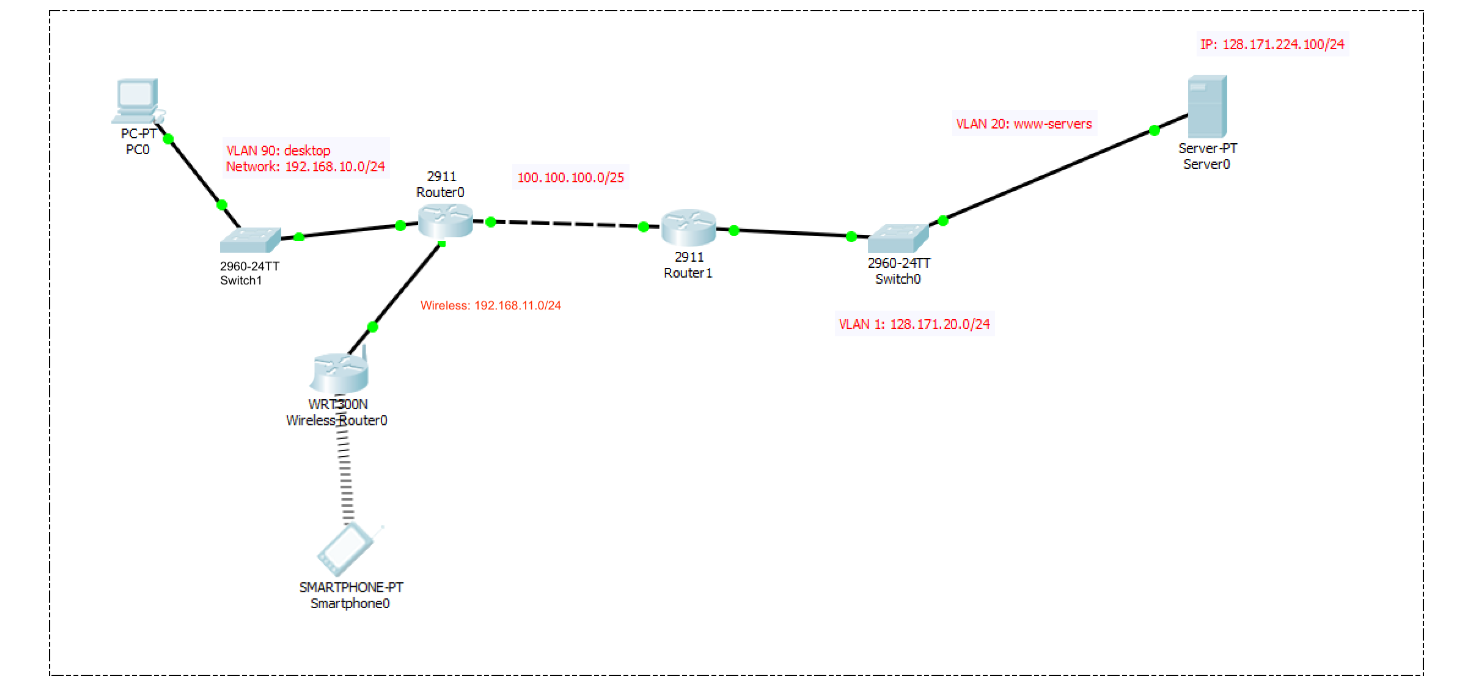
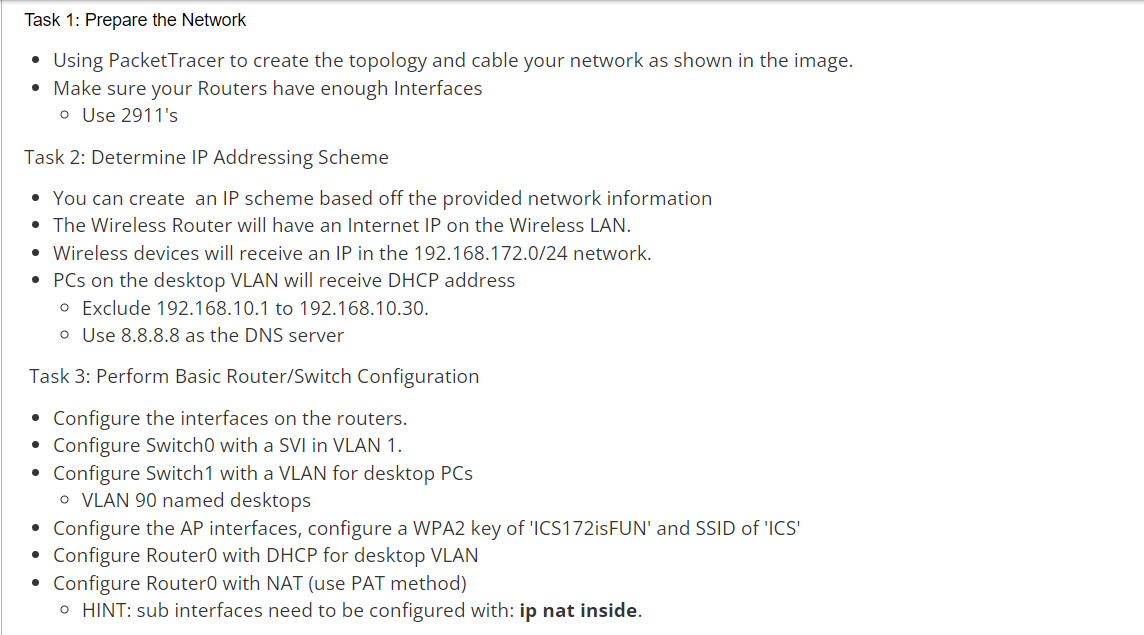
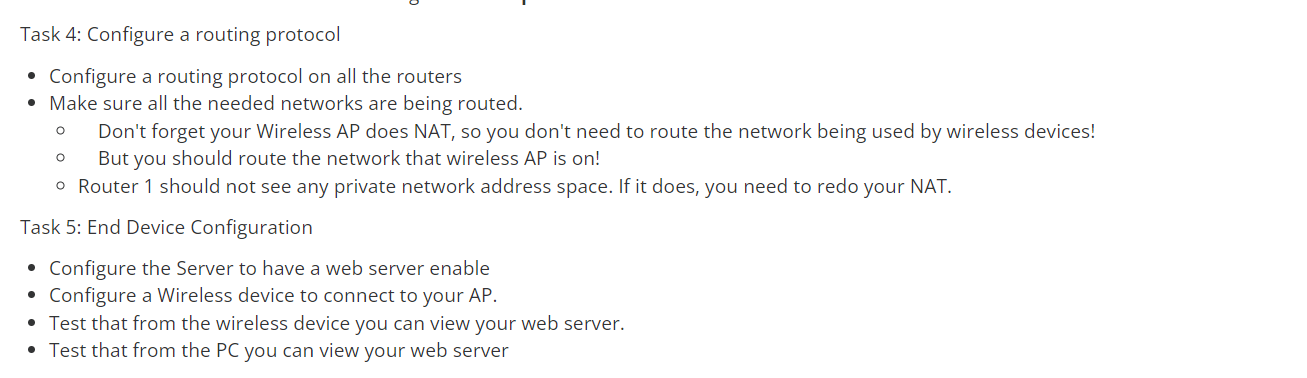
IP: 128.171.224.100/24 Task 1: Prepare the Network - Using PacketTracer to create the topology and cable your network as shown in the image. - Make sure your Routers have enough Interfaces - Use 2911's Task 2: Determine IP Addressing Scheme - You can create an IP scheme based off the provided network information - The Wireless Router will have an Internet IP on the Wireless LAN. - Wireless devices will receive an IP in the 192.168.172.0/24 network. - PCs on the desktop VLAN will receive DHCP address - Exclude 192.168.10.1 to 192.168.10.30. - Use 8.8.8.8 as the DNS server Task 3: Perform Basic Router/Switch Configuration - Configure the interfaces on the routers. - Configure Switch0 with a SVI in VLAN 1. - Configure Switch1 with a VLAN for desktop PCs - VLAN 90 named desktops - Configure the AP interfaces, configure a WPA2 key of 'ICS172isFUN' and SSID of 'ICS' - Configure Router0 with DHCP for desktop VLAN - Configure Router0 with NAT (use PAT method) - HINT: sub interfaces need to be configured with: ip nat inside. Task 4: Configure a routing protocol - Configure a routing protocol on all the routers - Make sure all the needed networks are being routed. - Don't forget your Wireless AP does NAT, so you don't need to route the network being used by wireless devices! - But you should route the network that wireless AP is on! - Router 1 should not see any private network address space. If it does, you need to redo your NAT. Task 5: End Device Configuration - Configure the Server to have a web server enable - Configure a Wireless device to connect to your AP. - Test that from the wireless device you can view your web server. - Test that from the PC you can view your web server
Step by Step Solution
There are 3 Steps involved in it

Get step-by-step solutions from verified subject matter experts
 Study Help