







Question: ITN 2 6 3 lab 3 , step 3 7 . In the GNS 3 window, link the devices according to the information in the
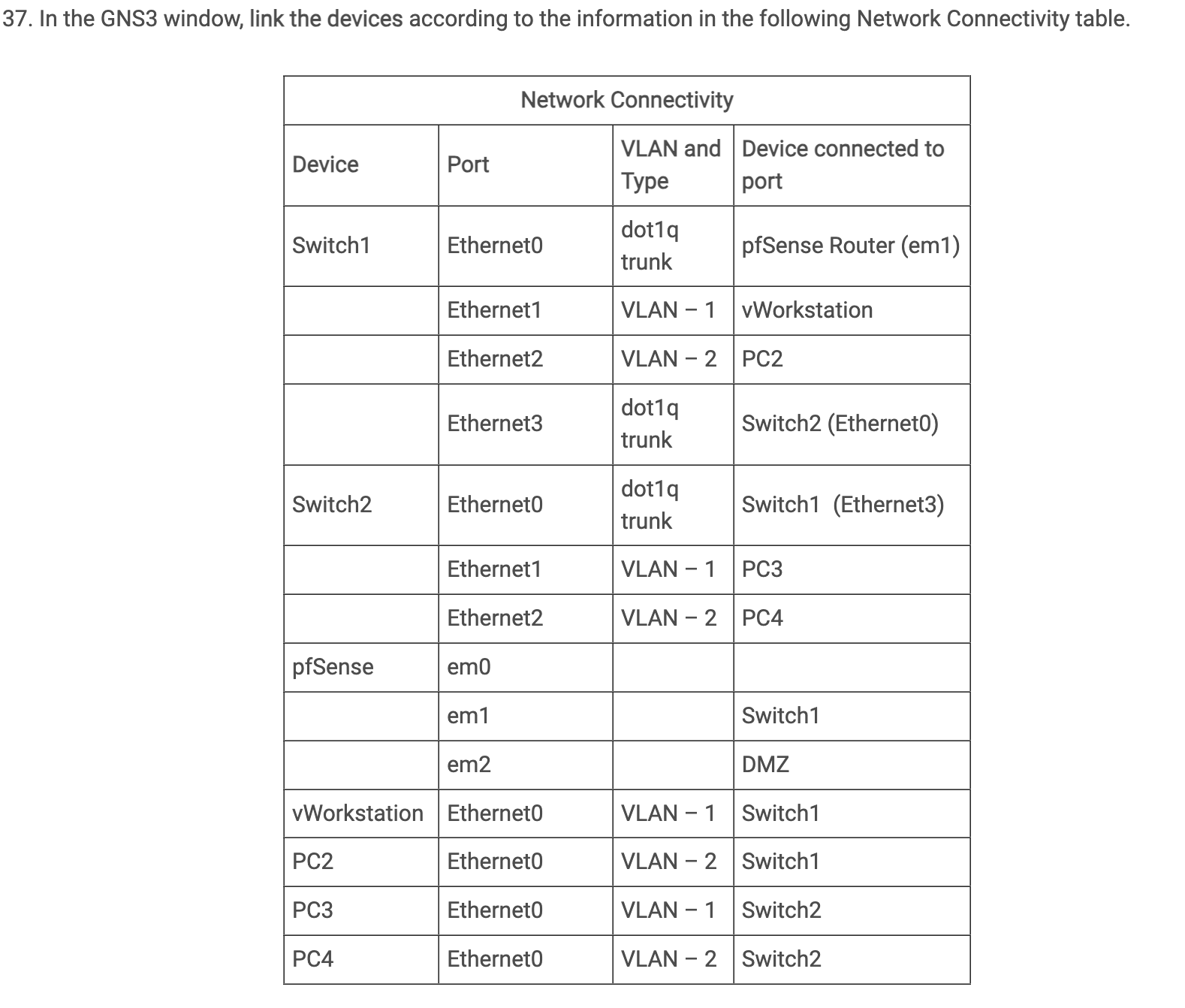
ITN lab step In the GNS window, link the devices according to the information in the following Network Connectivity table.
tableNetwork ConnectivityDevicePort,tableVLAN andTypetableDevice connected toportSwitchEthernettabledotqtrunkpfSense Router emEthernetVLAN vWorkstationEthernetVLAN PCSwitchEthernettabledotqtrunkSwitchEthernetEthernettabledotqtrunkSwitchEthernetEthernetVLAN PCpfSenseemPCemVLAN,SwitchemDLA,DMZvWorkstationEthernetVLAN SwitchPCEthernetVLAN SwitchPCEthernetVLAN SwitchPCEthernetVLAN Switch
Step by Step Solution
There are 3 Steps involved in it
1 Expert Approved Answer
Step: 1 Unlock

Question Has Been Solved by an Expert!
Get step-by-step solutions from verified subject matter experts
Step: 2 Unlock
Step: 3 Unlock
 Study Help