







Question: ITN-106 Ch.10 Homework: File and folder management using command line (CLD): p.469-75 Objective: Create a batch file. Read first: Start Command Prompt (cmd). The prompt
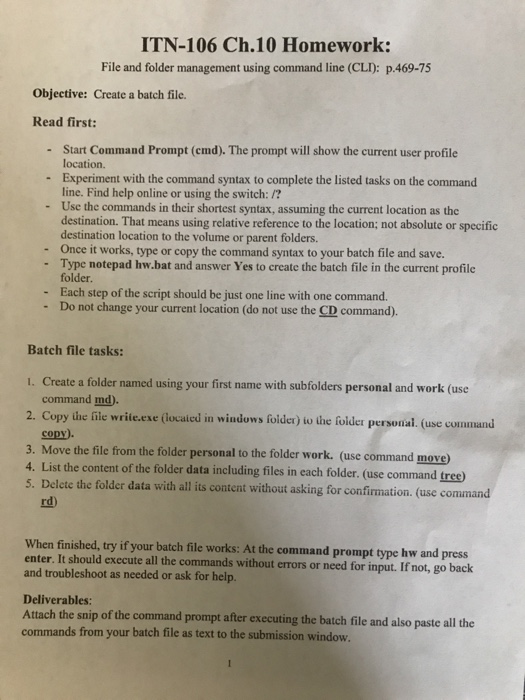
ITN-106 Ch.10 Homework: File and folder management using command line (CLD): p.469-75 Objective: Create a batch file. Read first: Start Command Prompt (cmd). The prompt will show the current user profile location. Experiment with the command syntax to complete the listed tasks on the command line. Find help online or using the switch: /? Use the commands in their shortest syntax, assuming the current location as the destination. That means using relative reference to the location; not absolute or specific destination location to the volume or parent fold Once it works, type or copy the command syntax to your batch file and save. - - - - Type notepad hw.bat and answer Yes to create the batch file in the current profile folder Each step of the script should be just one line with one command. -Do not change your current location (do not use the CD command). Batch file tasks: 1. Create a folder named using your first name with subfolders personal and work (use command md). 2. Copy he fite write.exe (located in windows folder) to the folder personal. (use cormmand copy). e the file from the folder personal to the folder work. (use command move 4. List the content of the folder data including files in each folder. (use command tree 5. Delcte the folder data with all its content without asking for confirmation. (use command rd) When finished, try if your batch file works: At the command prompt type hw and press enter. It should execute all the commands without errors or need for input. If not, go back and troubleshoot as needed or ask for help. Deliverables Attach the snip of the command prompt after executing the batch file and also paste all the commands from your batch file as text to the submission window
Step by Step Solution
There are 3 Steps involved in it

Get step-by-step solutions from verified subject matter experts
 Study Help