







Question: Java Applet Modify the Breakout game (shown below with codes) to create the ice breakout game. You may want to check the game online (http://www.miniclip.com/games/ice-breakout/en/).
Java Applet
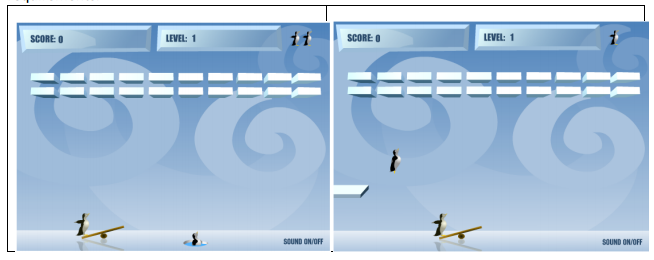
Modify the Breakout game (shown below with codes) to create the ice breakout game. You may want to check the game online (http://www.miniclip.com/games/ice-breakout/en/). Your game applet shall be similar to on-line game. However, no need for ? Background image or image effect. A basic color is just fine. ? No need for level. Only score to be displayed. ? No shadow to be drawn. The swing is basically a circle + a line. ? Bricks are rectangular objects as we did in lab. ? You may state any other assumptions. Screen shots are shown below. However, you must play the game to understand the requirements.
/* * Make the paddle usable by the user, arrow keys * Ball bounces off paddle collisions * still has flicker */ import java.awt.*;
import javax.swing.*;
import java.util.*; import java.awt.event.*;
import javax.swing.Timer;
public class BreakoutPart3 extends JApplet implements Runnable, KeyListener , ActionListener { ArrayList blocks; int width, height; // dimensions of applet int numBlocks; // number of blocks horizontally int numRows; // number of rows - 1 least difficult, 5 more difficult
// Part III Rectangle paddle; int speed; // Part II Thread thread; Ball ball, ball2; Image buffer; int countA = 0, countB = 0, countTime = 0; Timer timer; int DELAY = 1000; public void init( ) { resize(600, 400 ); numBlocks = 10; numRows = 3; blocks = new ArrayList( ); width = getWidth( ); height = getHeight( ); buildBlocks( ); // Part III paddle = new Rectangle( 50, height-30, 50, 10 ); addKeyListener( this ); speed = 10; buffer = createImage(width, height); // PART II ball = new Ball( 50, 120, 15, 5, width, height, Color.BLUE ); ball2 = new Ball(20, 30, 10, 5, width, height, Color.BLACK); thread = new Thread(this); thread.start(); setFocusable(true); timer = new Timer(DELAY, this); timer.start(); } public void buildBlocks( ) { int sizeOfBlock = width / numBlocks; int heightOfBlock = 15; for( int rows=0; rows for( int cols=0; cols { Rectangle r = new Rectangle( rows,80+cols, sizeOfBlock-2, heightOfBlock-2 ); blocks.add(r); } } public void update( Graphics g ) { paint(g); } public void paint( Graphics g ) { Graphics bg = buffer.getGraphics(); bg.clearRect(0,0,width,height); // clear screen ball.paint(bg); ball2.paint(bg); bg.setColor(Color.RED); ball.paint( getGraphics( ) ); ball2.paint(getGraphics());// paint ball bg.setColor( Color.RED ); bg.drawString("Red ball" + countA + " hit bricks.", 0, 10); for (int i=0; i { Rectangle r = (Rectangle )blocks.get(i); bg.fillRect( r.x, r.y, r.width, r.height ); } bg.setColor( Color.BLACK ); bg.fillRect( paddle.x, paddle.y, paddle.width, paddle.height ); g.drawImage(buffer, 0, 0, this); bg.setColor( Color.BLACK ); bg.drawString(" Blue ball hit "+ countB +"bricks." , 115, 10); if (countTime
}
@Override public void actionPerformed(ActionEvent ae) { Object ob = ae.getSource(); if (ob == timer) { countTime++; repaint(); } } }
Ball Class:
import java.awt.*; import javax.swing.Timer; public class Ball { int x, y, size, speed; int dirX, dirY; int appletWdt, appletHgt; Color color; public Ball( int _x, int _y, int _size, int _speed, int w, int h, Color c ) { x = _x; // (x, y) coordinates of ball y = _y; size = _size; // width and height are same size speed = _speed; // speed is number of pixels to move each time dirX = 1; // direction is either +1 go right or -1 go left dirY = 1; // direction is either +1 go down or -1 go up appletWdt = w; // applet width appletHgt = h; // applet height color = c; } public void paint( Graphics g ) // called from applet { g.setColor( color ); g.fillOval( x, y, size, size ); } public void move( ) { // move ball based on speed and direction x = x + speed * dirX; y = y + speed * dirY; if ( x appletWdt ) // hit right boundary, change direction dirX = -1; if ( y appletHgt ) // hit bottom boundary, change direction dirY = -1; } }
LEVEL:1 SCORE O SCORE O LEVEL: 1 SOUND ON/OFF SCUND ON/OFF
Step by Step Solution
There are 3 Steps involved in it

Get step-by-step solutions from verified subject matter experts
 Study Help