







Question: Java Bean Calculator Question using these buttons: Calc Using Left The user will enter two numbers and select an operation in the left calculator. User
Java Bean Calculator Question using these buttons:
Calc Using Left
The user will enter two numbers and select an operation in the left calculator. User will also select an operation in the right calculator but will not enter any numbers in that calculator. Then the user will click the frames button Calc Using Left. The program will use the numbers from the left calculator and perform both the selected operations on them. Then, in each calculator, it will display the numbers (taken from the left calculator), the selected operation and the corresponding result.
Calc Using Right
This button will work similar to the button Calc Using Left except that in this case the program will use numbers from the right calculator instead of the left calculator as described below.
The user will enter two numbers and select an operation in the right calculator. User will also select an operation in the left calculator but will not enter any numbers in that calculator. Then the user will click the frames button Calc Using Right. The program will use the numbers from the right calculator and perform both the selected operations on them. Then, in each calculator, it will display the numbers (taken from the right calculator), the selected operation and the corresponding result.
Clear All
This button clear all text fields in both the calculators.
Design
For providing the above-mentioned functionality, you will need to enhance the design of both the calculator bean (component) and the application frame.
Calculator Bean Implementation
The frame will need to get and set several of the calculator bean values. The calculator bean will provide a set of properties and get/set methods for accessing these properties. The frame will interact with the bean by calling its get/set property methods.
(From the frame, do not access the values of a beans text fields directly. Instead, use the beans get/set methods to interface with the bean).
Bean Properties
The calculator bean will provide the properties listed below:
double num1 This property represents the value of the first text field as a double. It has the corresponding get and set methods.
double num2 This property represents the value of the second text field as a double. It has the corresponding get and set methods.
double result This property represents the value of the third text field as a double. It has the corresponding get and the set methods. The get method does nothing.
String operation This property represents value of the operation selected through the group of radio buttons as a String. Its possible values are Add, Subtract, Multiply, and Divide. It has the corresponding get and set methods. The set method does nothing.
boolean clear This property is used for clearing all the beans text fields. It has the corresponding get/set method. The get method does nothing. The set method is used for clearing all the text fields. If the value true is passed to the set method, it clears all of the text fields. Otherwise, it does nothing.
Bean Get/Set Methods
The headers for the get and set methods corresponding to the above properties are listed below:
double getNum1()
void setNum1(double n)
double getNum2()
void setNum2(double n)
double getResult()
void setResult(double n)
String getOperation()
void setOperation(String s)
boolean getClear ( )
void setClear(boolean b)
Calculator Frame Implementation
Create an application containing an extended JFrame.
Set extended frames layout to be BorderLayout.
Drop two panels in the frame. One in the Center and the other in the South.
Set the layout of the center panel to be GridLayout with 2 columns and 1 row.
Set the layout of the south panel to be FlowLayout.
Drop two instances of Calculator Bean in the center panel.
Drop three buttons labeled Calc Using Left, Calc Using Right and Clear All in the south panel. (See Pictures section below).
Implement the functions of each of the three buttons.
The result of the selected operation (say Add) will show in the Res text field of the right calculator.
The two numbers entered in the right calculator will also show in the left calculator.
The result of the selected operation (say Mult) will show in the Res text field of the left calculator.
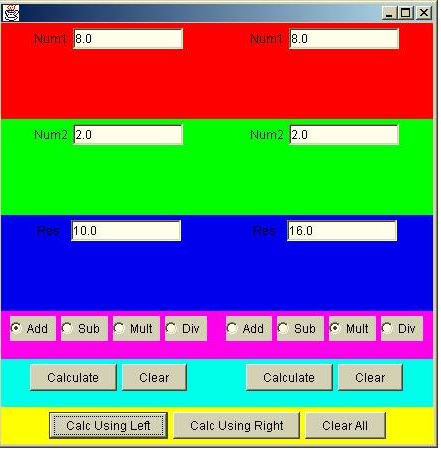
Numi 8.0 8.0 Num2 2.0 Num2 2.0 10.0 16.0 Add Sub Mult Add Suh Mlt Div Calculate Clear Calculate Clear Calc Using Let Calc Using Right Clear All Numi 8.0 8.0 Num2 2.0 Num2 2.0 10.0 16.0 Add Sub Mult Add Suh Mlt Div Calculate Clear Calculate Clear Calc Using Let Calc Using Right Clear All
Step by Step Solution
There are 3 Steps involved in it

Get step-by-step solutions from verified subject matter experts
 Study Help