







Question: *JAVA* Hello, I would like some help with this program. I understand how to implament imagevire and h/v boxes but am helping trouble how to
*JAVA*
Hello, I would like some help with this program.
I understand how to implament imagevire and h/v boxes
but am helping trouble how to make the image in the directions
here are the pics:



Below is the color white


Here is my code:
package art; import javafx.application.Application; import javafx.stage.Stage; import javafx.scene.Scene; import javafx.scene.layout.VBox; import javafx.scene.layout.HBox; import javafx.scene.image.Image; import javafx.scene.image.ImageView; import javafx.geometry.Insets; import javafx.scene.layout.Background; import javafx.scene.layout.BackgroundFill; import javafx.scene.layout.CornerRadii; import javafx.scene.paint.Color;
public class Art extends Application{
public static void main(String[] args) { launch(args); }
@Override public void start(Stage stage) { stage.setTitle("Art"); //create art images Image black = new Image("file:black.jpg"); Image blue = new Image("file:blue.png"); Image white = new Image("file:white.jpg"); Image red = new Image("file:red.jpg"); Image yellow = new Image("file:yellow.jpg"); ImageView imgblack1 = new ImageView(black); ImageView imgblack2 = new ImageView(black); ImageView imgwhite1 = new ImageView(white); ImageView imgwhite2 = new ImageView(white); ImageView imgwhite3 = new ImageView(white); ImageView imgwhite4 = new ImageView(white); ImageView imgwhite5 = new ImageView(white); ImageView imgwhite6 = new ImageView(white); ImageView imgwhite7 = new ImageView(white); ImageView imgwhite8 = new ImageView(white); ImageView imgwhite9 = new ImageView(white); ImageView imgwhite10 = new ImageView(white); ImageView imgblue1 = new ImageView(blue); ImageView imgred1 = new ImageView(red); ImageView imgyellow1 = new ImageView(yellow); ImageView imgyellow2 = new ImageView(yellow); ImageView imgyellow3 = new ImageView(yellow); imgred1.setFitWidth(260); imgred1.setFitHeight(260); imgblack1.setFitWidth(100); imgblack1.setFitHeight(100); imgblack2.setFitWidth(100); imgblack2.setFitHeight(100); imgwhite1.setFitWidth(100); imgwhite1.setFitHeight(40); imgwhite2.setFitWidth(30); imgwhite2.setFitHeight(80); imgwhite3.setFitWidth(30); imgwhite3.setFitHeight(200); imgwhite4.setFitWidth(150); imgwhite4.setFitHeight(40); imgwhite5.setFitWidth(100); imgwhite5.setFitHeight(100); imgwhite6.setFitWidth(100); imgwhite6.setFitHeight(100); imgwhite7.setFitWidth(100); imgwhite7.setFitHeight(100); imgwhite8.setFitWidth(100); imgwhite8.setFitHeight(100); imgwhite9.setFitWidth(100); imgwhite9.setFitHeight(100); imgwhite10.setFitWidth(100); imgwhite10.setFitHeight(100); imgblue1.setFitWidth(100); imgblue1.setFitHeight(100); imgyellow1.setFitWidth(30); imgyellow1.setFitHeight(100); imgyellow2.setFitWidth(150); imgyellow2.setFitHeight(40); imgyellow3.setFitWidth(100); imgyellow3.setFitHeight(100); VBox vbox = new VBox(10, imgwhite1, imgwhite2, imgwhite3, imgyellow1); HBox hbox1 = new HBox(10, vbox, imgwhite4, imgyellow2); HBox hbox2 = new HBox(10,imgred1, imgyellow3,hbox1); hbox2.setPadding(new Insets(10)); hbox2.setBackground(new Background(new BackgroundFill(Color.BLACK, CornerRadii.EMPTY, Insets.EMPTY))); Scene scene = new Scene(hbox2); stage.setScene(scene);
stage.show(); } }
Thanks
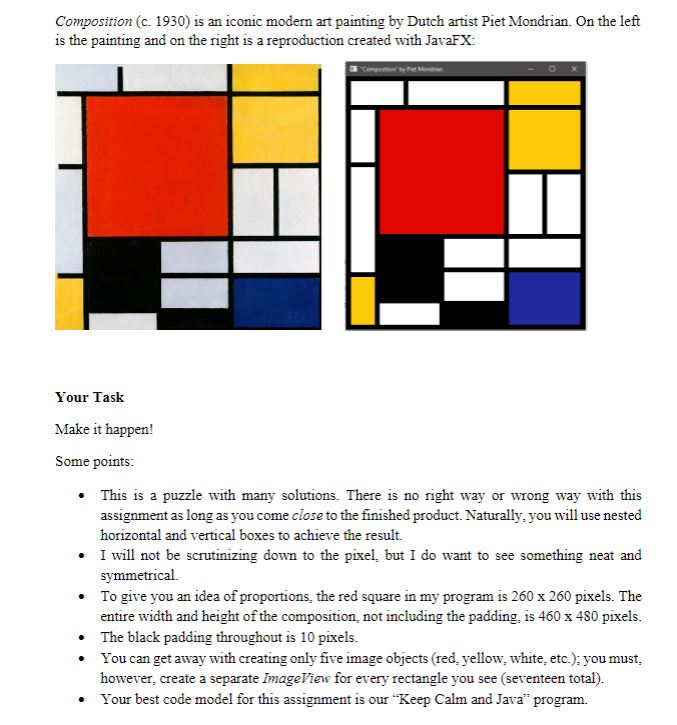
Composition (c. 1930) is an iconic modern art painting by Dutch artist Piet Mondrian. On the left is the painting and on the right is a reproduction created with JavaFX: Your Task Make it happen! Some points: This is a puzzle with many solutions. There is no right way or wrong way with this assignment as long as you come close to the finished product. Naturally, you will use nested horizontal and vertical boxes to achieve the result .I will not be scrutinizing down to the pixel, but I do want to see something neat and symmetrical. To give you an idea of proportions, the red square in my program is 260 x 260 pixels. The entire width and height of the composition, not including the padding, is 460 x 480 pixels The black padding throughout is 10 pixels. You can get away with creating only five image objects (red, yellow, white, etc.); you must however, create a separate ImageView for every rectangle you see (seventeen total). . Your best code model for this assignment is our "Keep Calm and Java" program. Composition (c. 1930) is an iconic modern art painting by Dutch artist Piet Mondrian. On the left is the painting and on the right is a reproduction created with JavaFX: Your Task Make it happen! Some points: This is a puzzle with many solutions. There is no right way or wrong way with this assignment as long as you come close to the finished product. Naturally, you will use nested horizontal and vertical boxes to achieve the result .I will not be scrutinizing down to the pixel, but I do want to see something neat and symmetrical. To give you an idea of proportions, the red square in my program is 260 x 260 pixels. The entire width and height of the composition, not including the padding, is 460 x 480 pixels The black padding throughout is 10 pixels. You can get away with creating only five image objects (red, yellow, white, etc.); you must however, create a separate ImageView for every rectangle you see (seventeen total). . Your best code model for this assignment is our "Keep Calm and Java" program
Step by Step Solution
There are 3 Steps involved in it

Get step-by-step solutions from verified subject matter experts
 Study Help