







Question: JavaFX Tutorial: GUI II Instructions: The following is a step-by-step tutorial to help you learn Java GUI with JavaFX. Follow each step to create a
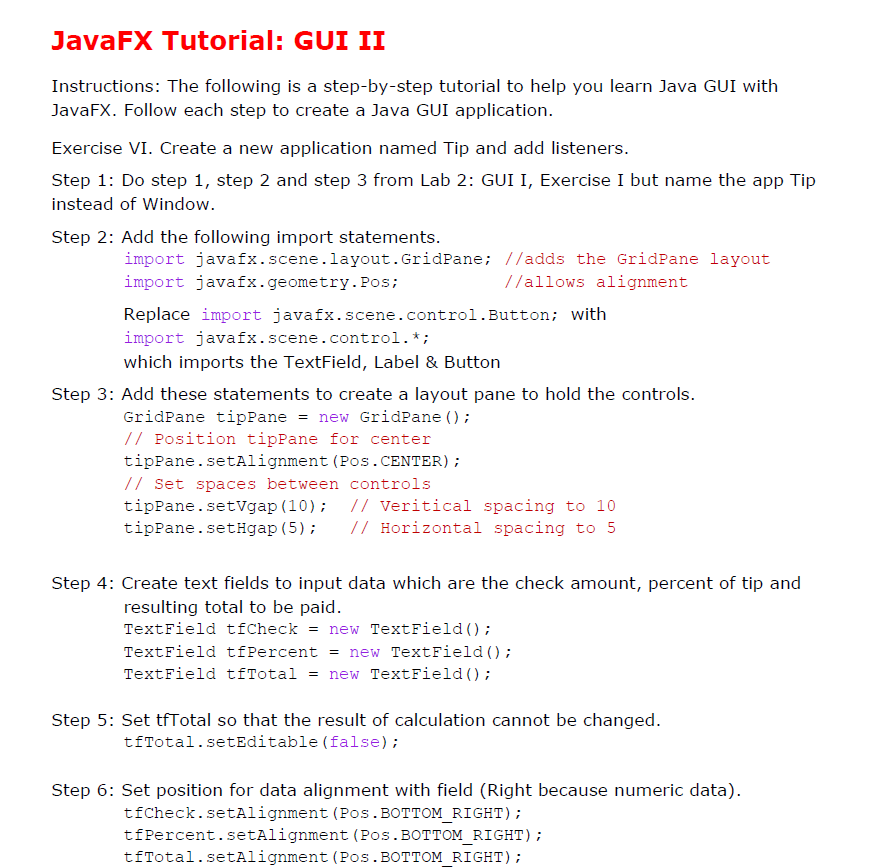
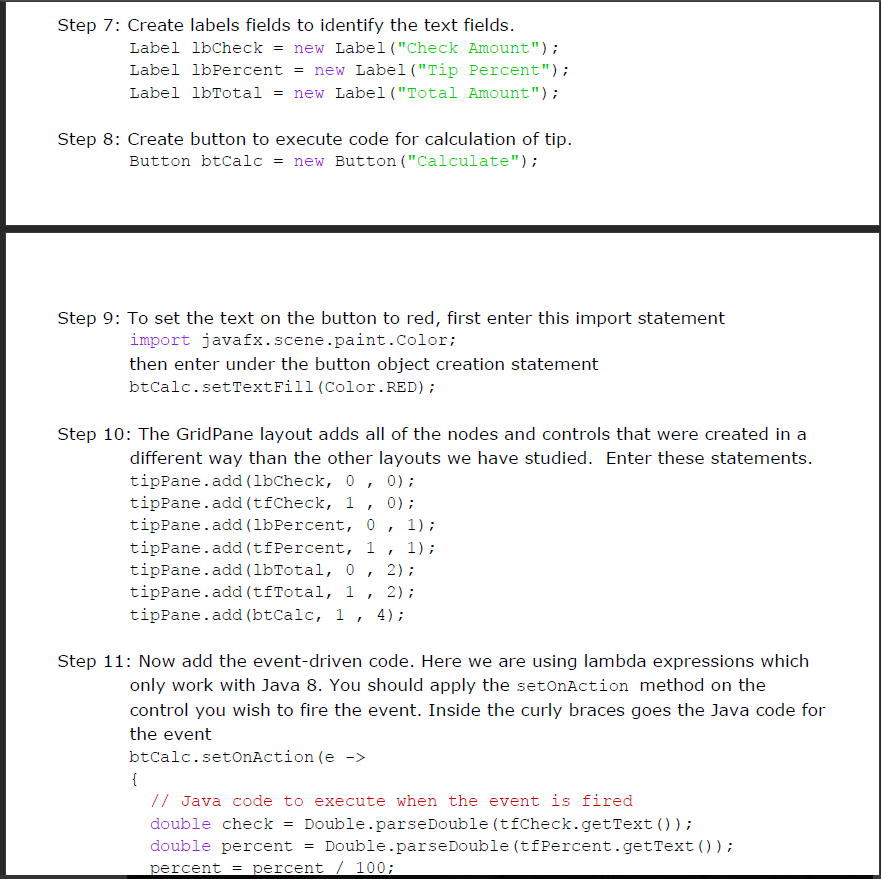
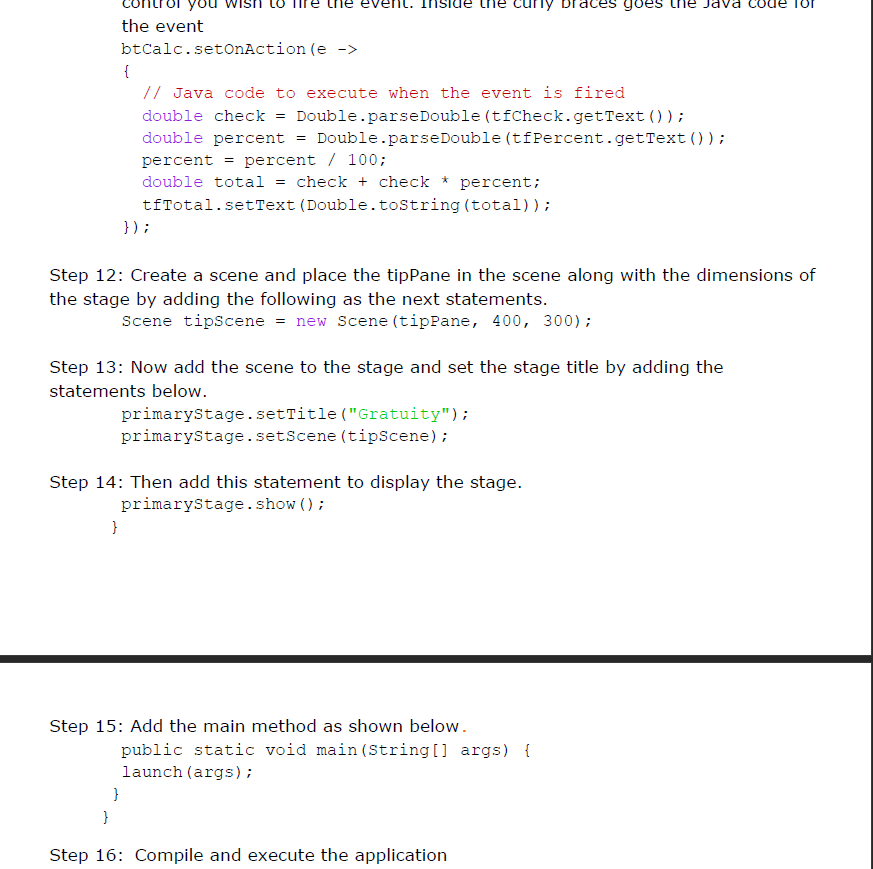
JavaFX Tutorial: GUI II Instructions: The following is a step-by-step tutorial to help you learn Java GUI with JavaFX. Follow each step to create a Java GUI application. Exercise VI. Create a new application named Tip and add listeners. Step 1: Do step 1, step 2 and step 3 from Lab 2: GUI I Exercise I but name the app Tip instead of Window Step 2: Add the following import statements. import javafx.scene layout.GridPane; //adds the GridPane layout import javafx. geometry. Pos allows alignment Replace import javafx. scene. control. Button; with import javafx scene control. which imports the TextField, Label & Button Step 3: Add these statements to create a layout pane to hold the controls. GridPane tip Pane new GridPane Position tip Pane for center Pane see tAlignment (Pos. CENTER) Set spaces between controls tipPane see tvgap (10) Veritical spacing to 10 tip Pane.set Hgap (5) Horizontal spacing to 5 Step 4: Create text fields to input data which are the check amount, percent of tip and resulting total to be paid Text Field tfCheck new Text Field Text Field tfPercent new TextField Text Field tfTotal new Text Field Step 5: Set tf Total so that the result of calculation cannot be changed. tfTotal setEditable (false) Step 6: Set position for data alignment with field (Right because numeric data) tf Check. setAlignment (Pos .BOTTOM RIGHT) tf Percent. set Ali gnment. (Pos. BOTTOM RIGHT) tfTotal setAlignment (Pos .BOTTOM RIGHT) JavaFX Tutorial: GUI II Instructions: The following is a step-by-step tutorial to help you learn Java GUI with JavaFX. Follow each step to create a Java GUI application. Exercise VI. Create a new application named Tip and add listeners. Step 1: Do step 1, step 2 and step 3 from Lab 2: GUI I Exercise I but name the app Tip instead of Window Step 2: Add the following import statements. import javafx.scene layout.GridPane; //adds the GridPane layout import javafx. geometry. Pos allows alignment Replace import javafx. scene. control. Button; with import javafx scene control. which imports the TextField, Label & Button Step 3: Add these statements to create a layout pane to hold the controls. GridPane tip Pane new GridPane Position tip Pane for center Pane see tAlignment (Pos. CENTER) Set spaces between controls tipPane see tvgap (10) Veritical spacing to 10 tip Pane.set Hgap (5) Horizontal spacing to 5 Step 4: Create text fields to input data which are the check amount, percent of tip and resulting total to be paid Text Field tfCheck new Text Field Text Field tfPercent new TextField Text Field tfTotal new Text Field Step 5: Set tf Total so that the result of calculation cannot be changed. tfTotal setEditable (false) Step 6: Set position for data alignment with field (Right because numeric data) tf Check. setAlignment (Pos .BOTTOM RIGHT) tf Percent. set Ali gnment. (Pos. BOTTOM RIGHT) tfTotal setAlignment (Pos .BOTTOM RIGHT)
Step by Step Solution
There are 3 Steps involved in it

Get step-by-step solutions from verified subject matter experts
 Study Help