







Question: Lab # 1 : Frequency Table and Histogram Objective: Use the built - in functions of Excel to create a Frequency Table and Histogram as
Lab #: Frequency Table and Histogram
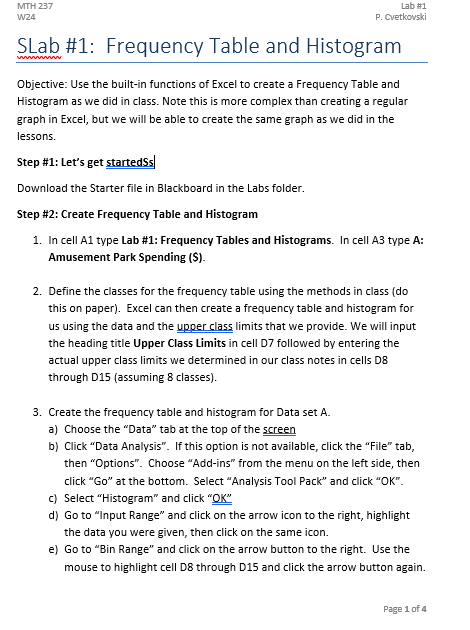
Objective: Use the builtin functions of Excel to create a Frequency Table and Histogram as we did in class. Note this is more complex than creating a regular graph in Excel, but we will be able to create the same graph as we did in the lessons.
Step #: Lets get started
Download the Starter file in Blackboard in the Labs folder.
Step #: Create Frequency Table and Histogram
In cell A type Lab #: Frequency Tables and Histograms. In cell A type A: Amusement Park Spending $SLab #: Frequency Table and Histogram
Objective: Use the builtin functions of Excel to create a Frequency Table and
Histogram as we did in class. Note this is more complex than creating a regular
graph in Excel, but we will be able to create the same graph as we did in the
lessons.
Step #: Let's get startedSs
Download the Starter file in Blackboard in the Labs folder.
Step #: Create Frequency Table and Histogram
In cell A type Lab #: Frequency Tables and Histograms. In cell A type A:
Amusement Park Spending $
Define the classes for the frequency table using the methods in class do
this on paper Excel can then create a frequency table and histogram for
us using the data and the upper class limits that we provide. We will input
the heading title Upper Class Limits in cell D followed by entering the
actual upper class limits we determined in our class notes in cells D
through Dassuming classes
Create the frequency table and histogram for Data set A
a Choose the "Data" tab at the top of the screen
b Click "Data Analysis". If this option is not available, click the "File" tab,
then "Options". Choose "Addins" from the menu on the left side, then
click Go at the bottom. Select "Analysis Tool Pack" and click OK
c Select "Histogram" and click OK
d Go to "Input Range" and click on the arrow icon to the right, highlight
the data you were given, then click on the same icon.
e Go to "Bin Range" and click on the arrow button to the right. Use the
mouse to highlight cell D through D and click the arrow button again.
Step by Step Solution
There are 3 Steps involved in it
1 Expert Approved Answer
Step: 1 Unlock

Question Has Been Solved by an Expert!
Get step-by-step solutions from verified subject matter experts
Step: 2 Unlock
Step: 3 Unlock
 Study Help