







Question: Lab 3 CLI Utilities with Files & Directories Background Experience running commands working with files and directories. System Setup Prerequisites: A hypervisor with a guest
Lab 3 CLI Utilities with Files & Directories
Background
Experience running commands working with files and directories.
System Setup
Prerequisites:
- A hypervisor with a guest running Fedora Server 32 or 33
Reference: List of Commands
man
ls, ls l, ls a
touch (create a new empty file)
cat (display file content)
more (display file content by screens)
less (similar to command more, but could go back and forth: next page using f, previous page using b, quit using q)
cd, cd .., cd ~ (go to /home/username directory), cd (go to previous location),
cd / cd /root, cd /home
mkdir
rm, rm r
mv : move or rename a file
mv source destination
cp : copy a file
vi
Note: Commands are listed between [ ] to easily identify them. Do not type [ ] when running commands.
Part I: Creating a directory tree and files
- Log in using your non-root account.
- Use [pwd], check what is your current directory path _____________________. If it is not your home directory, then use [cd ~] to go back. Check with [pwd] again.
Prepare to back up your directory tree that is to be created:
- Create a new directory called `dirbak under /tmp by entering [mkdir /tmp/dirbak].
- In previous step, make sure you create the directory starting with a /, which is /tmp/dirbak, not tmp/dirbak. If you are unsure about this, check with instructor.
(For your information, /tmp directory is writable to every user. We will create a backup of your directory tree there.)
- Create a directory tree with files:
Go to your home directory by entering [cd ~]. Create directories and files as shown below:
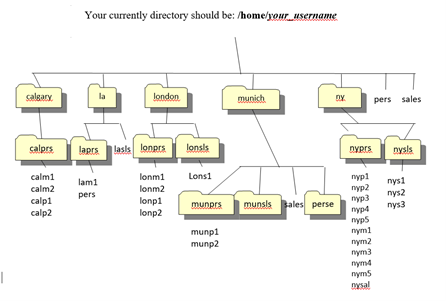
- Copy/backup this directory tree by enter [cp r ~/* /tmp/dirbak/]. The * is a wildcard that represent anything. r means recursive. This command copies everything under your home directory to /tmp/dirbak/.
- Verify the copy is successful by going to /tmp/dirbak/ and check that the directories and files are there.
Part II: Moving and Renaming Files
1. Change to the munich subdirectory under your home directory.
2. List the files and subdirectories in ~/munich by entering [ls F ]
Check the man page of ls, what is F for?
____________________________________________________________________
3. Enter [mv sales munsls]
4. Enter [ls F] to list the contents of your current working directory, ~/munich.
Notice that the sales file is no longer listed.
5. Change to the ~/munich/munsls directory and verify that sales has been moved here.
6. Enter [mv sales munsls], and then do a directory listing.
Compare what happened with the results of step 3. What is the difference between the two
[mv sales munsls] commands that are in step 3 and step 6?
7. Now, let's try moving a file to your current working directory. Change to your ~/munich directory, and then enter [mv munsls/munsls sales]. This will move the file you've been working with and rename it back to sales.
Check that the file is no longer in munich/munsls and that sales is in your ~/munich directory.
Part III: Removing Files and Directories
1. Change to the ~/munich directory, and then display a recursive directory listing [ls R]. There are three directories and one file in the munich directory. The mnprs directory contains files and the munsls and pers directories are empty.
2. Enter [rmdir munsls]
Were you able to delete this directory? Why or why not?
3. Enter [rmdir munprs]
Were you able to delete this directory? Why or why not?
4. Enter [rm -ri munprs] to interactively delete the munprs directory and all subdirectories and files in it. Respond with y at each prompt.
Verify that the directory and all its contents were removed (ls -R ~/munich).
5. Log out.
Your currently directory should be: /home/your_username calgary london munich pers sales calprs lancs lasis lones longis nyers nysis Lonsi calmi calm2 calpi calp2 lam1 pers lonmi lonm2 lonpi lonp2 nys1 nys2 nys 3 muner munsis ales perse nyp1 nyp2 nyp3 nypd nyps nymi nym2 nym3 nym munpi munp2 I Your currently directory should be: /home/your_username calgary london munich pers sales calprs lancs lasis lones longis nyers nysis Lonsi calmi calm2 calpi calp2 lam1 pers lonmi lonm2 lonpi lonp2 nys1 nys2 nys 3 muner munsis ales perse nyp1 nyp2 nyp3 nypd nyps nymi nym2 nym3 nym munpi munp2
Step by Step Solution
There are 3 Steps involved in it

Get step-by-step solutions from verified subject matter experts
 Study Help