







Question: Lab 3: Input - Output and Plotting The objectives of this lab are to learn about following topics in MATLAB: Read data from Excel Read
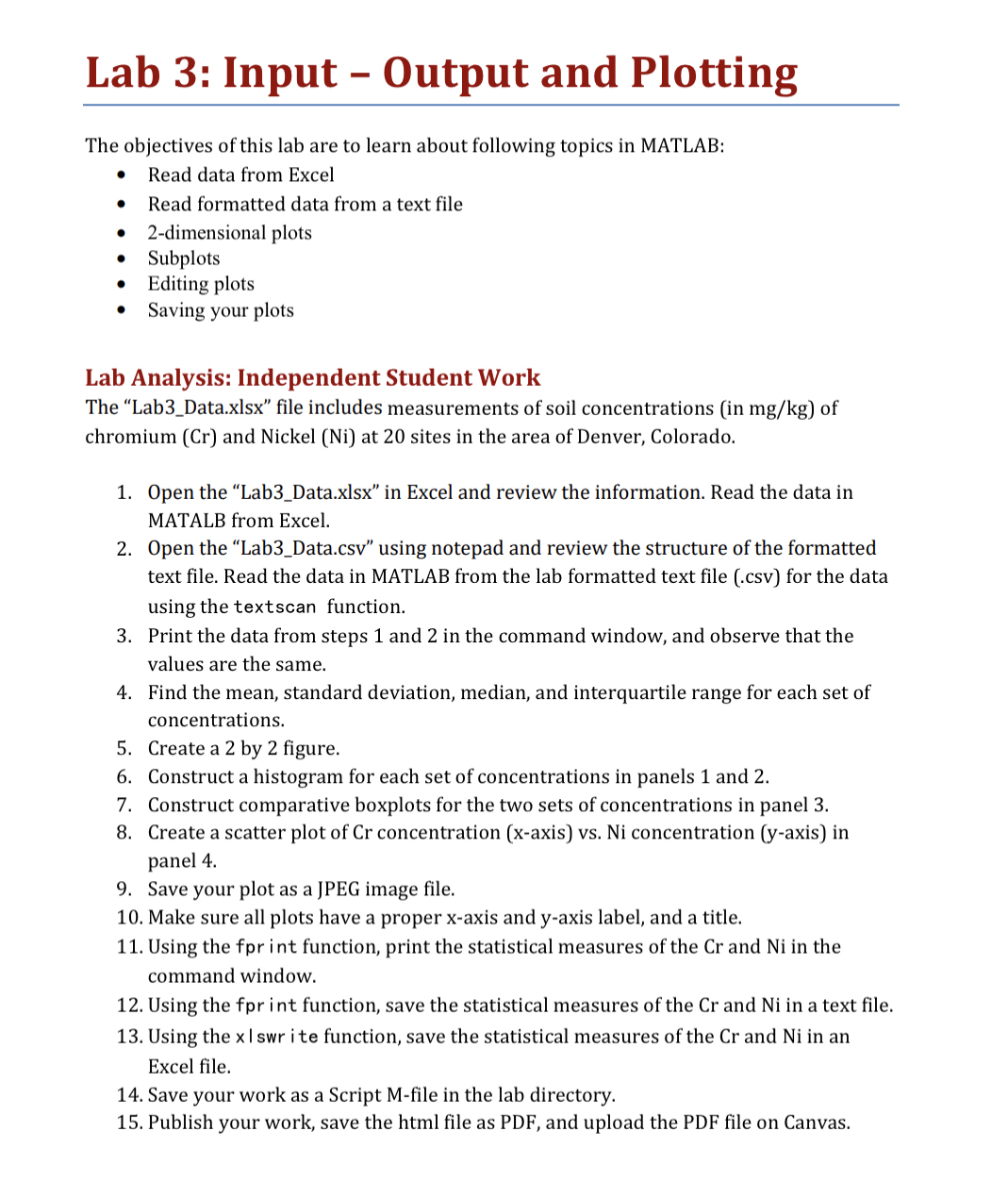
Lab 3: Input - Output and Plotting\ The objectives of this lab are to learn about following topics in MATLAB:\ Read data from Excel\ Read formatted data from a text file\ 2-dimensional plots\ Subplots\ Editing plots\ Saving your plots\ Lab Analysis: Independent Student Work\ The "Lab3_Data.xlsx" file includes measurements of soil concentrations (in
m(g)/(k)g) of chromium (Cr) and Nickel (Ni) at 20 sites in the area of Denver, Colorado.\ Open the "Lab3_Data.xlsx" in Excel and review the information. Read the data in MATALB from Excel.\ Open the "Lab3_Data.csv" using notepad and review the structure of the formatted text file. Read the data in MATLAB from the lab formatted text file (.csv) for the data using the textscan function.\ Print the data from steps 1 and 2 in the command window, and observe that the values are the same.\ Find the mean, standard deviation, median, and interquartile range for each set of concentrations.\ Create a 2 by 2 figure.\ Construct a histogram for each set of concentrations in panels 1 and 2 .\ Construct comparative boxplots for the two sets of concentrations in panel 3.\ Create a scatter plot of
Crconcentration (x-axis) vs. Ni concentration (y-axis) in panel 4.\ Save your plot as a JPEG image file.\ Make sure all plots have a proper
x-axis and
y-axis label, and a title.\ Using the fpr int function, print the statistical measures of the
Crand
Niin the command window.\ Using the fpr int function, save the statistical measures of the
Crand
Niin a text file.\ Using the
xswr ite function, save the statistical measures of the
Crand
Niin an Excel file.\ Save your work as a Script M-file in the lab directory.\ Publish your work, save the html file as PDF, and upload the PDF file on Canvas.
Lab 3: Input - Output and Plotting The objectives of this lab are to learn about following topics in MATLAB: - Read data from Excel - Read formatted data from a text file - 2-dimensional plots - Subplots - Editing plots - Saving your plots Lab Analysis: Independent Student Work The "Lab3_Data.xlsx" file includes measurements of soil concentrations (in mg/kg ) of chromium (Cr) and Nickel (Ni) at 20 sites in the area of Denver, Colorado. 1. Open the "Lab3_Data.xlsx" in Excel and review the information. Read the data in MATALB from Excel. 2. Open the "Lab3_Data.csv" using notepad and review the structure of the formatted text file. Read the data in MATLAB from the lab formatted text file (.csv) for the data using the textscan function. 3. Print the data from steps 1 and 2 in the command window, and observe that the values are the same. 4. Find the mean, standard deviation, median, and interquartile range for each set of concentrations. 5. Create a 2 by 2 figure. 6. Construct a histogram for each set of concentrations in panels 1 and 2. 7. Construct comparative boxplots for the two sets of concentrations in panel 3. 8. Create a scatter plot of Cr concentration ( x-axis) vs. Ni concentration (y-axis) in panel 4. 9. Save your plot as a JPEG image file. 10. Make sure all plots have a proper x-axis and y-axis label, and a title. 11. Using the fpr int function, print the statistical measures of the Cr and Ni in the command window. 12. Using the fpr int function, save the statistical measures of the Cr and Ni in a text file. 13. Using the x Iswr ite function, save the statistical measures of the Cr and Ni in an Excel file. 14. Save your work as a Script M-file in the lab directory. 15. Publish your work, save the html file as PDF, and upload the PDF file on Canvas. Lab 3: Input - Output and Plotting The objectives of this lab are to learn about following topics in MATLAB: - Read data from Excel - Read formatted data from a text file - 2-dimensional plots - Subplots - Editing plots - Saving your plots Lab Analysis: Independent Student Work The "Lab3_Data.xlsx" file includes measurements of soil concentrations (in mg/kg ) of chromium (Cr) and Nickel (Ni) at 20 sites in the area of Denver, Colorado. 1. Open the "Lab3_Data.xlsx" in Excel and review the information. Read the data in MATALB from Excel. 2. Open the "Lab3_Data.csv" using notepad and review the structure of the formatted text file. Read the data in MATLAB from the lab formatted text file (.csv) for the data using the textscan function. 3. Print the data from steps 1 and 2 in the command window, and observe that the values are the same. 4. Find the mean, standard deviation, median, and interquartile range for each set of concentrations. 5. Create a 2 by 2 figure. 6. Construct a histogram for each set of concentrations in panels 1 and 2. 7. Construct comparative boxplots for the two sets of concentrations in panel 3. 8. Create a scatter plot of Cr concentration ( x-axis) vs. Ni concentration (y-axis) in panel 4. 9. Save your plot as a JPEG image file. 10. Make sure all plots have a proper x-axis and y-axis label, and a title. 11. Using the fpr int function, print the statistical measures of the Cr and Ni in the command window. 12. Using the fpr int function, save the statistical measures of the Cr and Ni in a text file. 13. Using the x Iswr ite function, save the statistical measures of the Cr and Ni in an Excel file. 14. Save your work as a Script M-file in the lab directory. 15. Publish your work, save the html file as PDF, and upload the PDF file on Canvas
Step by Step Solution
There are 3 Steps involved in it

Get step-by-step solutions from verified subject matter experts
 Study Help