







Question: lab css for table and form 1- Prepare your HTML: - Create a new emply HTML file - Add the ess-reset styleshioet. - Create a
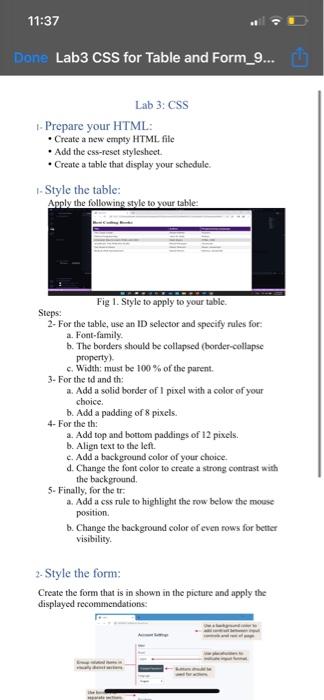
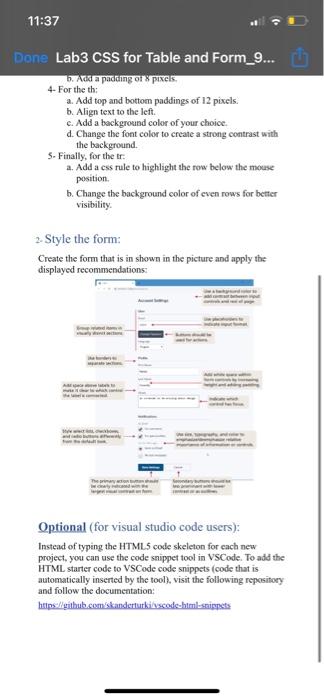
1- Prepare your HTML: - Create a new emply HTML file - Add the ess-reset styleshioet. - Create a table that display your schedule. 1- Style the table: Anolv the followine stvle to vour table: Steps: Fig 1. Style to apply to your table. 2- For the table, use an ID selector and specify rules for: a. Font-family. b. The borders should be collapsed (border-collapse property). c. Width: must be 100% of the parent. 3. For the td and th: a. Add a solid border of I pixel with a color of your choice. b. Add a padding of 8 pixels. 4- For the th: a. Add top and bottom paddings of 12 pixels. b. Align text to the left. c. Add a background color of your choice. d. Change the font color to create a strong contrast with the background. 5- Finally, for the tr: a. Add a css rule to highlight the row below the mouse position. b. Change the background color of even rows for bether visibility. 2. Style the form: Create the form that is in shown in the picture and apply the displayed recommendations: Lab3 CSS for Table and Form_9... b. And a padang or 8 ppres. 4- For the th: a. Add top and bottom paddings of 12 pixels. b. Align text to the left. c. Add a background color of your choice. d. Change the font color to create a strong contrast with the background. 5. Finally, for the tr: a. Add a css rule to highlight the row below the mouse position. b. Change the background color of even rows for better visibility. 2. Style the form: Create the form that is in shown in the picture and apply the displayed recommendations: Optional (for visual studio code users): Instead of typing the HTML. 5 code skeleton for each new project, you can use the code snippet tool in VSCode. To add the HTML starter code to VSCode code snippets (code that is automatically inserted by the tool), visit the following repository and follow the documentation: bsips /hithubsomskanderturkivscodc-htrmbsaipnets
Step by Step Solution
There are 3 Steps involved in it

Get step-by-step solutions from verified subject matter experts
 Study Help