







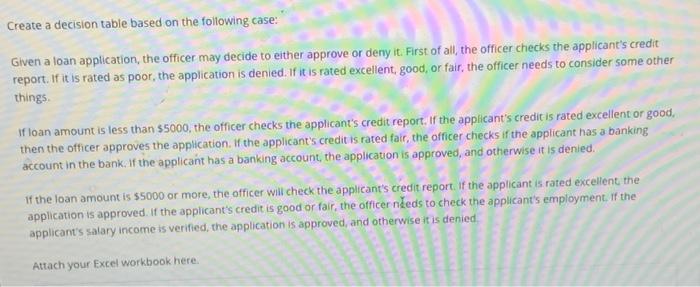
Question: labism 5.8.5 Create a decision table based on the following case: Given a loan application, the officer may decide to either approve or deny it.
labism 5.8.5 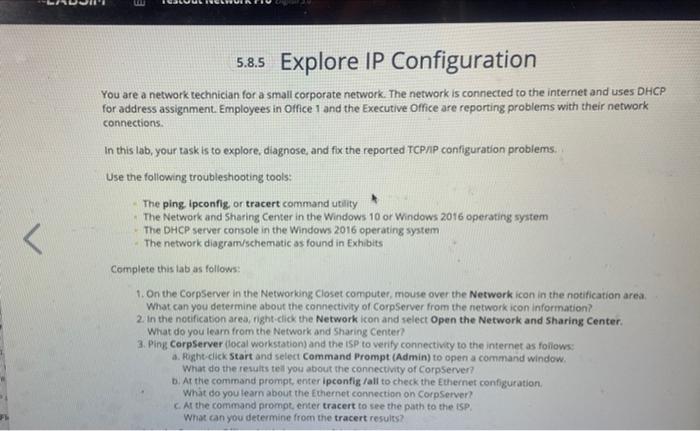
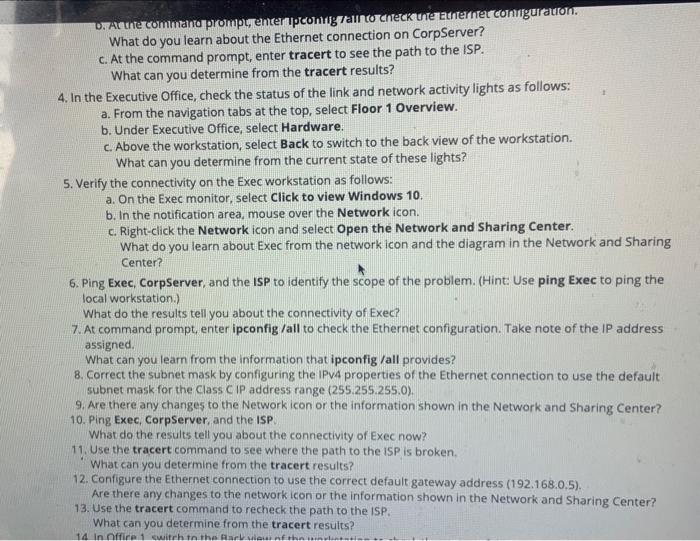
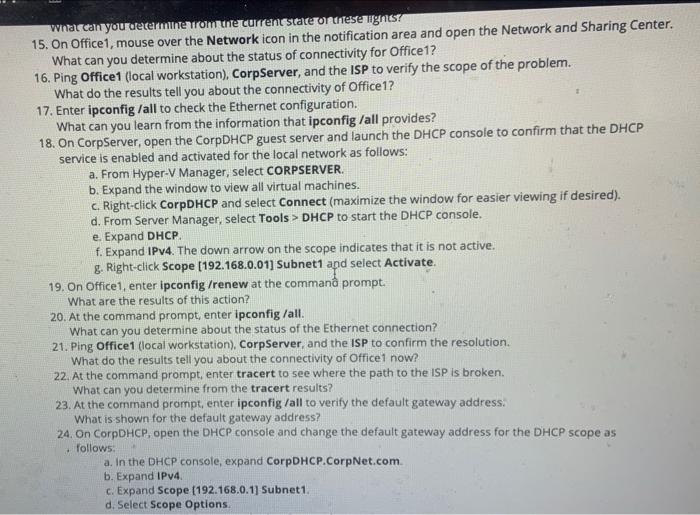
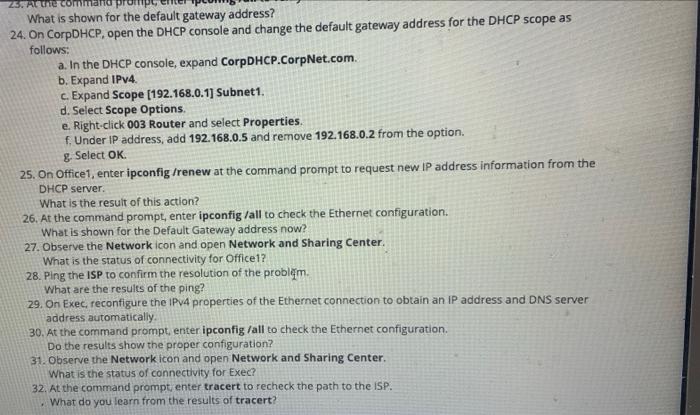
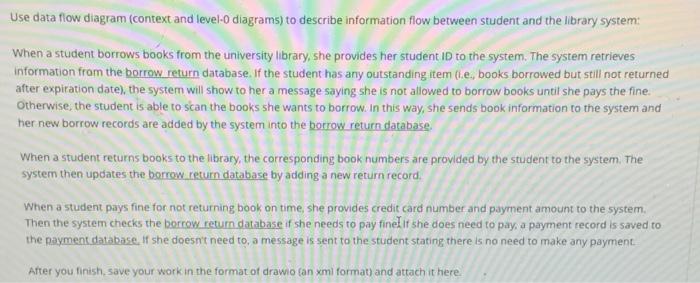
Create a decision table based on the following case: Given a loan application, the officer may decide to either approve or deny it. First of all, the officer checks the applicant's credit report. If it is rated as poor, the application is denied. If it is rated excellent, good, or fair, the officer needs to consider some other things if loan amount is less than $5000, the officer checks the applicant's credit report. If the applicant's credit is rated excellent or good, then the officer approves the application. If the applicant's credit is rated fair, the officer checks if the applicant has a banking account in the bank. If the applicant has a banking account the application is approved, and otherwise it is denied. 1f the loan amount is $5000 or more, the officer will check the applicant's credit report. If the applicant is rated excellent the application is approved. If the applicant's credit is good or fair, the officer neds to check the applicant's employment. If the applicant's salary income is verified, the application is approved, and otherwise it is denied Attach your Excel workbook here. Use data flow diagram (context and level-O diagrams) to describe information flow between student and the library system When a student borrows books from the university library, she provides her student ID to the system. The system retrieves information from the borrow return database. If the student has any outstanding item (t.e, books borrowed but still not returned after expiration date), the system will show to her a message saying she is not allowed to borrow books until she pays the fine. Otherwise, the student is able to scan the books she wants to borrow. In this way, she sends book information to the system and her new borrow records are added by the system into the borrow return database When a student returns books to the library, the corresponding book numbers are provided by the student to the system. The system then updates the borrow return database by adding a new return record, When a student pays fine for not returning book on time, she provides credit card number and payment amount to the system Then the system checks the borrow return database if she needs to pay finel It she does need to pay, a payment record is saved to the payment database, if she doesn't need to, a message is sent to the student stating there is no need to make any payment After you finish save your work in the format of drawiocan xml format) and attach it here. 5.8.5 Explore IP Configuration You are a network technician for a small corporate network. The network is connected to the internet and uses DHCP for address assignment Employees in Office 1 and the Executive Office are reporting problems with their network connections In this lab, your task is to explore, diagnose, and fix the reported TCP/IP configuration problems Use the following troubleshooting tools: The ping ipconfig, or tracert command utility The Network and Sharing Center in the Windows 10 or Windows 2016 operating system The DHCP server console in the Windows 2016 operating system The network diagram/schematic as found in Exhibits Complete this tab as follows: 1. On the CorpServer in the Networking Closet computer, mouse over the Network icon in the notification area What can you determine about the connectivity of CorpServer from the network icon information 2. In the notification area, right-click the Network icon and select Open the Network and Sharing Center What do you learn from the Network and Sharing Center? 3. Ping Corpserver cocal workstation) and the ISP to verify connectivity to the internet as follows: a. Right click Start and select Command Prompt (Admin) to open a command window. What do the results tell you about the connectivity of CorpServer b. At the command prompt, enter ipconfig /all to check the Ethernet configuration What do you learn about the Ethernet connection on CorpServer C. At the command prompt, enter tracert to see the path to the ISP What can you determine from the tracert results? V. Acune command prompuenter ipcong all to CHECK UTE Ternet comiguratom. What do you learn about the Ethernet connection on CorpServer? c. At the command prompt, enter tracert to see the path to the ISP. What can you determine from the tracert results? 4. In the Executive Office, check the status of the link and network activity lights as follows: a. From the navigation tabs at the top, select Floor 1 Overview. b. Under Executive Office, select Hardware. c. Above the workstation, select Back to switch to the back view of the workstation. What can you determine from the current state of these lights? 5. Verify the connectivity on the Exec workstation as follows: a. On the Exec monitor, select Click to view Windows 10, b. In the notification area, mouse over the Network icon. c. Right click the Network icon and select Open the Network and Sharing Center. What do you learn about Exec from the network icon and the diagram in the Network and Sharing Center? 6. Ping Exec, CorpServer, and the ISP to identify the scope of the problem. (Hint: Use ping Exec to ping the local workstation.) What do the results tell you about the connectivity of Exec? 7. At command prompt, enter ipconfig /all to check the Ethernet configuration. Take note of the IP address assigned What can you learn from the information that ipconfig /all provides? 8. Correct the subnet mask by configuring the IPv4 properties of the Ethernet connection to use the default subnet mask for the Class IP address range (255.255.255.0). 9. Are there any changes to the Network icon or the information shown in the Network and Sharing Center? 10. Ping Exec, CorpServer, and the ISP What do the results tell you about the connectivity of Exec now? 11. Use the tracert command to see where the path to the ISP is broken. What can you determine from the tracert results? 12. Configure the Ethernet connection to use the correct default gateway address (192.168.0.5). Are there any changes to the network icon or the information shown in the Network and Sharing Center? 13. Use the tracert command to recheck the path to the ISP. What can you determine from the tracert results? 14 in Office with to the farmeurnish what can you determineurom the current state or diese ugns? 15. On Office1, mouse over the Network icon in the notification area and open the Network and Sharing Center. What can you determine about the status of connectivity for Office1? 16. Ping Office1 (local workstation), CorpServer, and the ISP to verify the scope of the problem. What do the results tell you about the connectivity of Office1? 17. Enter ipconfig /all to check the Ethernet configuration. What can you learn from the information that ipconfig /all provides? 18. On CorpServer, open the Corp DHCP guest server and launch the DHCP console to confirm that the DHCP service is enabled and activated for the local network as follows: a. From Hyper-V Manager, select CORPSERVER. b. Expand the window to view all virtual machines, c. Right-click CorpDHCP and select Connect (maximize the window for easier viewing if desired). d. From Server Manager, select Tools > DHCP to start the DHCP console. e. Expand DHCP f. Expand IPv4. The down arrow on the scope indicates that it is not active. g. Right-click Scope (192.168.0.01) Subnet1 and select Activate 19. On Office1, enter ipconfig /renew at the command prompt. What are the results of this action? 20. At the command prompt, enter ipconfig /all. What can you determine about the status of the Ethernet connection? 21. Ping Office1 (local workstation), CorpServer, and the ISP to confirm the resolution What do the results tell you about the connectivity of Office 1 now? 22. At the command prompt, enter tracert to see where the path to the ISP is broken. What can you determine from the tracert results? 23. At the command prompt, enter ipconfig /all to verify the default gateway address: What is shown for the default gateway address? 24. On CorpDHCP, open the DHCP console and change the default gateway address for the DHCP scope as follows a. In the DHCP console, expand CorpDHCP.CorpNet.com b. Expand IPv4 c. Expand Scope (192.168.0.1] Subnet1 d. Select Scope Options ZEFA com What is shown for the default gateway address? 24. On CorpDHCP, open the DHCP console and change the default gateway address for the DHCP scope as follows: a. In the DHCP console, expand CorpDHCP.CorpNet.com b. Expand IPv4. c. Expand Scope [192.168.0.1] Subnet1. d. Select Scope Options e. Right-click 003 Router and select Properties. f. Under IP address, add 192.168.0.5 and remove 192.168.0.2 from the option. g. Select OK 25. On Office 1, enter ipconfig /renew at the command prompt to request new IP address information from the DHCP server. What is the result of this action? 26. At the command prompt, enter ipconfig /all to check the Ethernet configuration What is shown for the Default Gateway address now? 27. Observe the Network icon and open Network and Sharing Center What is the status of connectivity for Office1? 28. Ping the ISP to confirm the resolution of the problem. What are the results of the ping? 29. On Exec, reconfigure the IPv4 properties of the Ethernet connection to obtain an IP address and DNS server address automatically 30. At the command prompt, enter ipconfig /all to check the Ethernet configuration Do the results show the proper configuration? 31. Observe the Network icon and open Network and Sharing Center What is the status of connectivity for Exec? 32. At the command prompt, enter tracert to recheck the path to the ISP. What do you learn from the results of tracert? Create a decision table based on the following case: Given a loan application, the officer may decide to either approve or deny it. First of all, the officer checks the applicant's credit report. If it is rated as poor, the application is denied. If it is rated excellent, good, or fair, the officer needs to consider some other things if loan amount is less than $5000, the officer checks the applicant's credit report. If the applicant's credit is rated excellent or good, then the officer approves the application. If the applicant's credit is rated fair, the officer checks if the applicant has a banking account in the bank. If the applicant has a banking account the application is approved, and otherwise it is denied. 1f the loan amount is $5000 or more, the officer will check the applicant's credit report. If the applicant is rated excellent the application is approved. If the applicant's credit is good or fair, the officer neds to check the applicant's employment. If the applicant's salary income is verified, the application is approved, and otherwise it is denied Attach your Excel workbook here. Use data flow diagram (context and level-O diagrams) to describe information flow between student and the library system When a student borrows books from the university library, she provides her student ID to the system. The system retrieves information from the borrow return database. If the student has any outstanding item (t.e, books borrowed but still not returned after expiration date), the system will show to her a message saying she is not allowed to borrow books until she pays the fine. Otherwise, the student is able to scan the books she wants to borrow. In this way, she sends book information to the system and her new borrow records are added by the system into the borrow return database When a student returns books to the library, the corresponding book numbers are provided by the student to the system. The system then updates the borrow return database by adding a new return record, When a student pays fine for not returning book on time, she provides credit card number and payment amount to the system Then the system checks the borrow return database if she needs to pay finel It she does need to pay, a payment record is saved to the payment database, if she doesn't need to, a message is sent to the student stating there is no need to make any payment After you finish save your work in the format of drawiocan xml format) and attach it here. 5.8.5 Explore IP Configuration You are a network technician for a small corporate network. The network is connected to the internet and uses DHCP for address assignment Employees in Office 1 and the Executive Office are reporting problems with their network connections In this lab, your task is to explore, diagnose, and fix the reported TCP/IP configuration problems Use the following troubleshooting tools: The ping ipconfig, or tracert command utility The Network and Sharing Center in the Windows 10 or Windows 2016 operating system The DHCP server console in the Windows 2016 operating system The network diagram/schematic as found in Exhibits Complete this tab as follows: 1. On the CorpServer in the Networking Closet computer, mouse over the Network icon in the notification area What can you determine about the connectivity of CorpServer from the network icon information 2. In the notification area, right-click the Network icon and select Open the Network and Sharing Center What do you learn from the Network and Sharing Center? 3. Ping Corpserver cocal workstation) and the ISP to verify connectivity to the internet as follows: a. Right click Start and select Command Prompt (Admin) to open a command window. What do the results tell you about the connectivity of CorpServer b. At the command prompt, enter ipconfig /all to check the Ethernet configuration What do you learn about the Ethernet connection on CorpServer C. At the command prompt, enter tracert to see the path to the ISP What can you determine from the tracert results? V. Acune command prompuenter ipcong all to CHECK UTE Ternet comiguratom. What do you learn about the Ethernet connection on CorpServer? c. At the command prompt, enter tracert to see the path to the ISP. What can you determine from the tracert results? 4. In the Executive Office, check the status of the link and network activity lights as follows: a. From the navigation tabs at the top, select Floor 1 Overview. b. Under Executive Office, select Hardware. c. Above the workstation, select Back to switch to the back view of the workstation. What can you determine from the current state of these lights? 5. Verify the connectivity on the Exec workstation as follows: a. On the Exec monitor, select Click to view Windows 10, b. In the notification area, mouse over the Network icon. c. Right click the Network icon and select Open the Network and Sharing Center. What do you learn about Exec from the network icon and the diagram in the Network and Sharing Center? 6. Ping Exec, CorpServer, and the ISP to identify the scope of the problem. (Hint: Use ping Exec to ping the local workstation.) What do the results tell you about the connectivity of Exec? 7. At command prompt, enter ipconfig /all to check the Ethernet configuration. Take note of the IP address assigned What can you learn from the information that ipconfig /all provides? 8. Correct the subnet mask by configuring the IPv4 properties of the Ethernet connection to use the default subnet mask for the Class IP address range (255.255.255.0). 9. Are there any changes to the Network icon or the information shown in the Network and Sharing Center? 10. Ping Exec, CorpServer, and the ISP What do the results tell you about the connectivity of Exec now? 11. Use the tracert command to see where the path to the ISP is broken. What can you determine from the tracert results? 12. Configure the Ethernet connection to use the correct default gateway address (192.168.0.5). Are there any changes to the network icon or the information shown in the Network and Sharing Center? 13. Use the tracert command to recheck the path to the ISP. What can you determine from the tracert results? 14 in Office with to the farmeurnish what can you determineurom the current state or diese ugns? 15. On Office1, mouse over the Network icon in the notification area and open the Network and Sharing Center. What can you determine about the status of connectivity for Office1? 16. Ping Office1 (local workstation), CorpServer, and the ISP to verify the scope of the problem. What do the results tell you about the connectivity of Office1? 17. Enter ipconfig /all to check the Ethernet configuration. What can you learn from the information that ipconfig /all provides? 18. On CorpServer, open the Corp DHCP guest server and launch the DHCP console to confirm that the DHCP service is enabled and activated for the local network as follows: a. From Hyper-V Manager, select CORPSERVER. b. Expand the window to view all virtual machines, c. Right-click CorpDHCP and select Connect (maximize the window for easier viewing if desired). d. From Server Manager, select Tools > DHCP to start the DHCP console. e. Expand DHCP f. Expand IPv4. The down arrow on the scope indicates that it is not active. g. Right-click Scope (192.168.0.01) Subnet1 and select Activate 19. On Office1, enter ipconfig /renew at the command prompt. What are the results of this action? 20. At the command prompt, enter ipconfig /all. What can you determine about the status of the Ethernet connection? 21. Ping Office1 (local workstation), CorpServer, and the ISP to confirm the resolution What do the results tell you about the connectivity of Office 1 now? 22. At the command prompt, enter tracert to see where the path to the ISP is broken. What can you determine from the tracert results? 23. At the command prompt, enter ipconfig /all to verify the default gateway address: What is shown for the default gateway address? 24. On CorpDHCP, open the DHCP console and change the default gateway address for the DHCP scope as follows a. In the DHCP console, expand CorpDHCP.CorpNet.com b. Expand IPv4 c. Expand Scope (192.168.0.1] Subnet1 d. Select Scope Options ZEFA com What is shown for the default gateway address? 24. On CorpDHCP, open the DHCP console and change the default gateway address for the DHCP scope as follows: a. In the DHCP console, expand CorpDHCP.CorpNet.com b. Expand IPv4. c. Expand Scope [192.168.0.1] Subnet1. d. Select Scope Options e. Right-click 003 Router and select Properties. f. Under IP address, add 192.168.0.5 and remove 192.168.0.2 from the option. g. Select OK 25. On Office 1, enter ipconfig /renew at the command prompt to request new IP address information from the DHCP server. What is the result of this action? 26. At the command prompt, enter ipconfig /all to check the Ethernet configuration What is shown for the Default Gateway address now? 27. Observe the Network icon and open Network and Sharing Center What is the status of connectivity for Office1? 28. Ping the ISP to confirm the resolution of the problem. What are the results of the ping? 29. On Exec, reconfigure the IPv4 properties of the Ethernet connection to obtain an IP address and DNS server address automatically 30. At the command prompt, enter ipconfig /all to check the Ethernet configuration Do the results show the proper configuration? 31. Observe the Network icon and open Network and Sharing Center What is the status of connectivity for Exec? 32. At the command prompt, enter tracert to recheck the path to the ISP. What do you learn from the results of tracert
Step by Step Solution
There are 3 Steps involved in it
1 Expert Approved Answer
Step: 1 Unlock

Question Has Been Solved by an Expert!
Get step-by-step solutions from verified subject matter experts
Step: 2 Unlock
Step: 3 Unlock
 Study Help