







Question: Layer 3 Configuration and Packet Switching Objective In this assignment, you will configure IP on two separate networks that communicate via a router. This
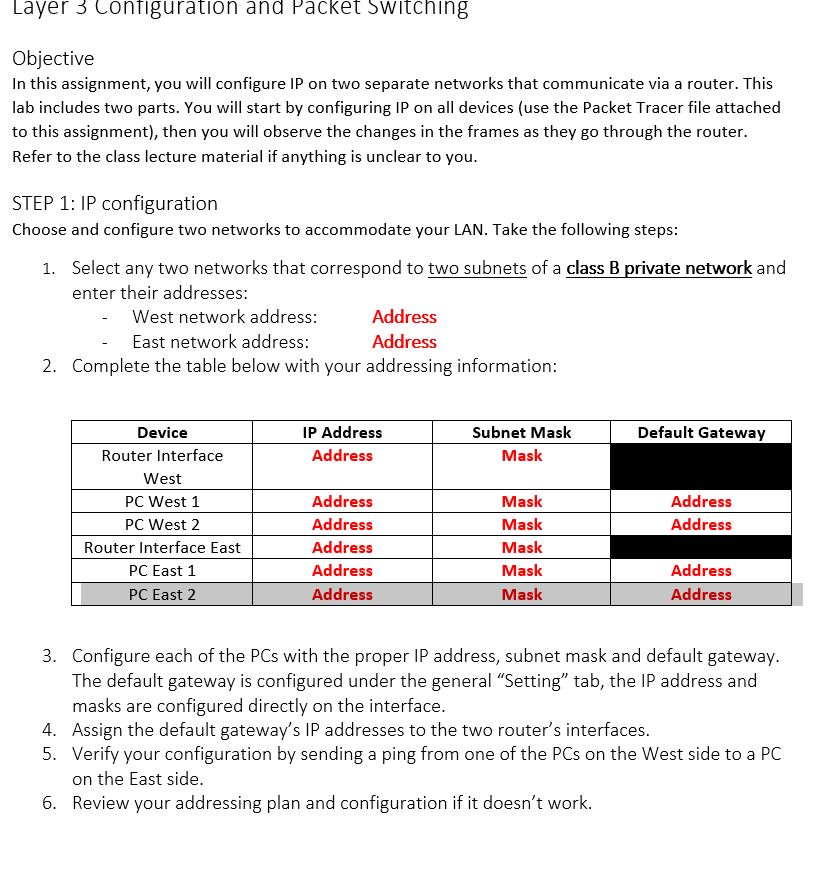
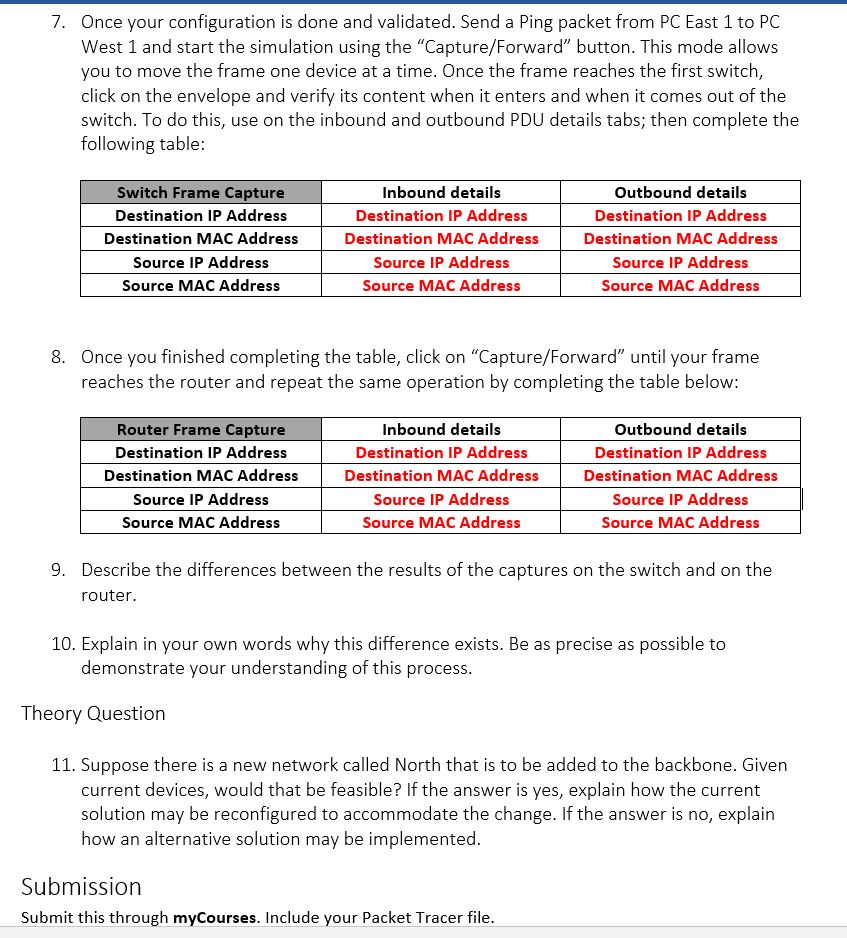
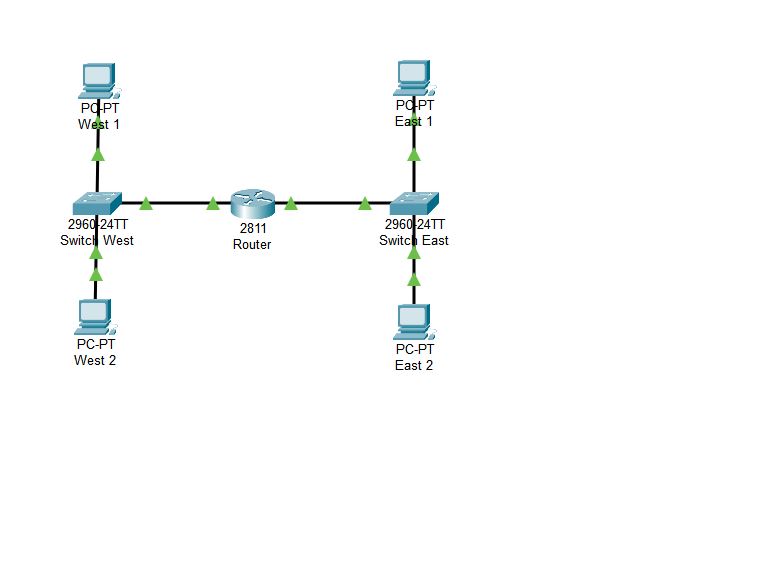
Layer 3 Configuration and Packet Switching Objective In this assignment, you will configure IP on two separate networks that communicate via a router. This lab includes two parts. You will start by configuring IP on all devices (use the Packet Tracer file attached to this assignment), then you will observe the changes in the frames as they go through the router. Refer to the class lecture material if anything is unclear to you. STEP 1: IP configuration Choose and configure two networks to accommodate your LAN. Take the following steps: 1. Select any two networks that correspond to two subnets of a class B private network and enter their addresses: West network address: East network address: Address Address 2. Complete the table below with your addressing information: Device IP Address Router Interface Address Subnet Mask Default Gateway Mask West PC West 1 Address Mask Address PC West 2 Address Mask Address Router Interface East Address Mask PC East 1 Address Mask PC East 2 Address Mask Address Address 3. Configure each of the PCs with the proper IP address, subnet mask and default gateway. The default gateway is configured under the general "Setting" tab, the IP address and masks are configured directly on the interface. 4. Assign the default gateway's IP addresses to the two router's interfaces. 5. Verify your configuration by sending a ping from one of the PCs on the West side to a PC on the East side. 6. Review your addressing plan and configuration if it doesn't work. 7. Once your configuration is done and validated. Send a Ping packet from PC East 1 to PC West 1 and start the simulation using the "Capture/Forward" button. This mode allows you to move the frame one device at a time. Once the frame reaches the first switch, click on the envelope and verify its content when it enters and when it comes out of the switch. To do this, use on the inbound and outbound PDU details tabs; then complete the following table: Switch Frame Capture Destination IP Address Destination MAC Address Source IP Address Source MAC Address Inbound details Destination IP Address Destination MAC Address Source IP Address Source MAC Address Outbound details Destination IP Address Destination MAC Address Source IP Address Source MAC Address 8. Once you finished completing the table, click on "Capture/Forward" until your frame reaches the router and repeat the same operation by completing the table below: Router Frame Capture Destination IP Address Destination MAC Address Source IP Address Source MAC Address Inbound details Destination IP Address Destination MAC Address Source IP Address Source MAC Address Outbound details Destination IP Address Destination MAC Address Source IP Address Source MAC Address 9. Describe the differences between the results of the captures on the switch and on the router. 10. Explain in your own words why this difference exists. Be as precise as possible to demonstrate your understanding of this process. Theory Question 11. Suppose there is a new network called North that is to be added to the backbone. Given current devices, would that be feasible? If the answer is yes, explain how the current solution may be reconfigured to accommodate the change. If the answer is no, explain how an alternative solution may be implemented. Submission Submit this through myCourses. Include your Packet Tracer file. PO-PT West 1 POPT East 1 2960-24TT Switch West 2811 Router 2960 24TT Switch East PC-PT West 2 PC-PT East 2
Step by Step Solution
There are 3 Steps involved in it

Get step-by-step solutions from verified subject matter experts
 Study Help