





Question: le/content/5208928/viewContent/46465969/View Get Homeworx C Introductions X Overview Using the database file you created in the previous Tutorial Assignment you will create a multi-table query and
le/content/5208928/viewContent/46465969/View Get
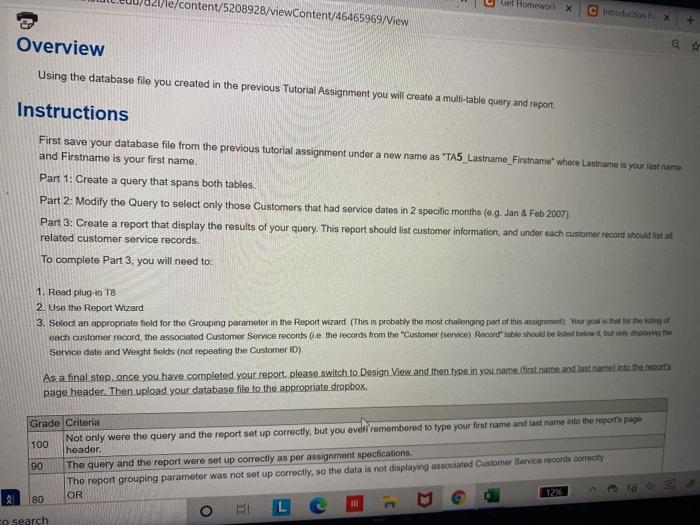
le/content/5208928/viewContent/46465969/View Get Homeworx C Introductions X Overview Using the database file you created in the previous Tutorial Assignment you will create a multi-table query and report Instructions First save your database file from the previous tutorial assignment under a new name as "TAS Lastname_Firstname where Lastrame is your last name and Firstname is your first name. Part 1: Create a query that spans both tables Part 2: Modify the Query to select only those Customers that had service dates in 2 specific months (0.9. Jan & Feb 2007) Part 3: Create a report that display the results of your query. This report should list customer information, and under each customer record should fit al related customer service records. To complete Part 3. you will need to: 1. Read plug-in T8 2. Use the Report Wizard 3. Select an appropriate field for the Grouping pararneter in the Report wizard (This is probably the most challenging part of this assignment Your ows that for the drug of each customer record, the associated Customer Service records ie the records from the Customer service) Record table should be listed below but only deping the Service date and Weight fields (not repeating the Customer ID) As a final step once you have completed your report, please switch to Design View and then type in you name (testrame and last name into the wors page header. Then upload your database file to the appropriate dropbox. Grade Criteria 100 Not only were the query and the report set up correctly, but you even remembered to type your first name and last name into the report page header 90 The query and the report were set up correctly as per assignment specfications The report grouping parameter was not set up correctly, so the data is not displaying associated Customer Service recorda COTOCH 80 OR 12% IN co search o le/content/5208928/viewContent/46465969/View Get Homeworx C Introductions X Overview Using the database file you created in the previous Tutorial Assignment you will create a multi-table query and report Instructions First save your database file from the previous tutorial assignment under a new name as "TAS Lastname_Firstname where Lastrame is your last name and Firstname is your first name. Part 1: Create a query that spans both tables Part 2: Modify the Query to select only those Customers that had service dates in 2 specific months (0.9. Jan & Feb 2007) Part 3: Create a report that display the results of your query. This report should list customer information, and under each customer record should fit al related customer service records. To complete Part 3. you will need to: 1. Read plug-in T8 2. Use the Report Wizard 3. Select an appropriate field for the Grouping pararneter in the Report wizard (This is probably the most challenging part of this assignment Your ows that for the drug of each customer record, the associated Customer Service records ie the records from the Customer service) Record table should be listed below but only deping the Service date and Weight fields (not repeating the Customer ID) As a final step once you have completed your report, please switch to Design View and then type in you name (testrame and last name into the wors page header. Then upload your database file to the appropriate dropbox. Grade Criteria 100 Not only were the query and the report set up correctly, but you even remembered to type your first name and last name into the report page header 90 The query and the report were set up correctly as per assignment specfications The report grouping parameter was not set up correctly, so the data is not displaying associated Customer Service recorda COTOCH 80 OR 12% IN co search o

Step by Step Solution

There are 3 Steps involved in it

1 Expert Approved Answer
Step: 1 Unlock blur-text-image

Question Has Been Solved by an Expert!

Get step-by-step solutions from verified subject matter experts

Step: 2 Unlock
Step: 3 Unlock

Students Have Also Explored These Related General Management Questions!