



Question: Link to the data if you need to see how the program works (look for specific sheet shown in instructions): https://docs.google.com/spreadsheets/d/1VQBeokg91Hje6DHZRLwfXBfr6BpxYbJJ7y9bfpoNs1w/edit?usp=sharing I NEED IN VBA
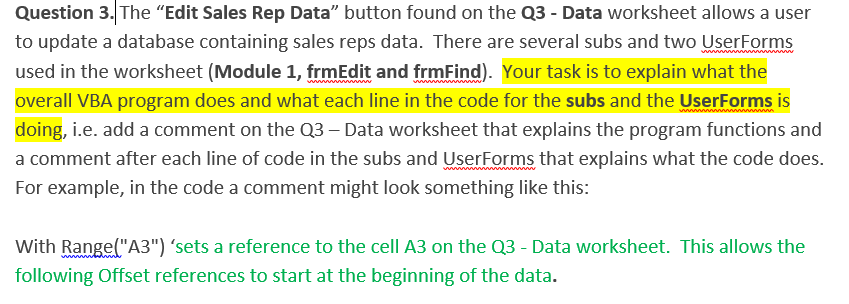
Link to the data if you need to see how the program works (look for specific sheet shown in instructions):
https://docs.google.com/spreadsheets/d/1VQBeokg91Hje6DHZRLwfXBfr6BpxYbJJ7y9bfpoNs1w/edit?usp=sharing
I NEED IN VBA EXCEL. VBA EXCEL. VBA EXCEL. VBA EXCEL MULTIFORM. I JUST COMMENTS LIKE THE ONE IN THE EXAMPLE TO EXPLAIN EVERY LINE OF THE CODE SUBS ABOUT WHAT THEY DO (GREEN EXAMPLE).
CODE 1:
Option Explicit
Private Sub btnCancel_Click() Unload Me End End Sub
Private Sub btnOK_Click() ' Do some error checking. The age and years boxes should both ' be numeric or blank. If Not ((IsNumeric(txtAge.Value) Or txtAge.Value = "") And _ (IsNumeric(txtYears.Value) Or txtYears.Value = "")) Then MsgBox "Enter numerical values (or leave blank) for Age and Yrs", _ vbExclamation, "Improper values" txtAge.SetFocus Exit Sub End If
' The entries are acceptable, so record them in variables. lNameNew = txtLName.Value fNameNew = txtFName.Value ageNew = txtAge.Value yearsNew = txtYears.Value Select Case True Case optMediocre.Value ratingNew = "Mediocre" Case optGood.Value ratingNew = "Good" Case Else ratingNew = "Outstanding" End Select ' A matter of taste. I like If-Then-Else when there are only two possibilities. If optMale Then genderNew = "Male" Else genderNew = "Female" End If Select Case True Case optEast.Value regionNew = "East" Case optMidwest.Value regionNew = "Midwest" Case optNortheast.Value regionNew = "Northeast" Case optSouth.Value regionNew = "South" Case Else regionNew = "West" End Select Unload Me End Sub
Private Sub UserForm_Initialize() ' By this time, the rep's characteristics have been saved in variables. ' Use these to initialize the userform. txtFName.Value = fName txtLName.Value = lName txtAge.Value = age txtYears = years Select Case rating Case "Mediocre" optMediocre.Value = True Case "Good" optGood.Value = True Case "Outstanding" optOutstanding.Value = True End Select If gender = "Male" Then optMale.Value = True Else optFemale.Value = True End If Select Case region Case "East" optEast.Value = True Case "Midwest" optMidwest.Value = True Case "Northeast" optNortheast.Value = True Case "South" optSouth.Value = True Case "West" optWest.Value = True End Select End Sub
CODE 2:
Option Explicit
Private Sub btnCancel_Click() Unload Me End End Sub
Private Sub btnOK_Click() ' Make sure there are entries in the boxes. If txtLName.Value = "" Or txtFName.Value = "" Then MsgBox "Enter a last and first name for the rep you want to find.", vbExclamation, _ "Rep name required" txtLName.SetFocus Exit Sub Else ' Store in public variables. lName = txtLName.Value fName = txtFName.Value End If Unload Me End Sub
Private Sub UserForm_Initialize() txtFName.Value = "" txtLName.Value = "" End Sub
CODE 3:
Option Explicit
Public lName As String, fName As String, age As Variant, years As Variant, region As String, _ gender As String, rating As String Public lNameNew As String, fNameNew As String, ageNew As Variant, yearsNew As Variant, regionNew As String, _ genderNew As String, ratingNew As String
Dim repIndex As Integer
Public Sub FindAndEdit() frmFind.Show Call FindRep Call GetRepFields frmEdit.Show Call EditRep End Sub
Public Sub FindRep() ' Look for the chosen rep. With Range("A3") repIndex = 1 Do Until (LCase(lName) = LCase(.Offset(repIndex, 0).Value) _ And LCase(fName) = LCase(.Offset(repIndex, 1).Value) _ Or .Offset(repIndex, 0).Value = "") repIndex = repIndex + 1 Loop
' Quit if no such rep is in the database. If .Offset(repIndex, 0).Value = "" Then MsgBox "There is no such rep, so no editing can occur.", vbInformation, _ "No such rep" End End If End With End Sub
Public Sub GetRepFields() ' Store this rep's characteristics in variables. With Range("A3").Offset(repIndex, 0) lName = .Value fName = .Offset(0, 1).Value gender = .Offset(0, 2).Value region = .Offset(0, 3).Value years = .Offset(0, 4).Value age = .Offset(0, 5).Value rating = .Offset(0, 6).Value End With End Sub
Public Sub EditRep() ' Replace the values in the Data sheet with those from the frmEdit form ' (if they are nonblank). With Range("A3").Offset(repIndex, 0) If lNameNew "" Then .Offset(0, 0).Value = lNameNew If fNameNew "" Then .Offset(0, 1).Value = fNameNew If regionNew "" Then .Offset(0, 3).Value = regionNew If yearsNew "" Then .Offset(0, 4).Value = yearsNew If ageNew "" Then .Offset(0, 5).Value = ageNew .Offset(0, 2).Value = genderNew .Offset(0, 6).Value = ratingNew End With Range("A2").Select End Sub
Sub GoToDataSheet() Worksheets("Q3 - Data").Activate Range("A2").Select End Sub
*****JUST RECOPY CODES THAT I PASTED OR GET THEM FROM LINK AND PROVIDE IT BACK TO ME IN THE SAME TEXT FORM WITH COMMENTS AS TO WHAT EACH LINE DOES ACCORDING TO THE INSTRUCTIONS**THANK YOU
Question 3. The "Edit Sales Rep Data" button found on the Q3 - Data worksheet allows a user to update a database containing sales reps data. There are several subs and two UserForms used in the worksheet (Module 1, frmEdit and frmFind). Your task is to explain what the overall VBA program does and what each line in the code for the subs and the UserForms is doing, i.e. add a comment on the Q3-Data worksheet that explains the program functions and a comment after each line of code in the subs and UserForms that explains what the code does For example, in the code a comment might look something like this: With Range("A3") sets a reference to the cell A3 on the Q3-Data worksheet. This allows the following Offset references to start at the beginning of the data
Step by Step Solution
There are 3 Steps involved in it

Get step-by-step solutions from verified subject matter experts