



Question: USING VBA This assignment requires 2 files (workbooks): vba_hwk7_Macro.xlsm and vba_hwk7_Data.xlsx. You are to create a macro that will be of assistance at the student
USING VBA
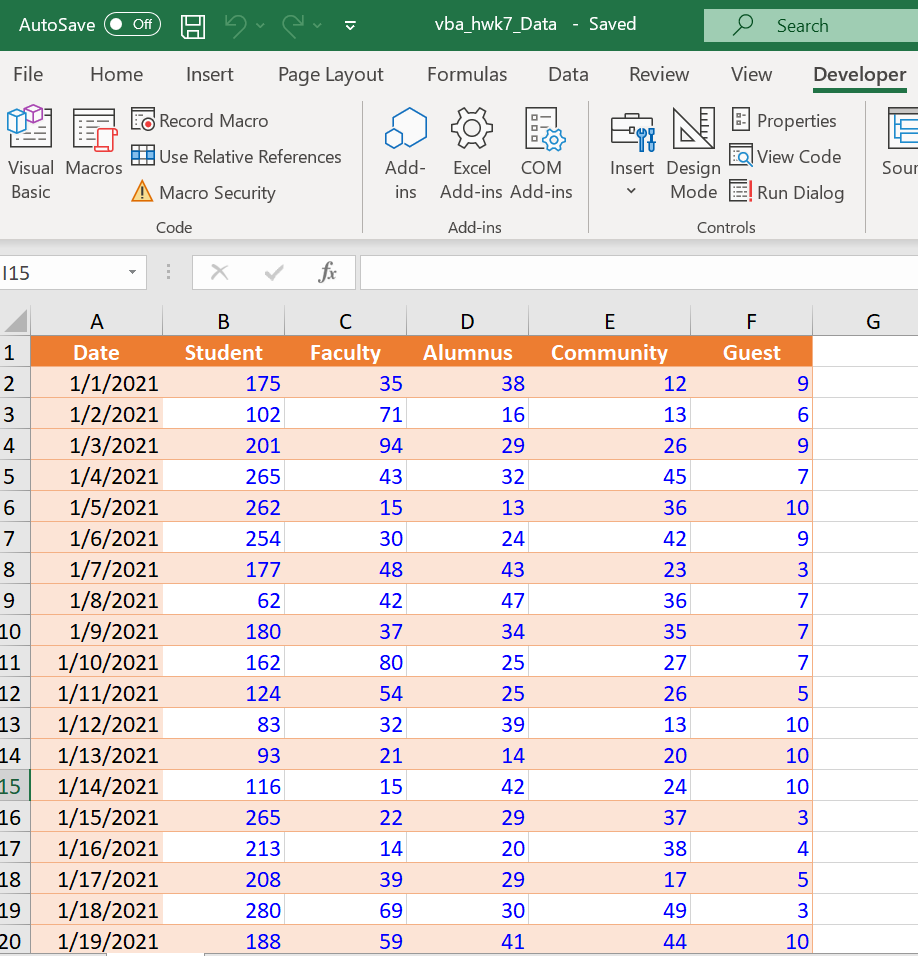
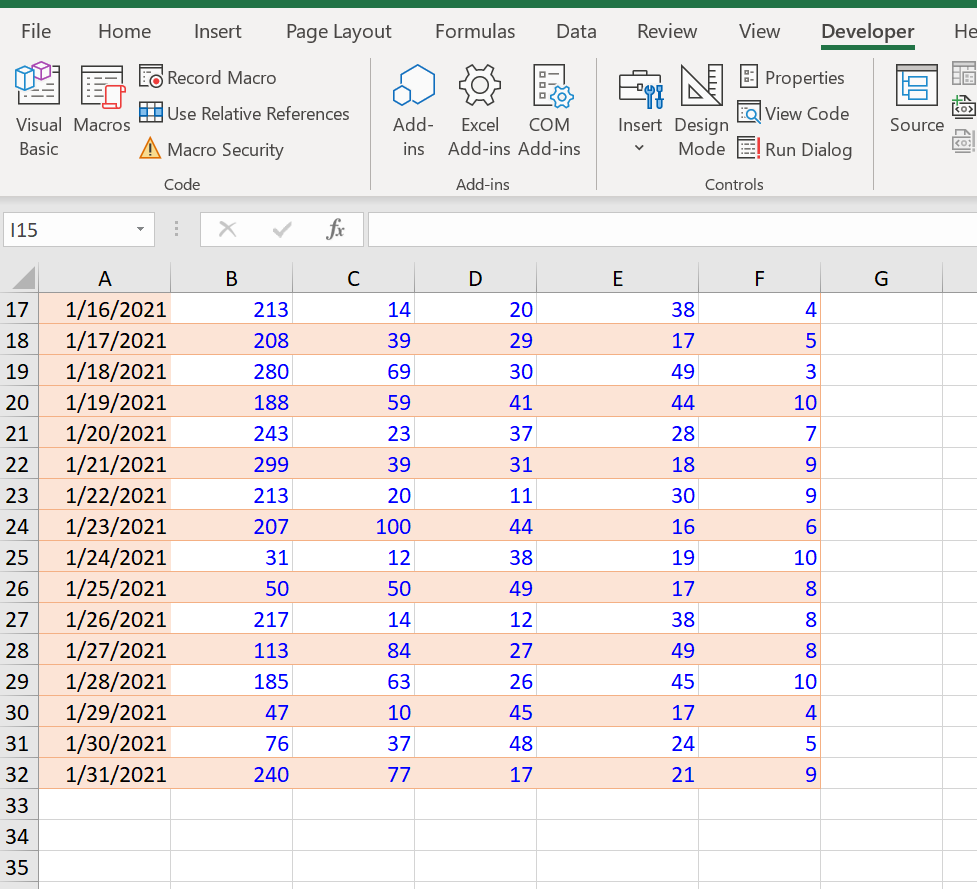
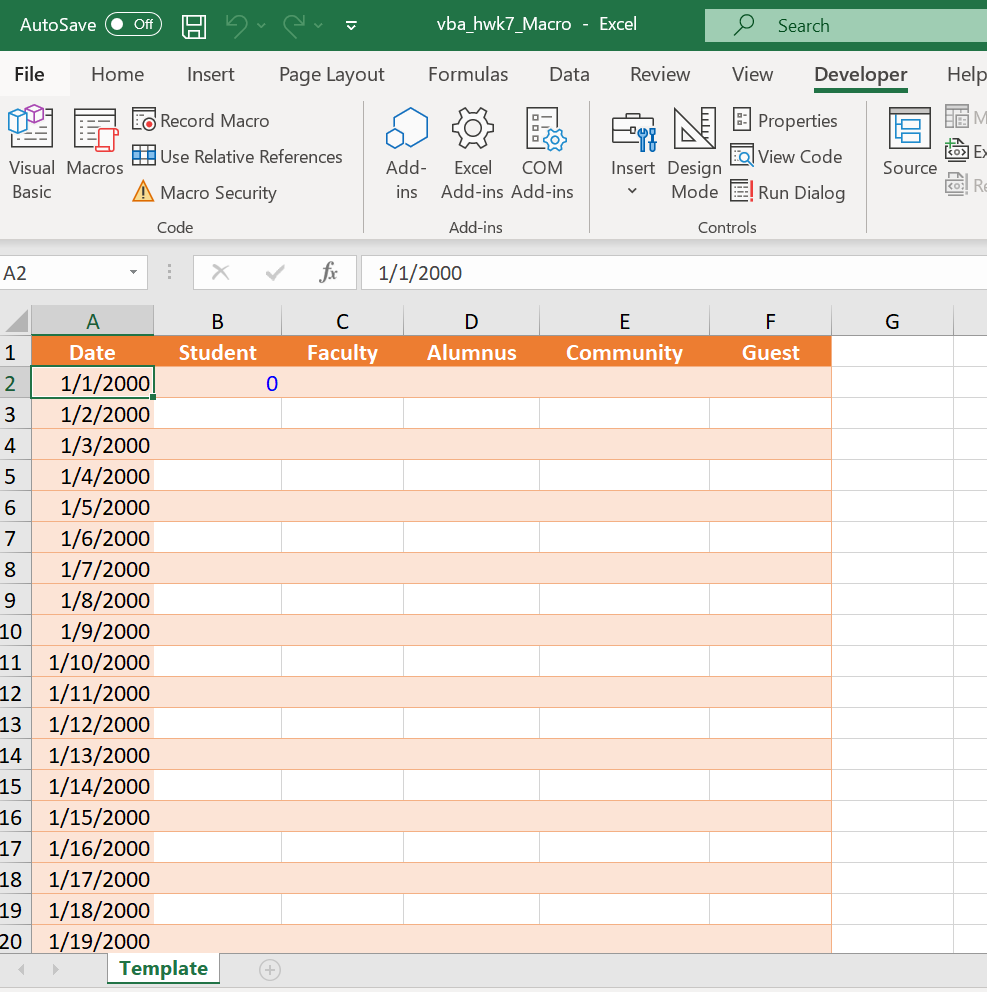
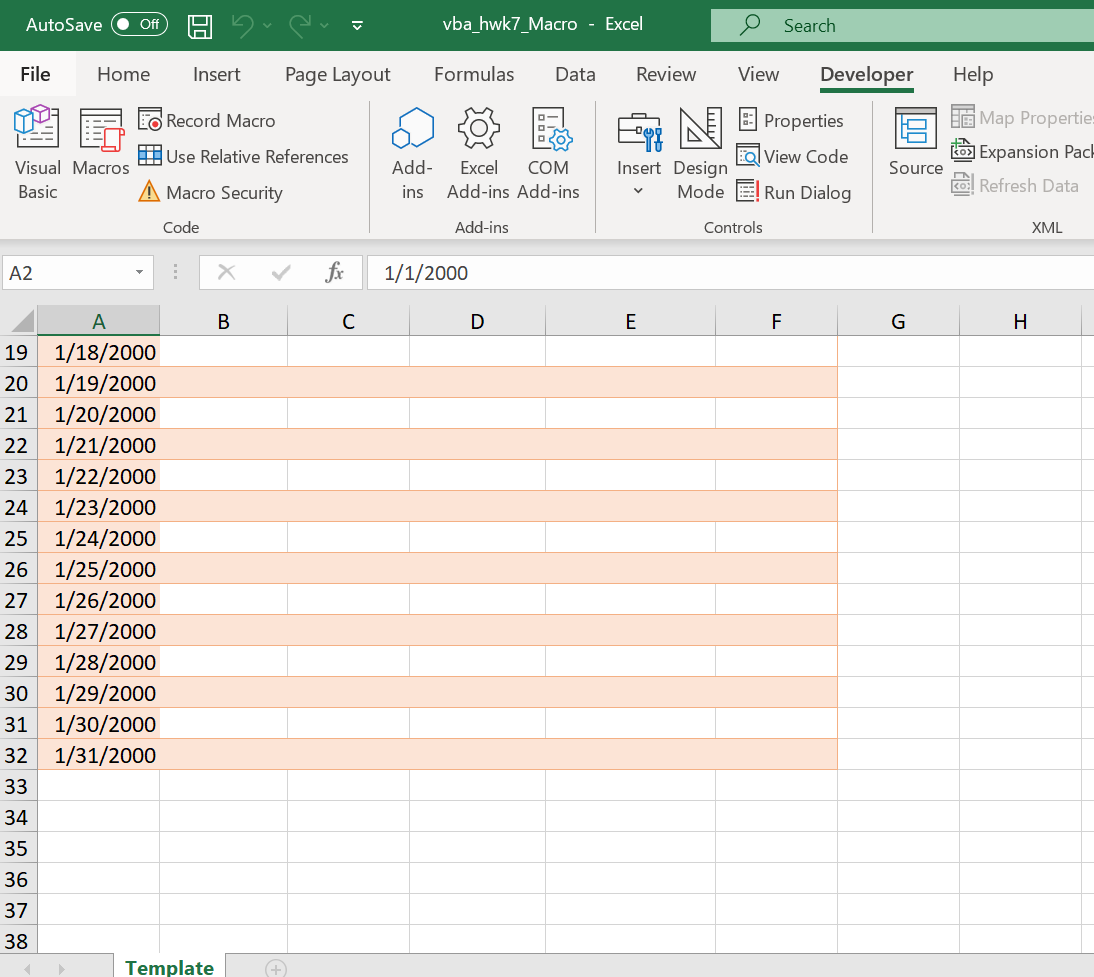
This assignment requires 2 files (workbooks): vba_hwk7_Macro.xlsm and vba_hwk7_Data.xlsx. You are to create a macro that will be of assistance at the student fitness facility. Arriving at the facility, a user shows his/her pass to the attendant at the desk. The assistant notes what kind of pass the user has and keeps count of the number of users of each type. You should look at the attached file, vba_hwk7_Data.xlsx, to see a worksheet completed for the month of January. This worksheet was created from the template in the other file, vba_hwk7_Macro.xlsm. Your macro will automate the process of using the template to create a similar sheet for February and will also work for the following months. The numbered lines below are pseudocode (looks something like code, but its not executable) for what your macro will do. I will suggest you paste these lines into your initial recorded macro as comments. '1.1 Ask user for starting date (Assumption is that this will be the 1st of the month) 'Determine needed information from starting date '1.2 Copy Template sheet from the macro workbook to the end of the data workbook '1.3 Fill in dates for the desired month '1.4 Clear the 3 rows following the last date of the month '1.5 Rename new sheet using the desired month '1.6 Select cell B2 on the new sheet 1. Record a Macro You will be recording a macro that will do Steps 1.2 - 1.6 above for February (Note: you will do Step 1.1 later in section 4). Following is a step-by-step instruction to do this job in Excel. After youve practiced it, you can record it. Hint: Be sure to open both vba_hwk7_Macro.xlsm and vba_hwk7_Data.xlsx, and to start your recording while the macro workbook is the active workbook. 1.2 Copy Template sheet from the macro workbook to the end of the data workbook 1.2.1 Select the template sheet in the macro workbook. Use your right mouse key on the tab to copy the worksheet to the end of the data workbook. Be sure to put a checkmark by Create a copy. 1.3 Fill in dates for the desired month IDS 331- Spring 2021 VBA Assignment 7 J. Hagstrom and Y. Chang, U. of Illinois Page 2 of 4 1.3.1 Select cell A2 on the new sheet in the data workbook. 1.3.2 Type in the date 2/1/2021. 1.3.3 While A2 is selected, in the Editing group on the Home tab, click on the Fill Series button. You will see the Fill Series dialog. 1.3.4 Look at the filled-in parts of the dialog and make sure those are correct, then type in 2/28/2021 as the Stop value, and click OK. 1.4 Clear the 3 rows following the last date of the month 1.4.1 Select the block A30:F32. 1.4.2 In the Editing group on the Home tab, select the Clear button, and Clear All. 1.5 Rename new sheet using the desired month 1.5.1 Select the tab of the worksheet and use your right mouse key to rename the worksheet February. 1.6 Select cell B2 on the new sheet 1.6.1 Select B2 After youve practiced this, you can record it. Before you start recording, be sure to delete the February worksheet from the data workbook. Start your recording while the macro workbook is the active workbook. After youve finished recording, save your macro file as a Macro-Enabled Workbook. Test your macro by running it. Before you test your new macro, be sure to delete the February sheet from the data workbook. Start your macro while the macro workbook is the active workbook. What happens if you start your macro while the data workbook is the active workbook? Excel wont find the template! 2 Examine the Macro and Compact It The second stage will be to examine your macro and remove unnecessary code. 2.1 Review Section 1 above. Then look at your macro and identify where Steps 1.2 through 1.6 occur. Put in blank lines to separate out these 5 steps. Paste in the pseudocode to label each step. You can paste in the pseudocode for 1.1 at the top as well. 2.2 Make a copy of your whole macro and put the copy in a new module. Rename the copied macro as vba_hwk7_a. In this copy, delete all unnecessary lines and remove any Select/Selections, except for the line that selects B2. 2.3 Test this new version. Before you run your new macro, be sure that you delete the February sheet from the data workbook. Start your macro while the macro workbook is the active workbook. When you know it works, save your macro file. IDS 331- Spring 2021 VBA Assignment 7 J. Hagstrom and Y. Chang, U. of Illinois Page 3 of 4 3 Remove Hard-Coded Workbook References You have a hard-coded reference to the data workbook. What if someone saves it under a new name? 3.1 Make a copy of the new macro and paste it onto a new module. Rename the copied macro as vba_hwk7_b 3.2 In your code you willsee a hard-coded reference to the data workbook. A good idea is to get rid of this by assuming that the data workbook will be the active workbook. Replace the hard-coded reference by a reference to ActiveWorkbook. 3.3 This means that you will now have to start the macro while the data workbook is active. You now need to make sure the template is copied from the macro workbook. To do this, add a reference to ThisWorkbook (always means the macros workbook) prior to the Sheets(Template), so that the template sheet will be found. For example: ThisWorkbook.Sheets (Template) 3.4 Test the macro. Before you test this macro, be sure to delete the February sheet from the data workbook. Start your macro while the data workbook is the active workbook. When you know it works, save your macro file. 4 Add Code to Handle User Input (Step 1.1) Now add code to perform Step 1.1. 4.1 Make a copy of your new macro and paste it onto a new module. Rename the copied macro as vba_hwk7_c 4.2 In the macro workbook, you will find a module named module0Dates. Study the macro there and run it. You will see that it uses a number of useful date functions, some of them belonging to VBA and some belonging to Excel. You will need to do these same things. 4.3 You can copy the module0Dates code into your macro. You of course dont need the Sub statement. Copy the Dim statements in at the beginning of your code. Copy the executable statements in right after the 1.1 comment. 4.4 Test your new macro. Before you test this macro, be sure to delete the February sheet from the data workbook. Start your macro while the data workbook is the active workbook. What you enter for the input box will not necessarily match what happens with the new worksheet. When you know it works, delete the Msgbox lines, run your macro one more time, and save your macro file. IDS 331- Spring 2021 VBA Assignment 7 J. Hagstrom and Y. Chang, U. of Illinois Page 4 of 4 5 Make Your Code Flexible Now, your code only works for February 2021. If you try to run it for, say, March 2021 or April 2021, you will find you have several errors. You will fix them as follows. 5.1 Make a copy of your new macro and paste it onto a new module. Rename the copied macro as vba_hwk7_d 5.2 Remove hard-coded references to dates. Use the date-related variables that have been created to remove such references. Make sure to fix the DateSeries method Stop argument value. 5.3 Test your new macro. Start your macro while the data workbook is the active workbook. Run it twice, using a February 2021 and a March 2021 start date (dont delete the February sheet). You should see a couple of things that are still wrong. Are the sheets in the right order? Does the March sheet have the right number of days? 5.4 Fix the order by changing the After argument of the Copy method. You might use the Count property belonging to the Sheets collection. 5.5 If you look at your code, youll see that you always clear two or more rows after the end of the month, no matter how many days there are in the month. A simple solution is to clear the same size block of cells, but make sure the first cell is after the last day of the month. Replace the hard-coded reference to A30:F32 by a reference to an anchor cell, say cell A2, and use the Offset property of a range, and possibly the Resize method as well. You will need to use one of your variables. 5.6 Test the macro, using two or more months. Start your macro while the data workbook is the active workbook. At this point, you can test your macro using any month of any year. Note: your macro should recognize that in a leap year, the month of February has 29 days. When you know it works, save your macro file and youre done!
vba_hwk7_Data.xlsx
 vba_hwk7_Macro.xlsm
AutoSave Off nu vba_hwk7_Data - Saved Search File Home Insert Page Layout Formulas Data Review View Developer Record Macro Use Relative References Macro Security Visual Macros Basic Sour Add- Excel COM ins Add-ins Add-ins B Properties Insert Design View Code Mode Run Dialog Controls Code Add-ins 115 fic B G Faculty 35 F Guest 1 2 3 9 D Alumnus 38 16 29 32 Student 175 102 201 265 262 6 E Community 12 13 26 45 36 42 71 94 43 4 9 7 5 6 15 13 10 254 30 24 9 7 8 43 3 48 42 23 36 47 7 A Date 1/1/2021 1/2/2021 1/3/2021 1/4/2021 1/5/2021 1/6/2021 1/7/2021 1/8/2021 1/9/2021 1/10/2021 1/11/2021 1/12/2021 1/13/2021 1/14/2021 1/15/2021 1/16/2021 1/17/2021 1/18/2021 1/19/2021 37 7 35 27 9 10 11 12 13 14 15 7 177 62 180 162 124 83 93 116 26 5 34 25 25 39 14 42 29 20 80 54 32 21 15 22 14 39 69 10 10 13 20 24 37 38 10 16 265 3 3 213 4 17 18 29 17 5 19 208 280 188 30 49 3 20 59 41 44 10 File Home Insert Page Layout Formulas Data Review View Developer He 1 Record Macro Properties HE N IKO View Code H. Use Relative References Visual Macros Basic A Macro Security Source Add- ins Excel COM Add-ins Add-ins Insert Design Mode ICO Run Dialog Code Add-ins Controls 115 fic A B C D E F G 17 213 14 20 38 208 39 29 17 280 30 49 69 59 23 188 243 299 44 41 37 31 o o s 10 Un A 28 18 39 20 11 18 19 20 21 22 23 24 25 26 27 28 29 30 16 100 6 1/16/2021 1/17/2021 1/18/2021 1/19/2021 1/20/2021 1/21/2021 1/22/2021 1/23/2021 1/24/2021 1/25/2021 1/26/2021 1/27/2021 1/28/2021 1/29/2021 1/30/2021 1/31/2021 19 10 213 207 31 50 217 113 17 8 12 50 14 84 8 44 38 49 12 27 26 45 48 17 38 49 8 185 63 45 10 10 17 4 30 31 47 76 240 5 37 77 24 21 9 32 33 34 35 AutoSave Off on vba_hwk7_Macro - Excel Search File Home Insert Page Layout Formulas Data Review View Developer Help EO Record Macro Properties LEM Use Relative References View Code Visual Macros Basic Add- ins A Macro Security Excel COM Add-ins Add-ins (o> E Source Rol R Insert Design Mode Run Dialog Code Add-ins Controls A2 fix 1/1/2000 G Faculty D Alumnus E Community F Guest A B 1 Date Student 2. 1/1/2000 0 3 1/2/2000 4 1/3/2000 5 1/4/2000 6 1/5/2000 7 1/6/2000 8 1/7/2000 9 1/8/2000 10 1/9/2000 11 1/10/2000 12 1/11/2000 13 1/12/2000 14 1/13/2000 15 1/14/2000 16 1/15/2000 17 1/16/2000 18 1/17/2000 19 1/18/2000 20 1/19/2000 Template AutoSave Off I Excel vba_hwk7_Macro Search File Home Insert Page Layout Formulas Data Review View Developer Help Lo Record Macro Visual Macros Use Relative References Basic A Macro Security Properties Lol View Code Insert Design Mode Run Dialog E Map Propertie (50) Expansion Pach Source ko! Refresh Data Add- ins Excel COM Add-ins Add-ins Code Add-ins Controls XML A2 fi 1/1/2000 B C D E F G I 19 20 21 22 23 24 25 A 1/18/2000 1/19/2000 1/20/2000 1/21/2000 1/22/2000 1/23/2000 1/24/2000 1/25/2000 1/26/2000 1/27/2000 1/28/2000 1/29/2000 1/30/2000 1/31/2000 26 27 28 29 30 31 32 33 34 35 36 37 38 Template + AutoSave Off nu vba_hwk7_Data - Saved Search File Home Insert Page Layout Formulas Data Review View Developer Record Macro Use Relative References Macro Security Visual Macros Basic Sour Add- Excel COM ins Add-ins Add-ins B Properties Insert Design View Code Mode Run Dialog Controls Code Add-ins 115 fic B G Faculty 35 F Guest 1 2 3 9 D Alumnus 38 16 29 32 Student 175 102 201 265 262 6 E Community 12 13 26 45 36 42 71 94 43 4 9 7 5 6 15 13 10 254 30 24 9 7 8 43 3 48 42 23 36 47 7 A Date 1/1/2021 1/2/2021 1/3/2021 1/4/2021 1/5/2021 1/6/2021 1/7/2021 1/8/2021 1/9/2021 1/10/2021 1/11/2021 1/12/2021 1/13/2021 1/14/2021 1/15/2021 1/16/2021 1/17/2021 1/18/2021 1/19/2021 37 7 35 27 9 10 11 12 13 14 15 7 177 62 180 162 124 83 93 116 26 5 34 25 25 39 14 42 29 20 80 54 32 21 15 22 14 39 69 10 10 13 20 24 37 38 10 16 265 3 3 213 4 17 18 29 17 5 19 208 280 188 30 49 3 20 59 41 44 10 File Home Insert Page Layout Formulas Data Review View Developer He 1 Record Macro Properties HE N IKO View Code H. Use Relative References Visual Macros Basic A Macro Security Source Add- ins Excel COM Add-ins Add-ins Insert Design Mode ICO Run Dialog Code Add-ins Controls 115 fic A B C D E F G 17 213 14 20 38 208 39 29 17 280 30 49 69 59 23 188 243 299 44 41 37 31 o o s 10 Un A 28 18 39 20 11 18 19 20 21 22 23 24 25 26 27 28 29 30 16 100 6 1/16/2021 1/17/2021 1/18/2021 1/19/2021 1/20/2021 1/21/2021 1/22/2021 1/23/2021 1/24/2021 1/25/2021 1/26/2021 1/27/2021 1/28/2021 1/29/2021 1/30/2021 1/31/2021 19 10 213 207 31 50 217 113 17 8 12 50 14 84 8 44 38 49 12 27 26 45 48 17 38 49 8 185 63 45 10 10 17 4 30 31 47 76 240 5 37 77 24 21 9 32 33 34 35 AutoSave Off on vba_hwk7_Macro - Excel Search File Home Insert Page Layout Formulas Data Review View Developer Help EO Record Macro Properties LEM Use Relative References View Code Visual Macros Basic Add- ins A Macro Security Excel COM Add-ins Add-ins (o> E Source Rol R Insert Design Mode Run Dialog Code Add-ins Controls A2 fix 1/1/2000 G Faculty D Alumnus E Community F Guest A B 1 Date Student 2. 1/1/2000 0 3 1/2/2000 4 1/3/2000 5 1/4/2000 6 1/5/2000 7 1/6/2000 8 1/7/2000 9 1/8/2000 10 1/9/2000 11 1/10/2000 12 1/11/2000 13 1/12/2000 14 1/13/2000 15 1/14/2000 16 1/15/2000 17 1/16/2000 18 1/17/2000 19 1/18/2000 20 1/19/2000 Template AutoSave Off I Excel vba_hwk7_Macro Search File Home Insert Page Layout Formulas Data Review View Developer Help Lo Record Macro Visual Macros Use Relative References Basic A Macro Security Properties Lol View Code Insert Design Mode Run Dialog E Map Propertie (50) Expansion Pach Source ko! Refresh Data Add- ins Excel COM Add-ins Add-ins Code Add-ins Controls XML A2 fi 1/1/2000 B C D E F G I 19 20 21 22 23 24 25 A 1/18/2000 1/19/2000 1/20/2000 1/21/2000 1/22/2000 1/23/2000 1/24/2000 1/25/2000 1/26/2000 1/27/2000 1/28/2000 1/29/2000 1/30/2000 1/31/2000 26 27 28 29 30 31 32 33 34 35 36 37 38 Template +
Step by Step Solution
There are 3 Steps involved in it

Get step-by-step solutions from verified subject matter experts