







Question: Linux While logged into your terminal as yourself: 1. Go to your home folder using a full absolute path reference. 2. Using a relative path
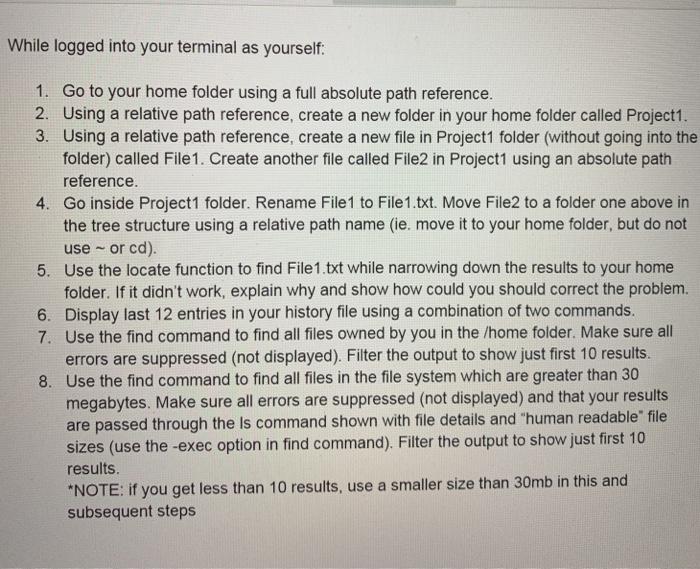
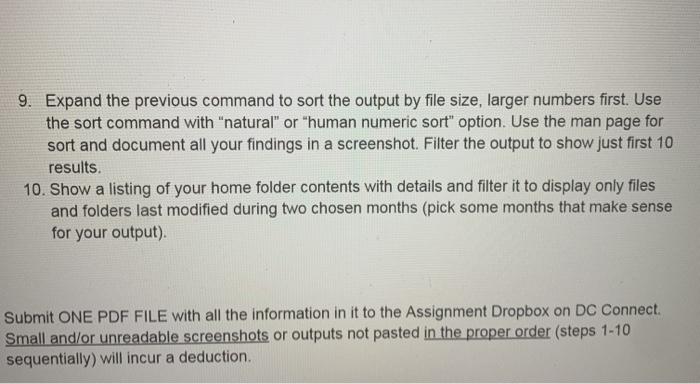
While logged into your terminal as yourself: 1. Go to your home folder using a full absolute path reference. 2. Using a relative path reference, create a new folder in your home folder called Project1. 3. Using a relative path reference, create a new file in Project1 folder (without going into the folder) called File 1. Create another file called File2 in Project1 using an absolute path reference. 4. Go inside Project1 folder. Rename File 1 to File 1.txt. Move File2 to a folder one above in the tree structure using a relative path name (ie, move it to your home folder, but do not use - or cd). 5. Use the locate function to find File 1.txt while narrowing down the results to your home folder. If it didn't work, explain why and show how could you should correct the problem. 6. Display last 12 entries in your history file using a combination of two commands. 7. Use the find command to find all files owned by you in the /home folder. Make sure all errors are suppressed (not displayed). Filter the output to show just first 10 results. 8. Use the find command to find all files in the file system which are greater than 30 megabytes. Make sure all errors are suppressed (not displayed) and that your results are passed through the is command shown with file details and "human readable" file sizes (use the -exec option in find command). Filter the output to show just first 10 results. *NOTE: if you get less than 10 results, use a smaller size than 30mb in this and subsequent steps 9. Expand the previous command to sort the output by file size, larger numbers first. Use the sort command with "natural" or "human numeric sort" option. Use the man page for sort and document all your findings in a screenshot. Filter the output to show just first 10 results 10. Show a listing of your home folder contents with details and filter it to display only files and folders last modified during two chosen months (pick some months that make sense for your output) Submit ONE PDF FILE with all the information in it to the Assignment Dropbox on DC Connect Small and/or unreadable screenshots or outputs not pasted in the proper order (steps 1-10 sequentially) will incur a deduction
Step by Step Solution
There are 3 Steps involved in it

Get step-by-step solutions from verified subject matter experts
 Study Help