







Question: make a form based on the Products data with a Category combo box (created without the wizard, call it FORMO1 2. make a MainForm/SubForm
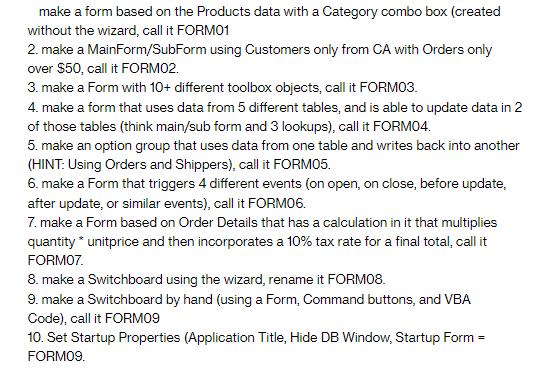
make a form based on the Products data with a Category combo box (created without the wizard, call it FORMO1 2. make a MainForm/SubForm using Customers only from CA with Orders only over $50, call it FORMO2. 3. make a Form with 10+ different toolbox objects, call it FORM03. 4. make a form that uses data from 5 different tables, and is able to update data in 2 of those tables (think main/sub form and 3 lookups), call it FORMO4. 5. make an option group that uses data from one table and writes back into another (HINT: Using Orders and Shippers), call it FORMO5. 6. make a Form that triggers 4 different events (on open, on close, before update, after update, or similar events), call it FORMO6. 7. make a Form based on Order Details that has a calculation in it that multiplies quantity* unitprice and then incorporates a 10% tax rate for a final total, call it FORMO7. 8. make a Switchboard using the wizard, rename it FORM08. 9. make a Switchboard by hand (using a Form, Command buttons, and VBA Code), call it FORM09 10. Set Startup Properties (Application Title, Hide DB Window, Startup Form FORM09. =
Step by Step Solution
3.39 Rating (161 Votes )
There are 3 Steps involved in it
Here is the step by step procedure to create forms using Microsoft Access To create FORM01 a Create a new form in design view b Add a combo box to the form by selecting it from the toolbox c Set the R... View full answer

Get step-by-step solutions from verified subject matter experts
 Study Help