







Question: Mark the steps as checked when you complete them. Open the start file EX 2 0 2 1 - ChallengeYourself - 1 - 4 .
Mark the steps as checked when you complete them.
Open the start file EXChallengeYourself The start file will be renamed automatically to include your name. Change the file name if directed to do so by your instructor and save it
If the workbook opens in Protected View, enable editing so you can make changes to the workbook.
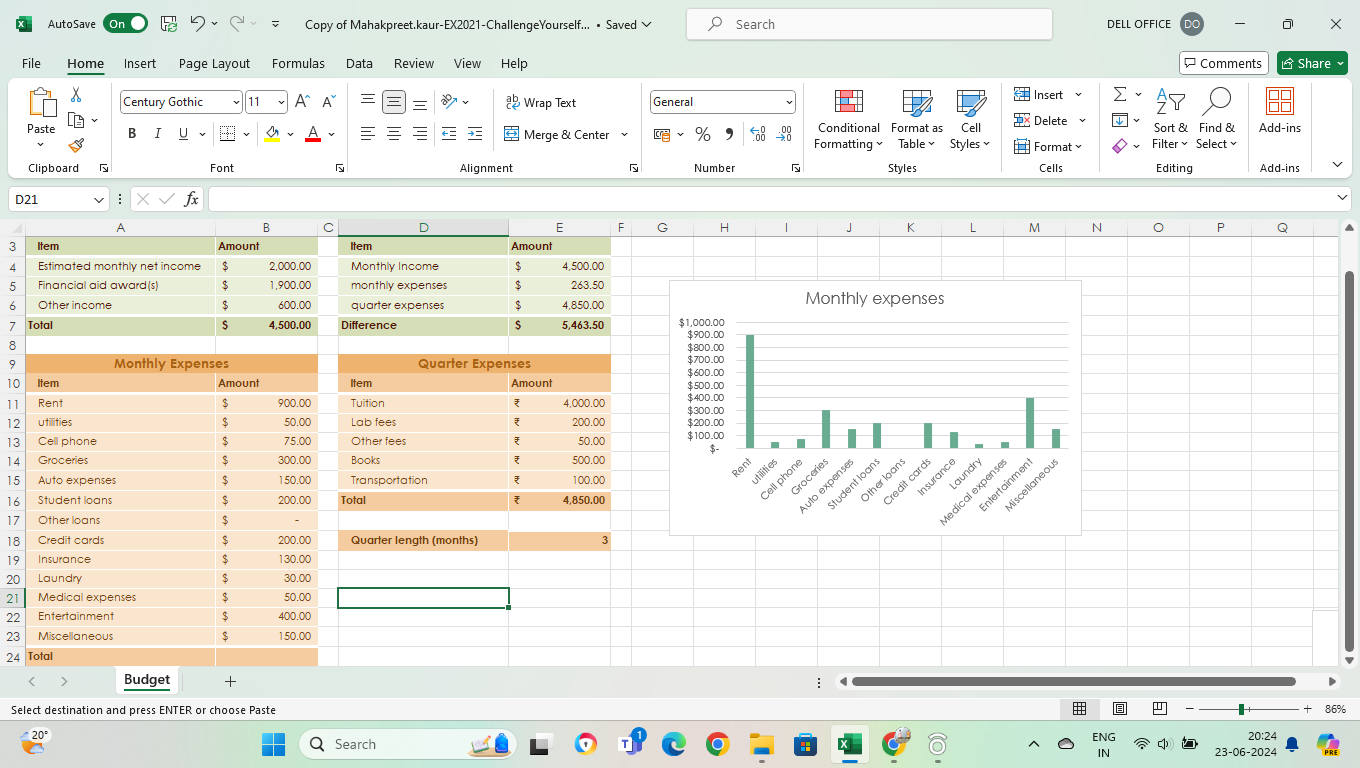
Make the following changes to the Budget worksheet:
Change the Electric item to Utilities cell A
Change the Insurance value from to cell B
Update the text in cell D to: Quarter expenses
The worksheet is missing formulas to calculate totals. Enter formulas using the SUM function to calculate the following totals. Use any of the methods you learned in this chapter.
Enter a formula in cell B to calculate the total monthly income.
Enter a formula in cell B to calculate the total monthly expenses.
Enter a formula in cell E to calculate the total quarter expenses.
Use the status bar to verify that the formula is calculating the correct total for each cell range.
Cell E displays the number of months in the quarter. Change the number format in this cell to the Number format with no numbers showing after the decimal so the number appears as instead of $
The number format in the Quarter Expenses section does not match the number format in the other sections of the worksheet. Change the number format for cells E:E to the Accounting Number Format.
Review the formulas in the Discretionary Income section.
Cells E:E should contain references to the cells where you just entered the formulas to calculate totals. Add the appropriate formula to cell E to reference the value in cell Ethe total quarter expenses
The quarter is three months long, so the formulas in cells E and E should multiply the total monthly income and total monthly expenses by three. Correct the formulas in cells E and E Use an absolute reference to the value in cell Ethe number of months in the quarter
Use spelling checker to find and correct any spelling errors in the Budget Hint: There is one spelling error on this worksheet.
Use the Recommended Charts feature to insert a clustered column chart representing the monthly expenses. Select cells A:B for the chart data.
Change the chart title to: Monthly Expenses
Save the workbook. Do not close it or exit Excel.
Create a new file from a template called Personal Expenses Calculator. If you do not see this template, search for it using the search phrase personal expenses. NOTE: If you are unable to find the Personal Expenses Calculator template or are unable to complete this step due to your school's computer lab restrictions, download the template from the Resources link. Open the template and move on to step
Explore the worksheets in this workbook.
If you think you might like to come back to this workbook later for your personal use, this is a good point to save it Be sure not to close the file. Use the file name: Your InitialsPersonalExpenses
You should still have two workbooks open: the college budget workbook from the beginning of the project and the personal expenses workbook based on the template. Arrange the workbooks so you can see both at the same time.
Try different arrangements until you find the one that works best for you.
Practice moving back and forth between the two workbooks.
Make the personal budget workbook active and navigate to the Dashboard worksheet. Modify the zoom to
Save and close the EXChallengeYourself file. If you made changes to the personal budget workbook and you plan to continue using it be sure to save the changes and then close it
Upload and save your EXChallengeYourself project file.
Submit project for grading.
Step by Step Solution
There are 3 Steps involved in it
1 Expert Approved Answer
Step: 1 Unlock

Question Has Been Solved by an Expert!
Get step-by-step solutions from verified subject matter experts
Step: 2 Unlock
Step: 3 Unlock
 Study Help