





Question: Microsoft Excel - BEDMAS (6 MARKS) Create a new worksheet (NOT A NEW FILE) by clicking the + button beside the worksheet alpa in the
Microsoft Excel - BEDMAS (6 MARKS) Create a new
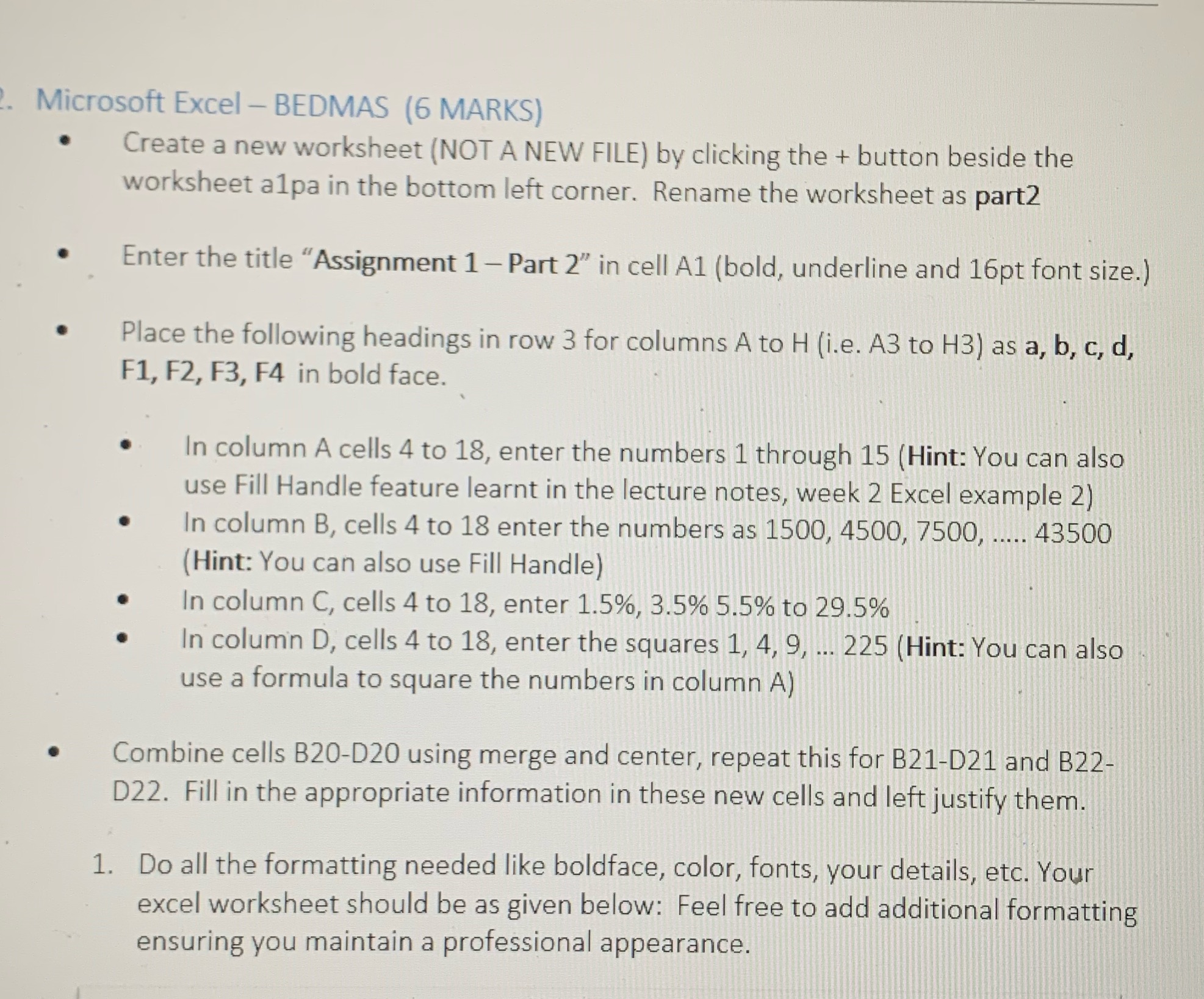
Microsoft Excel - BEDMAS (6 MARKS) Create a new worksheet (NOT A NEW FILE) by clicking the + button beside the worksheet alpa in the bottom left corner. Rename the worksheet as part2 Enter the title "Assignment 1 -Part 2" in cell Al (bold, underline and 16pt font size.) Place the following headings in row 3 for columns A to H (i.e. A3 to H3) as a, b, c, d, F1, F2, F3, F4 in bold face. In column A cells 4 to 18, enter the numbers 1 through 15 ( Hint: You can also use Fill Handle feature learnt in the lecture notes, week 2 Excel example 2) In column B, cells 4 to 18 enter the numbers as 1500, 4500, 7500, ..... 43500 (Hint: You can also use Fill Handle) In column C, cells 4 to 18, enter 1.5%, 3.5% 5.5% to 29.5% In column D, cells 4 to 18, enter the squares 1, 4, 9, ... 225 (Hint: You can also use a formula to square the numbers in column A) Combine cells B20-D20 using merge and center, repeat this for B21-D21 and B22- D22. Fill in the appropriate information in these new cells and left justify them. 1. Do all the formatting needed like boldface, color, fonts, your details, etc. Your excel worksheet should be as given below: Feel free to add additional formatting ensuring you maintain a professional appearance

Step by Step Solution

There are 3 Steps involved in it

1 Expert Approved Answer
Step: 1 Unlock blur-text-image

Question Has Been Solved by an Expert!

Get step-by-step solutions from verified subject matter experts

Step: 2 Unlock
Step: 3 Unlock

Students Have Also Explored These Related Mathematics Questions!